

OneDrive error 429 means the service is throttling requests, so stop repeated retries and let the sync client wait. When Synology Cloud Sync fails immediately after sign-in, update the package and check authentication as well.
Waiting won't fix every case. One owner's connection failed for several days until Synology repaired how the task retried authentication. Waiting alone hadn't helped their setup.
In this guide
1. Stop retrying and read the complete error
Open Cloud Sync in DiskStation Manager (DSM), your NAS's management interface. Select the affected OneDrive connection and note whether it fails during account setup or while transferring files.
Note the full error and when it appeared. 429, The request has been throttled, and activityLimitReached identify the response in the original case. A password rejection or an invalid-account message needs a different account check.
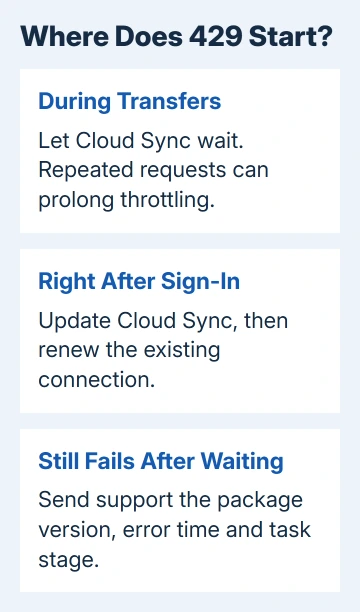
Don't keep clicking through connection setup. Microsoft's throttling guidance explains that requests made during throttling still count toward usage, so repeated attempts can delay recovery.
When a response includes Retry-After, the client should wait that many seconds before retrying. Cloud Sync handles those requests itself; this isn't a number you need to enter into the OneDrive desktop app.
If the job starts transferring again after a pause, the throttle was temporary. A connection that returns the error immediately every time, including after a long break, needs the package and authentication checks next.
2. Update Cloud Sync before rebuilding the connection
In DSM, open Package Center and find Cloud Sync. Install an offered update for that package, then open it again. Updating DSM and updating a package are separate operations.
Choose the package offered for that NAS model and DSM release. Don't install an old build just because a discussion mentions it. The Cloud Sync release notes list different builds for different supported systems.
Those notes include fixes for OneDrive throttling and authentication. The April 2025 notes for 2.7.2 include a OneDrive re-authentication repair. That's why your Cloud Sync version matters even when OneDrive sends the error.
After updating, retry the affected connection once and watch its status. After sign-in succeeds, the task should move past account authorization and begin comparing or transferring files.
The 2018 owner report doesn't name the build that repaired their connection. I'd use the current compatible package instead of reconstructing that old installation. Continue with authentication if the updated package still stops at sign-in.
3. Reconnect an existing task without changing its folders
Select the affected connection in Cloud Sync's left panel. On DSM 7, open Manage and use its authentication option to renew the account connection.
On DSM 6, use Overview > Manage > Edit connection. The connection help describes renewing expired or revoked authorization through that control.
Sign in using the address associated with the library you want to sync. Work or school OneDrive and personal OneDrive are separate storage accounts, even when their names are familiar.
Before changing an existing task, record its local folder, remote folder and sync direction. A two-way task and an upload-only task don't handle changes the same way, so keep those choices intact during a connection repair.
Once authorized, check that Cloud Sync returns to the same account and folder pairing. Open a familiar cloud document from your computer and compare it with the local NAS copy before resuming a large transfer.
If no task was created because the initial authorization failed, there won't be an existing connection to edit. Try setup again after updating, using the intended account and original folder pairing.
Being able to sign in through a browser doesn't mean Cloud Sync can connect. The app still needs its own authorization to reach your account. Tell support which sign-in worked and which one failed.
4. Reduce competing sync work when transfers trigger 429
When authorization succeeds and the error starts during a large transfer, review other programs using that work account. Backup tools, migrations and other sync jobs can all send requests to the same service.
Pause optional competing jobs through their normal controls, then let the affected task retry. Ask your administrator before pausing a company backup or migration. The aim is fewer simultaneous requests, not a different password.
The SharePoint throttling guidance covers OneDrive for Business too. Requests from both the app and the wider organization can contribute to throttling.
A small file count on your computer doesn't tell you how many requests the sync tool is making. Comparing folders, checking changes and retrying failures also involve requests. Note when the error begins, not just the uploaded file count.
Check progress after the workload drops. If transfers resume and keep moving, leave the job running without repeatedly restarting it. If 429 returns immediately at authorization, take the connection failure to support instead.
5. Send a persistent authentication failure to Synology
In the original owner discussion, repeated attempts on different days didn't help. The final reply confirmed that Synology resolved an authentication problem by adding a retry after credentials were entered.
When you contact support, ask them to check whether this Cloud Sync build handles the OneDrive authentication response and retries correctly. It doesn't mean every 429 is caused by that old bug.
Open a Synology support ticket with the NAS model, DSM version, Cloud Sync version, account type, error time and task stage. Include the full error and say whether updating and renewing the connection changed it.
For a work account with failures across several clients, involve the Microsoft 365 administrator as well. Ask them to check service health and other applications using the affected OneDrive library.
Keep local files in place while support checks the connection. Use your computer to work with the cloud copy when needed, and keep track of any newer NAS edits so they aren't overwritten when syncing resumes.
For ordinary desktop transfers after access returns, the OneDrive sync checks cover names and paths that block individual files. The OneDrive account sign-in guide addresses a separate desktop login failure.
The Short Version
Let a temporary 429 throttle recover without repeated requests. For Cloud Sync failures at sign-in, update the package and renew its connection. Persistent failures need a ticket with the exact task stage and error time.
Checked November 17, 2026.
 If you have any business, I can build it online






