

Windows can receive OneDrive policies while OneDrive stays signed out and Desktop, Documents, and Pictures stay put. Check the work account's sign-in first. Account setup must finish before the folder-move policy can work.
If the settings aren't reaching Windows at all, check Group Policy delivery instead. These are separate failures, and a policy shown as Enabled doesn't mean the OneDrive action has completed.
In this guide
1. Finish the account sign-in before retrying folder backup
Open OneDrive from Start on the affected PC. If it shows Set up OneDrive, enter the employee's work email address and complete the required sign-in. Use an account from the Microsoft 365 organization named in the policy.
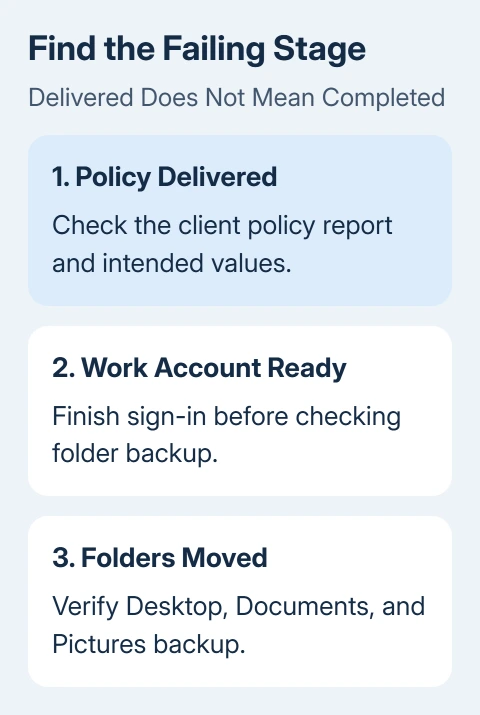
Check the work account in OneDrive's Settings > Account. A personal OneDrive account doesn't satisfy a policy configured for your organization's tenant ID. The tenant ID identifies the Microsoft 365 organization that owns the work account.
Microsoft's current silent account configuration guidance says silent setup won't work for users who require multifactor authentication. Conditional Access rules that demand interaction can also stop the silent sign-in flow.
Complete interactive sign-in when required. Don't remove multifactor authentication just to make deployment silent. Once signed in, check whether folder backup proceeds or still fails.
An owner in the original report confirmed that the prompted folder-move option worked while its silent options didn't. That gave users a way to finish the backup, but it didn't make automatic sign-in work.
If interactive setup also fails, stop changing folder-move settings. Resolve that account's sign-in error first. The OneDrive sign-in troubleshooting guide covers the user's app-level checks.
2. Confirm that Windows received the intended policy
In an administrator Command Prompt on a test PC, run gpupdate /force to refresh domain policy. Note any error instead of assuming the refresh succeeded. Then use gpresult /h C:\Users\Public\onedrive-policy.html to create a policy report.
Open the report locally and check the computer policies and OneDrive settings. Check that the intended GPO appears and that the policy applies to this PC. Use an administrator account authorized to read the computer results.
If the GPO is absent, check its link, organizational unit, filtering, and any reported policy-processing error. The OneDrive app can't act on settings that Windows never received. Fix delivery before reinstalling the client.
If the policy has the intended values, check what OneDrive needs next. The owner already had matching registry values and Resultant Set of Policy results, yet OneDrive still didn't sign in or move the folders automatically.
Keep the generated report inside your organization. It can contain account, domain, and policy information. Share it through your helpdesk's approved route if someone else needs to review the configuration.
For an Intune-only deployment, check the assigned configuration profile and its device status rather than expecting a domain GPO report to describe that deployment. Use the tool that matches how your organization manages the PC.
3. Verify the Windows identity and OneDrive policy names
Silent setup works on PCs joined to Microsoft Entra, including supported hybrid joins that connect the PC to both local Active Directory and Entra. Joining only a local Active Directory domain doesn't meet that requirement.
Have the identity administrator check the join status and Windows user's work account. A successful browser login under another account doesn't show that Windows can sign in to OneDrive automatically with the required account details.
Check the policy Silently sign in users to the OneDrive sync app with their Windows credentials. The 2018 report calls it Silently configure OneDrive using the primary Windows account. Both names concern sign-in, not folder movement.
The matching registry value for the PC is SilentAccountConfig under HKLM\SOFTWARE\Policies\Microsoft\OneDrive. A value of 1 enables it. Check the value to confirm delivery; make changes through your organization's PC management system.
If your editor lacks the expected policies, use the current OneDrive administrative templates. The ADMX file defines policies; the language ADML file supplies their displayed text. Keep their versions matched in the domain Central Store.
Check that the OneDrive sync app runs after the user signs in to Windows. If OneDrive never starts, receiving the policy won't get files syncing on its own. Ask the deployment team to correct the app's installation or startup configuration.
4. Check folder movement as its own operation
Inspect Silently move Windows known folders to OneDrive and verify its tenant ID. Check whether it targets all three folders or a selected set. A correctly enabled sign-in policy doesn't choose or move those folders by itself.
The folder-move policy stores the tenant string in KFMSilentOptIn under the same OneDrive machine-policy key. Compare it with the organization shown by the signed-in work account. Don't substitute a domain name for the tenant ID.
Use Prompt users to move Windows known folders to OneDrive as the companion policy when appropriate. If the silent move fails, the prompt lets the user see and address a problem instead of leaving the failed action invisible.
The OneDrive settings guide explains the user-facing folder backup controls. On the affected client, check the backup state and actual folder location rather than assuming that a GPO checkmark means the files moved.
If your organization already redirects these folders to another location, review the supported migration plan before changing it. Emptying Documents failed in the owner report; don't ask users to remove their files to test this.
If the move already completed, changing the folder-selection policy doesn't automatically move that folder back. Treat any rollback as a separate planned change and preserve the files throughout it.
5. Review previous setup state on a test client
OneDrive records a completed silent setup in the user's registry. A previously configured user or a deployment image built after successful setup can therefore behave differently from a fresh test user.
The documented completion value is SilentBusinessConfigCompleted under HKCU\Software\Microsoft\OneDrive. Inspect previous setup history before assuming a repeat deployment will set up the account again.
I'd test policy changes with a fresh user on one managed client first. That gives you a clearer comparison than repeatedly changing settings on a profile that has already linked and unlinked accounts.
For image preparation or a controlled retest, follow the full documented state-reset procedure. Don't delete the entire OneDrive registry branch on production clients. The procedure lists several values and explains when to clear them.
Ask Microsoft 365 business support to review a continuing failure. Send the policy report, join state, app version, tenant comparison, sign-in result, and backup error. Name the failing stage: policy delivery, sign-in, or folder backup.
The Short Version
Separate policy delivery, work-account sign-in, and folder movement. Complete required interactive authentication, confirm the device identity and tenant ID, then check the folder-move result. Escalate with the report and the failing stage.
Checked November 16, 2026.
 If you have any business, I can build it online






