

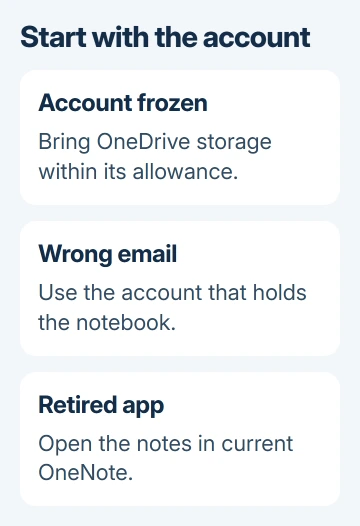
Frozen OneDrive storage or the wrong account can trigger OneNote error 0xE0001075. Check the notebook's account online first: Windows 10 owners restored access after correcting those problems.
The app name matters now, too. OneNote for Windows 10 is retired and read-only. Recover access to your existing notes, then use the current OneNote app for editing and syncing rather than reinstalling the retired version.
In this guide
1. Check OneDrive for an account frozen message
Visit OneDrive online. Use your notebook account's full email address to sign in. Read any message shown before opening files. If the account is frozen, you'll need to fix that online. Repairing the Windows app won't unlock it.
Look for Account frozen or a storage warning. One owner in the original error thread reported that their account was frozen, and the accepted reply described restoring access through OneDrive. That's why I'd check storage first.
Microsoft's frozen-account instructions explain how to regain access. Free up space or increase your storage allowance through the storage options your account offers.
Before deleting files to free space, save a copy of important material elsewhere. Deleting a notebook isn't a sensible way to repair access to that same notebook. Review other large files and the storage details instead.
Storage changes may need 24 hours to take effect. Still frozen after 48 hours? Follow that page's support route. Have your full email address ready and note when you brought storage back within the limit.
When OneDrive opens normally again, open your notebook online. Seeing your files is a good start, but seeing the expected notebook and its pages confirms you've reached the notes you're trying to recover.
Without a frozen-account warning, compare the accounts next. The same error has also appeared on PCs connected to the wrong email address.
2. Match the account to the notebook
Check the complete email address in the browser's account menu. Personal, work and school accounts can all be signed in on one computer. Compare their email addresses, even when the display names match.
In desktop OneNote, open File > Account and compare the signed-in address. In the retired app, the account controls are under Settings > Accounts. Note which account holds your missing notebook.
Another owner discovered that their app was connected to a different email address. They recovered access after resetting the app and signing in with the correct address. Start by correcting the account without clearing local notes.
Add the missing account through OneNote's account controls. In desktop OneNote, choose File > Open and select its notebook. A newly created notebook with the same name won't contain your original notes.
If someone shared the notebook with you, use the address that received access. The owner's address tells you where it lives, but your own invited account is the one that should open it.
For an actual access-denied message, the OneNote permission checks cover account blocks and sharing rights. That's a different next step from repeatedly signing into an unrelated personal account.
Once the correct account opens the notebook online, check the Windows app again. If it still shows 0xE0001075 despite successful browser access, follow the app checks next. Leave the notebook's sharing settings alone.
3. Replace OneNote for Windows 10 with current OneNote
Read the app's complete name in Start. OneNote for Windows 10 and OneNote are separate apps. The desktop app has a File menu; the retired Windows 10 app doesn't.
Support for OneNote for Windows 10 ended on October 14, 2025. Existing notes remain available for viewing and export, but editing and syncing are no longer supported. A sign-in repair won't bring those features back to it.
Install current OneNote through Microsoft Store, or launch your Microsoft 365 desktop copy. Use the account you checked online, then choose File > Open to open your existing notebook.
Keep the old app available until you've compared the pages. Check a recent page, an attachment you need, and any notes made while the connection was failing. The online notebook can be older than the copy displayed locally.
If recent notes are missing online, save a copy before removing the old app. Copy readable notes to a safe document or use its available export or migration controls. Don't assume an error-free sign-in means every page has transferred.
A notebook absent from the new app's list can still exist in OneDrive. The missing notebook guide explains reopening an existing notebook and recovering deleted material when reopening isn't enough.
4. Check whether the current app can sync
In current OneNote, open the recovered notebook and choose File > Info > View Sync Status. Select Sync Now for that notebook. Read any remaining error rather than dismissing the status window.
Make a recognizable edit on a test page, then check it online after syncing finishes. That checks whether your Windows app's changes reach the online notebook. Reading pages already saved on the PC doesn't tell you whether syncing works.
Write down any new code that replaces 0xE0001075. Permissions, storage and section damage need different repairs. Keep the original code for support, but follow the error currently on screen.
I'd leave app resets until the account and online notebook are working. Resetting can erase the app's local data. That could include the only recent copy of your notes.
If only the desktop app fails, use OneNote's Help support options and explain both results: the notebook opens online, but this Windows app can't sync it. Include the app name, version and full error text.
If the notebook won't open online either, ask Microsoft support for personal accounts, or IT for an organization account, to check storage and notebook access. Say whether this affects one notebook or all of them.
The Short Version
Resolve frozen OneDrive storage, match the notebook account, and open it in current OneNote. Preserve unsynced notes before resetting anything. Account repairs won't restore editing to the retired Windows 10 app.
Checked November 22, 2026.
 If you have any business, I can build it online






