

A OneNote notebook showing as a OneDrive link can still contain all your pages. Open it through OneNote's account list or its browser view. If the browser sends it to the wrong app, change the Windows default app for OneNote links.
One owner restored desktop access by changing that default in the original OneNote 2016 thread. When the invited account also can't open it online, check sharing permissions instead.
In this guide
1. Open the notebook through OneNote's account list
Open the current Windows OneNote desktop app and choose File > Open. Under Open from OneDrive, look for the account that holds your notebook and select its name. Previously opened notebooks can also appear under Recent Notebooks.
This opens your cloud notebook through OneNote's own account connection. Looking for a notebook file in your PC's OneDrive folder can send you back to the same link. Opening it that way may not open the cloud notebook in OneNote.
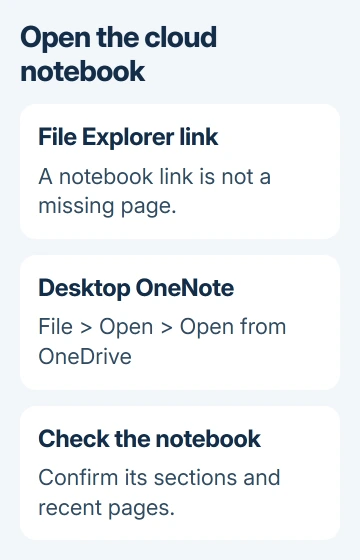
Check the first few sections and a recent page when the notebook opens. The name alone isn't enough if you have several accounts or notebooks with similar names. Keep working in the notebook that contains your existing notes.
Microsoft's notebook opening instructions list the OneDrive account and Recent Notebooks routes. If the expected account isn't listed, add that account to OneNote before looking again.
The 2018 report described a hyperlink and a .one.stub item instead of a file that OneNote 2016 could open. Changing the file filter to show everything didn't solve it. Don't rename the stub to .one or build a new notebook over it.
If the notebook opens from the account list, the local link doesn't need repairing. If it isn't listed there, try opening it in the browser next. That lets you check access before sending it to the desktop app.
2. Open the real notebook online, then choose the desktop app
Visit OneDrive online using the notebook account's email address. For a notebook shared by someone else, use the account they invited. Open the notebook itself and check that its sections and pages are visible.
In OneNote for the web, choose Open in Desktop App, or Open in OneNote if that's the label shown. Approve the browser's request to open the installed app. That tells the browser to open the notebook in an app on your PC.
If nothing opens, check whether the browser is waiting for that permission. An unanswered browser permission prompt can stop the handoff before OneNote even launches. Note whether the browser stops here or OneNote launches and then fails.
If the wrong OneNote app opens, continue with the default-app steps. If the correct app opens but asks for a different account, sign in with the address that successfully opened the notebook online.
If the browser itself says you don't have permission, ask the owner to check access for your exact email address. Changing Windows' default app won't fix missing notebook permissions.
For that case, follow the OneNote permission repair steps. Check browser access before changing how links open on the PC. Successful online access means the existing sharing permissions work; leave those alone.
3. Change the OneNote link default in Windows
Windows can keep an older OneNote app as the program that receives notebook links. That's why a notebook can open online but fail when you send it to the desktop, especially on a PC with two OneNote versions installed.
On Windows 11, open Settings > Apps > Default apps. Select OneNote from the listed apps to review its defaults. Review its file and link types, particularly the ONENOTE link type, and choose current desktop OneNote.
If you use the search field for a file or link type, search for ONENOTE and select the matching link entry. Choose OneNote, then confirm the choice. The file and link types listed for the app can differ between installations.
On Windows 10, open Settings > Apps > Default apps > Set defaults by app. Select the desktop OneNote entry and choose Manage. Change the listed OneNote associations that still point to the other version.
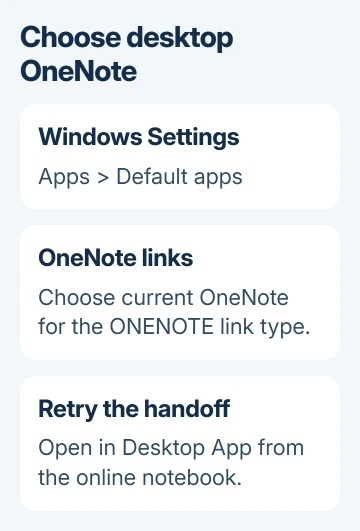
Older Windows 10 instructions may begin under System > Apps; later builds put Apps directly in Settings. Go directly to Default apps if that older System submenu isn't present.
Try opening the notebook in the desktop app again from its browser page. The correct app should open that notebook and show its existing sections. Changing the default doesn't move or copy the notebook's stored pages.
The original owner confirmed that changing the default worked. Their notebook opened online and then opened in OneNote 2016 on the laptop. Changing the default sent the link to the right app; it didn't recover a deleted notebook file.
4. Choose current OneNote instead of the retired app
The old thread used OneNote 2016 and the separate Windows 10 app. Current advice is to use OneNote, the supported desktop app with a File menu. The retired Windows 10 app only lets you read existing notes.
If the default-app list offers only OneNote for Windows 10, install current OneNote from Microsoft Store or the app package included with Microsoft 365. Open it once, sign in, and check its notebook list before retrying the browser handoff.
Don't uninstall the older app while it may hold recent notes that never synced. Compare its latest pages with the notebook online, and save a copy of any missing notes before removing app data or changing installations.
I'd keep both windows available during that comparison. Compare recent page titles while the old copy is readable. Resetting it first could remove the data you need to compare.
A notebook that's simply absent from the desktop list may only need reopening. The missing notebook guide covers that situation and recovery when sections or the notebook really were deleted.
When the notebook still won't open in the desktop app
Record whether browser access works, which app opens from the link, and the exact desktop error. Include the Windows version and OneNote version from File > Account > About OneNote when contacting support.
Ask workplace or school IT to check the invited account and the handling of OneNote links. For a personal notebook, use OneNote's support options and mention that it opens successfully online.
If the installed app remains absent from Windows' default choices, ask support whether Windows recognizes it as an app for OneNote links. Use Windows' default-app settings instead of editing link settings in the registry by hand.
The Short Version
Open the cloud notebook from File > Open or its browser view. If the browser hands it to the wrong app, change OneNote's defaults in Windows. A local link or stub isn't a reason to rename files, recreate the notebook or remove sharing.
Checked November 22, 2026.
 If you have any business, I can build it online






