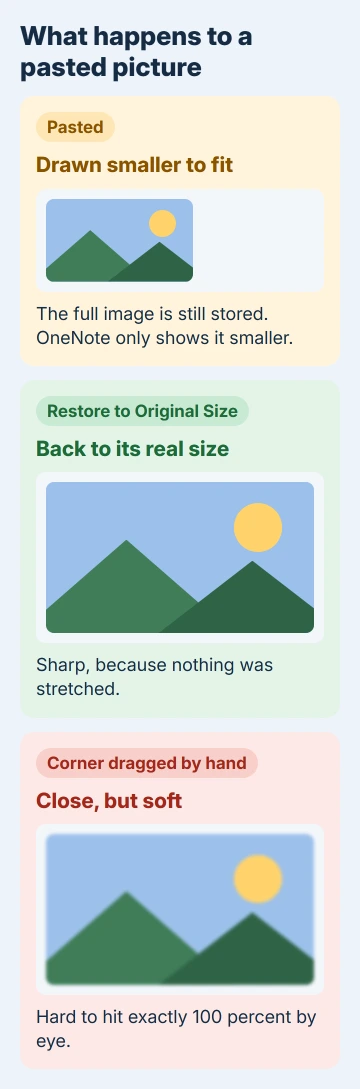
OneNote shrinks a big pasted picture to fit the page area. Right-click the image and choose Restore to Original Size, and it goes back to its real pixel size, sharp, without the blur you get from dragging a corner.
No setting turns the shrinking off, though owners have asked for one since OneNote 2010. A quick zoom check tells you whether a picture really did shrink, and if you paste a lot, you can restore several at once.
In this guide
Why OneNote makes your pictures smaller
OneNote fits a wide pasted image to the space on the page, so a full-screen screenshot or big photo arrives smaller than it is. Even modest screenshots get caught: one owner pasting about a hundred an hour saw them shrink too.
The full picture is still in the note. OneNote only draws it smaller, which is why the restore command brings it back at full sharpness rather than stretching a small copy.
Dragging a corner handle back out is what costs you quality. It's hard to hit exactly 100 percent by eye, so the picture stays a little scaled and soft. That's what happened to the asker who first raised this.
Paint shrinks pasted screenshots too, but for a different reason, with a separate fix for screenshots smaller when pasted.
1. Right-click the picture and restore its size
On Windows, right-click the picture and choose Restore to Original Size. It's on that menu in OneNote 2010, 2013 and 2016, and in today's OneNote for Microsoft 365.
On a Mac, Control-click the picture and pick the same command; Microsoft's OneNote for Mac picture steps show it on that menu.
The picture snaps to its true size straight away. That's all a single picture needs.
A wide screenshot may now run past the window's right edge. Scroll across to see the rest; OneNote pages grow to fit what's on them, so nothing gets cropped.
If it still looks small after restoring, check the zoom next (fix 3), because a zoomed-out page makes everything look shrunk.
2. Restore a batch of pictures together
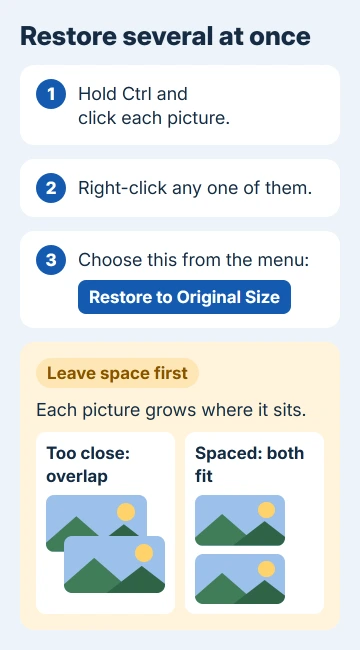
One click per picture gets old fast when you paste dozens. Hold Ctrl, click each picture so they're all selected, then right-click any one of them and choose Restore to Original Size. Every selected picture changes at once.
One owner hit a catch with stacks of screenshots: each picture grows in place, so pictures pasted close together end up on top of each other. Leave a gap between them when you paste, or drag them apart afterward.
I'd restore each batch right after pasting it, not hours later. A few pictures are easy to space out; a long page of overlapping screenshots isn't.
3. Check the zoom before you resize anything
A page that's zoomed out makes every picture look shrunk, text included. On the View tab, click 100% in the Zoom group and look again.
If the picture looks right at 100 percent, it was never resized and needs no restoring. If the text looks normal but the picture is still small, OneNote did scale it on paste, and fix 1 is your answer.
Zoom only changes what you see on your own screen. It doesn't change the size a picture prints at, or the size other people see when they open the same page.
4. Attach the original file when full size matters
For anything you'll print or pass on later, like a scan, a photo or a detailed diagram, keep the original file in the note as well. Choose Insert > File Attachment, pick the image and choose Attach File if OneNote asks.
OneNote stores the file untouched and shows an icon on the page. Double-clicking the icon opens it in your usual image viewer at its full size, whatever has happened to the pasted copy.
The pasted picture is for reading in your notes. The attachment is the master copy, so it's the one to send when someone needs the real thing.
5. Use a macro when you paste dozens a day
If you paste screenshots all day, it's clicking each picture in turn that hurts. Onetastic, an add-in for desktop OneNote on Windows, runs small macros, and an adviser pointed owners to one that selects every image on a page.
Run that macro, right-click any selected picture and choose Restore to Original Size, and the whole page is done in one go. The overlap catch from fix 2 still applies, so space the pictures out first.
Onetastic is a third-party tool rather than part of Office, so it won't help on a Mac or in OneNote on the web. On a work PC, check with IT before installing any add-in.
If restoring doesn't fix it
Can't see Restore to Original Size at all? Check which OneNote you're in. These steps are for desktop OneNote, the app covered in how to use OneNote on Windows, and its Mac version.
Open the page in desktop OneNote, restore the pictures there, and the new size syncs to your other devices with the notebook.
A picture that's still blurry after restoring was low resolution to begin with. Restoring shows it at the size it was captured and can't add detail that was never there, so take the screenshot again with the window larger.
If you want a real off switch, ask for one through Help > Feedback in OneNote and explain how pasted pictures shrink. That's how requests reach the OneNote team, and this one has been asked for since 2011.
The Short Version
OneNote shrinks big pasted pictures to fit the page, and no setting stops it. Right-click the picture (Control-click on a Mac) and choose Restore to Original Size, or select several with Ctrl and restore them together.
Check View > 100% before restoring, attach originals you'll print, and try a Onetastic macro if you paste dozens a day.
Checked November 20, 2026.
 If you have any business, I can build it online