

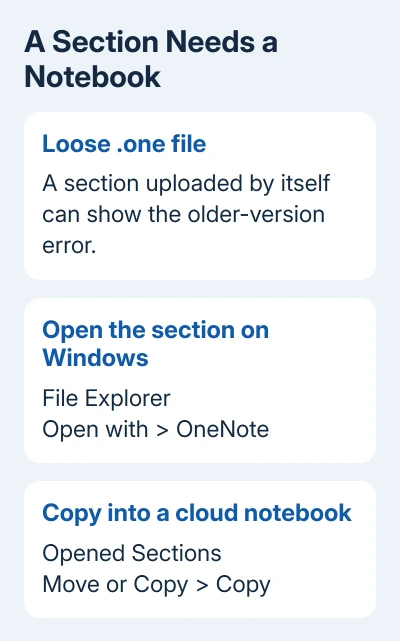
OneNote can reject a loose .one section on SharePoint or OneDrive with a misleading older-version error. Create a cloud notebook, then use Windows OneNote to copy the separate section file into it.
For SharePoint Document Sets that generate .one files from templates, the process needs to create cloud notebooks instead. Repeating the upload or creating another Document Set from the same template won't change that format.
In this guide
1. Tell a notebook apart from an uploaded section
Look at the item that won't open in the document library. Is it an actual notebook, or a file whose name ends in .one? A recently generated section file isn't automatically a web notebook just because it is stored on SharePoint.
Microsoft's browser compatibility page lists unsupported notebook formats, including OneNote 2003 or 2007 .one files and OneNote packages ending in .onepkg.
The file extension alone doesn't tell you when a section was written. In the reported case, new Document Sets produced files that failed while older items still opened. That difference led the asker to suspect a recent app limit.
The same error appeared in the discussion when files created on a computer were uploaded to the library. Its Document Set template was producing section files, rather than the cloud notebooks the browser could open.
If the item is already a normal cloud notebook and the browser shows an access-denied message, use the OneNote permission checks instead. The steps here address the older-version error, rather than sharing permissions.
2. Open the original notes in Windows OneNote
Keep the original files until the cloud copy opens and its pages have been checked. Use the installed OneNote for Windows application that has a File tab. You'll need the Windows app for these steps, rather than the phone app or browser.
For a standalone section, use the older-version error repair:
- Sign in at onedrive.com with your OneNote account. Choose + New > OneNote notebook, enter a name and select Create.
- In the new browser notebook, select Open in Desktop App. Keep that notebook open in Windows OneNote.
- Open File Explorer, find the original .one file, right-click it and choose Open with > OneNote. Select the desktop OneNote app, rather than OneNote for Windows 10.
- Find the section under Opened Sections. Right-click its section tab and select Move or Copy.
- Select the new notebook, then choose Copy. Repeat for any other standalone sections and let the notebook sync.
Check the copied sections online before removing any originals. This puts their content inside a notebook the browser can open. For SharePoint, section 4 explains how to create a team notebook in the right library.
If the source is a .onepkg package, follow the Windows unpacking steps first. A package holds notebook content, but the web editor can't open it as a notebook.
If the file won't open on your computer, deal with that before trying another upload. Request another export or a notebook sharing link from the sender if the source is incomplete, damaged or unavailable to your account.
I'd recover a readable source first, then create the cloud notebook. Changing browser settings won't convert a file that the browser doesn't support, and repeated uploads leave several competing copies to sort through.
3. Use cloud saving for a complete local notebook
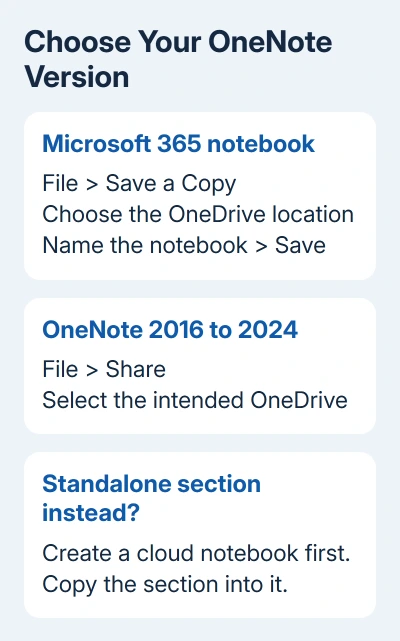
For a complete local notebook rather than a standalone section, choose the steps for your desktop version. The current move-to-OneDrive instructions separate Microsoft 365 from OneNote 2016 through 2024.
For OneNote for Microsoft 365:
- Select the notebook you want to put in the cloud.
- Choose File > Save a Copy.
- Select a recently used OneDrive folder, or choose Browse to find the intended OneDrive location.
- Enter the notebook name and select Save.
For OneNote 2016, 2021 or 2024, open the notebook and choose File > Share, then select the OneDrive where it belongs. If a sharing dialog appears, add the intended people or close it to keep the notebook private.
The older OneNote 2016 reply described File > Share, selecting a location, naming the notebook and using Move. Use the commands your installed version shows rather than looking indefinitely for a button from the 2019 screenshot.
These commands let OneNote save the notebook in the form it needs for cloud access. Copying the notebook folder or section files with a general upload button isn't the same operation.
After the cloud save finishes, use that account to view the resulting web notebook. Check the sections and a few pages, including recent edits. Seeing the item in the library isn't enough. Open its pages and confirm they're readable.
4. Replace the Document Set's file-template workflow
The original problem involved a SharePoint Document Set with two .one templates. Every new Document Set created those files automatically. The asker needed this to work repeatedly for many users, not just move one notebook by hand.
Moving a notebook by hand didn't fix that automatic process. The later replies also tried packages, which opened in the desktop client rather than providing the expected browser notebook.
For a new team notebook, use the supported desktop creation route: File > New > Sites > Browse. Go to the SharePoint document library, enter a Notebook Name, and select Create.
Microsoft's SharePoint notebook instructions require read/write permission on the site. If Sites is missing, look for the team's name or SharePoint logo, and ask the administrator to check permissions.
Ask the library administrator to replace the default section files with a process that creates real notebooks. Renaming a template won't change its file format.
Creating a notebook manually gives the team a supported destination. It doesn't repair the old template automation or explain why every older item behaved differently; the thread ended without a confirmed explanation for those older files.
Take a reproducible example to the SharePoint administrator
Give IT the item type, template configuration and complete error. Supply a working notebook alongside a newly generated file that fails, so the administrator can compare them.
For a notebook that still fails after the supported save, have the Microsoft 365 administrator request support. Report whether desktop OneNote opens it, and say whether the error mentions an unsupported format or denied access.
The Short Version
Copy loose sections into a cloud notebook using Windows OneNote. For a complete local notebook, use its cloud-saving controls instead. Check the result online, and have IT replace Document Set templates that generate unsupported files.
Checked November 22, 2026.
 If you have any business, I can build it online






