Organize Samsung apps with an alphabetical Apps screen and a few Home screen folders. Drag one app onto another to make a folder. To change the Apps screen's order, open its Sort menu.
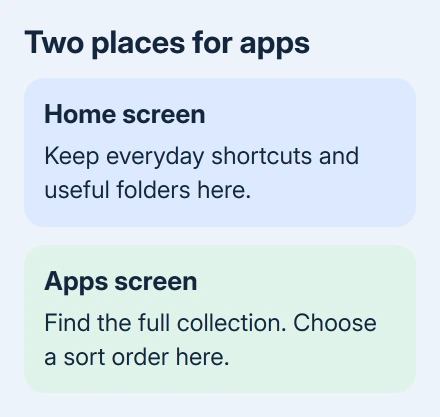
The Home screen and Apps screen are separate spaces. Choose which one you want to tidy before moving icons, so you don't spend time rearranging the wrong view.
In this guide
Start with the screen you actually use
The Home screen is the page you return to when leaving an app. The Apps screen holds your installed apps when the phone uses the usual separate-screen layout. Swipe up from Home to open it.
Put frequent choices on Home and use the Apps screen to find everything else. A work folder, a travel folder, and a few individual favorites can be easier to use than several pages of loosely grouped icons.
I'd organize by what you do rather than by the company that made each app. Keeping maps, transport, and tickets together is useful when you're heading out, even though those apps come from different developers.
These steps describe the Samsung Home app. Screens vary by One UI version, phone, and carrier; a different Home app can have different menus even on the same Galaxy.
Put the Apps screen in alphabetical order
Open the Apps screen, tap More options (the three dots), then Sort. Choose Alphabetical order to let the phone arrange the list by name. This is useful when you remember an app's name but not its current page.
Choose Custom order if you'd rather put the apps in your own order. Decide between these approaches before spending time arranging the whole Apps screen, because alphabetical sorting chooses the order for you.
Sorting the Apps screen doesn't rearrange your Home screen shortcuts. Return Home and check where you normally open that app; the sorting change applies to the Apps screen.
Samsung explains both choices in its app organization instructions. If the menu looks different, check the phone's software version and whether Samsung Home is the Home app in use.
Make a folder for apps used together
On either the Home screen or Apps screen, touch and hold one app. Drag it onto another app you want in the same group, then release it. The phone creates a folder containing those apps.
Open the folder and give it a short name that describes its purpose. A name such as Travel tells you what you'll find inside without needing to remember each icon. Use the folder's color control if color helps you recognize it.
To add several more apps, open the folder, tap Add apps to folder (the plus sign), select the apps, and tap Done. That saves you dragging each extra app across pages one at a time.
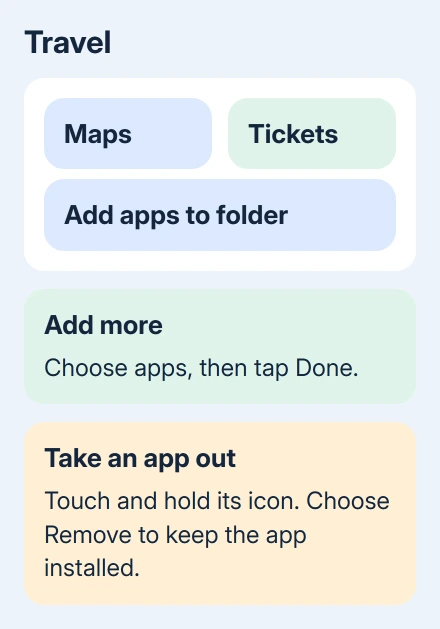
Make the folder on the screen where you need it. A Home screen folder is useful for quick access; a folder on the Apps screen groups the full app list. Check both views if you're unsure where you created it.
Keep the grouping small enough that the name still describes its contents. A folder that mixes every unused app with your daily apps takes more searching than a simple alphabetical list.
Move a folder or take one app out
Touch and hold the folder, then drag it to the position you want on the Home or Apps screen. If the apps already belong together, move the folder as a group instead of taking it apart and rebuilding it elsewhere.
To take an app out of its folder, open the folder, touch and hold that app, and tap Remove. The app leaves the folder without being deleted from the phone, and returns to its original Home or Apps screen location.
Read the menu before confirming: Remove here takes an app out of the folder, while Uninstall deletes the app. The Android removal controls cover uninstalling or disabling it.
If an app doesn't appear where expected, use Apps screen search to look for its name. You can open the app from the search result while you check whether its icon was moved or hidden.
For an app hidden through Home screen settings, the Galaxy hidden-app instructions explain the separate visibility setting. Moving folders doesn't undo that setting.
Close empty gaps when the menu offers that option
On software that offers it, open the Apps screen's More options menu and select Clean up pages. Confirm with OK. The command fills empty gaps left among the Apps screen icons.
This is useful after moving several apps into folders. Empty spaces can make the collection look more spread out than it needs to be, even though the number of installed apps hasn't changed.
Use the option only if it appears on your version. If it isn't offered, alphabetical sorting gives you another way to keep the app list in a predictable order; resetting the phone isn't needed to find a missing menu item.
Choose a separate Apps screen or Home screen only
Open Settings > Home screen > Home screen layout. Choose Home screen only if you want apps on Home pages instead of keeping a separate full Apps screen, then tap Apply.
In that layout, swipe left and right through Home pages to reach the apps. Swiping up can show suggested apps and search rather than the separate app collection you expected. That's how the Home screen only layout works.
For the separate-screen arrangement, choose Home and Apps screens when that option is offered. If you want a visible Apps button too, open Settings > Home screen and enable Show Apps screen button on Home screen.
If two copies of a messaging app are making the layout confusing, check whether one was created by Samsung Dual Messenger. Those copies can represent separate accounts, so identify them before removing either one.
When the phone won't keep the arrangement
Check whether the problem is in Samsung Home or another Home app, and whether you are changing Home icons or the Apps screen order. Note which menu setting changes back after you leave it.
Open Samsung Members > Support, or contact Samsung Support with your model number and One UI release. Explain whether a folder disappears, an icon moves, or the sort choice changes; each needs different help.
The Short Version
Sort the Apps screen for a predictable list, create folders by dragging one app onto another, and keep your daily choices on Home. Use Remove to take an app out of a folder without uninstalling it.
Checked November 10, 2026.