

Outlook 2016 can stop dragging emails with a mouse after a Windows update even though touch or pen dragging still works.
For a work Exchange mailbox, switching Cached Exchange Mode off and back on helped one owner, but other owners reported no improvement.
Use the Move command to handle mail first, then check the Windows version and account type. The old Windows 10 Anniversary Update fault differs from a later Windows 11 24H2 issue with a published Windows fix.
In this guide
1. Move the message without dragging
Select a message in classic Outlook and choose Home > Move > Other Folder. Select the destination folder and choose OK. Check that the message appears there before trying a group of important emails.
This lets you keep filing messages while the mouse gesture is broken. It also tells you whether only dragging is broken or the folder or account rejects the move too.
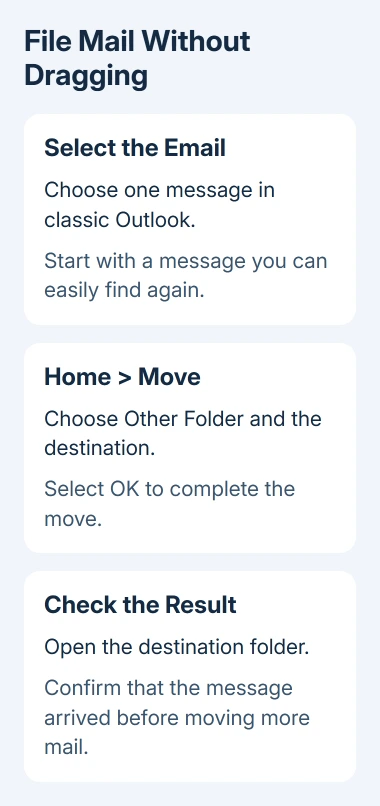
If the command fails too, record its error. A permission problem or an unavailable destination needs attention before you spend time on the drag gesture. The cache workaround isn't a repair for every rejected move.
On a touchscreen PC, compare one harmless message using touch or a pen if available. The original Surface reports described mouse or touchpad dragging stopping immediately while touch continued to work.
That difference doesn't mean the mouse must be replaced. The original asker tried another mouse and still had the problem. They also reported that the Escape-key trick and a clean boot hadn't helped.
For a pointer that disappears rather than a message that won't stay attached to it, use the Outlook cursor checks. The visible symptom changes which fault you're trying to fix.
2. Match the Windows update to the right incident
Press Windows + R, enter winver and press Enter. Note the version/build shown in that Windows dialog. Then check File > Office Account in classic Outlook for the Office version.
The 2016 discussion followed the Windows 10 Anniversary Update, also called version 1607. Owners described dragging that began and stopped almost immediately, including moves between Outlook folders.
Microsoft's Office and Windows 10 issue list acknowledges that older fault.
Its entry describes work on a fix; it doesn't identify a final fixed build for that incident.
For Windows 11 version 24H2, a separate drag failure followed the January 2025 preview update and subsequent updates.
The 24H2 repair notice identifies the February 25, 2025 update as the fix.
That update is KB5052093. Install current Windows updates through Settings > Windows Update > Check for updates, then restart when requested. Don't uninstall newer updates to try to reproduce that old repair state.
If you're on a different Windows version, keep that information with your support report. A match in the words drag and drop doesn't mean a Windows 10 workaround applies to a different update problem.
3. Confirm that the Exchange cache switch is available
Open File > Account Settings > Account Settings in classic Outlook. Select the mailbox containing the messages you're trying to move. Check its account type before choosing Change.
Cached Exchange Mode applies to Exchange or work Microsoft 365 accounts. It saves a local mailbox copy so Outlook can use mail while the server connection is slow or temporarily unavailable.
POP and IMAP don't use that feature. New Outlook doesn't offer the classic cache control, and personal Outlook.com accounts use cached mode without a switch to turn it off.
If the setting is missing on a managed Exchange installation, ask IT whether policy controls it. Don't edit the registry to force a checkbox that your account or administrator doesn't provide.
If you're trying to drag an attachment into a browser instead of moving a message between Outlook folders, describe that destination separately. The receiving application and its permissions are part of that transfer too.
For a OneDrive web upload that rejects a file dropped onto its page, use the OneDrive upload alternative. That is a different transfer from Outlook's internal message move.
4. Switch cache mode off, restart, then switch it back
With the affected Exchange account selected, choose Change. Under Offline Settings, clear Use Cached Exchange Mode. A longer label appears in some builds: Use Cached Exchange Mode to download email to an Outlook data file.
Finish the dialog, exit Outlook and reopen it. Keep a reliable connection during this check because online mode needs access to the Exchange server to use the mailbox.
Try dragging one message between ordinary mail folders. Note whether the message now follows the pointer and arrives at the destination. Use the Move command if the drag still drops immediately.
Return to the same account settings, select Use Cached Exchange Mode again, then close and reopen Outlook once more. Test the same kind of move after the mailbox is available.
The original mouse-drag thread reports success for one owner working with assisted support.
Later replies said it didn't work for them, including the original asker.
Try the switch once, keeping those mixed results in mind. The support reply was updated to make them clear. Repeating the toggle several times hasn't been confirmed as a general fix.
I'd stop after the off-and-on comparison if nothing changes. Keep normal cached mode restored and pass the result to IT, instead of cycling the same setting throughout the day.
The cache-mode instructions explain the restart requirement and account limits.
They recommend cached mode for everyday Microsoft 365 use, so use online mode here to check whether the cache makes a difference.
5. Escalate a persistent drag failure with a clear example
Give your help desk the Windows version, Office build, mailbox type and the exact folders or locations you're moving between. Moving an email to another mail folder, saving it to the desktop and dragging an attachment are separate examples.
Add whether the Move command works and whether touch or pen input behaves differently. The original thread included both mail and other Outlook items, but not every owner had the same affected item types.
If multiple PCs developed the problem after the same update, ask IT to check how that update was installed and compare a working PC. A personal mouse adjustment is less useful when the same update changed several computers together.
Keep using the working Move command while support checks the application or Windows update. For an old Outlook 2016 deployment, ask IT to include an upgrade to a supported Office release in the repair plan, rather than keeping old builds.
The Short Version
Use Home > Move to file messages. Check winver for the separate Windows 11 24H2 fix. On classic Outlook with a work Exchange account, try one cache off-and-on cycle with a restart each time, then report mixed or failed results to IT.
Checked November 16, 2026.
 If you have any business, I can build it online






