

Tiny text in an Outlook calendar printout can come from its print style or an old Outlook printing bug.
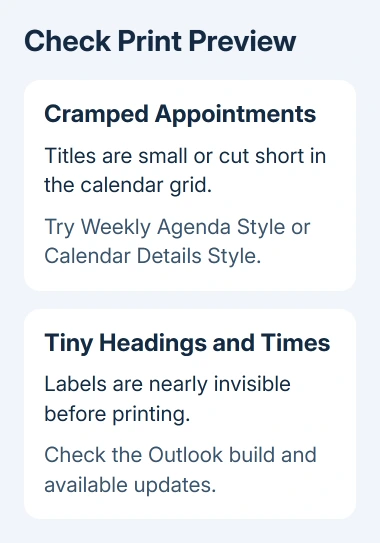
Check Print Preview first: ordinary small appointment text calls for a layout change, while almost invisible headings and times match the older fault that changing DisableFontScaling didn't fix.
For that Outlook 2016 incident, the published fixed build was 16.0.8201.2102. On a current installation, use available updates and the print controls rather than installing a 2017 build or copying an old registry workaround.
In this guide
1. Check whether the preview is already unreadable
In classic Outlook, select Calendar, then File > Print. Look at the preview before using paper. Compare the appointment text, time labels and calendar headings, since they don't all follow the same font choice.
If appointment text is readable but titles are cut short, the chosen style may not have room for the full details. If headings and time labels look nearly microscopic too, keep the old scaling fault in mind.
The original owner had increased a font to 72 points. That made some content readable while timestamps and other calendar text remained extremely small. Increasing one font again wouldn't address all those elements.
Note the selected calendar, date range and print style. A preview of the wrong calendar or too many dates can look like a font problem when you're actually printing a different set of information.
If the preview looks good but the paper doesn't, go to the printer check later in this guide. If the preview is already bad, work through Outlook's style and update checks first.
Changing the default email composing font doesn't change a calendar's print style. Keep message fonts separate from the settings that control this printout.
2. Choose a style that has room for your appointments
Under File > Print, compare the available calendar styles. A monthly grid has much less space per appointment than a daily or agenda layout. Pick the output you need before increasing fonts.
For full appointment titles, choose Weekly Agenda Style. For full appointment details, including text in the appointment body, choose Calendar Details Style. These can use more pages than a compact calendar grid.
Open Print Options to check Print this calendar and the date range. A shorter range is useful when you're trying to read a particular week's appointments rather than produce a whole-month overview.
Microsoft's calendar printing instructions distinguish those styles and the Print Options controls.
Preview the result after each meaningful change so you can see which setting helped.
Select Page Setup to inspect the fonts, orientation and paper settings available for that style. Some print controls are reached through Print Options. Font choices depend on the selected calendar style.
Increase the relevant font modestly and check that appointment titles still fit. A huge font can replace tiny text with clipped text, which leaves the paper just as hard to use.
If your goal is a readable travel schedule, I'd choose an agenda layout before forcing more text into the monthly boxes. It gives the content more room instead of asking one crowded page to do everything.
3. Update classic Outlook for the old scaling fault
Open File > Office Account and write down the displayed build and version. That helps you tell the old Outlook 2016 problem apart from a printing issue in a later version.
In the 2017 printing discussion, the published fix was build 16.0.8201.2102, announced for rollout on June 13, 2017.
The thread described tiny headings in Print Preview too.
For an installation with Office updates available, choose File > Office Account > Update Options > Update Now. Finish the update, reopen Outlook and preview the same calendar and style again.
If Update Options is missing or managed, give IT the recorded build and the preview symptom. Managed Office installations don't necessarily offer the same update controls as a personal Click-to-Run installation.
The build number identifies that old fix; it isn't a recommendation to downgrade modern Office. Outlook 2016 is an old product, so ask IT about moving to a supported Office version as part of a lasting repair.
Owners in that discussion found that changing the default printer didn't fix the bad preview.
The owner also reported DisableFontScaling wasn't working.
Don't keep editing that registry value when your symptoms match the documented application bug.
The thread also contained temporary 2017 rollback commands and instructions to disable updates. Those were for a short wait for that release. They aren't a sensible maintenance plan for today's installation.
4. Compare a PDF with the physical printout
If the preview is readable, select Microsoft Print to PDF as the printer where available. Save the result with a recognizable name, open it and inspect the same headings and appointment text.
If the PDF is readable but the paper printout isn't, check the physical printer's settings. If the text is tiny in the PDF too, check Outlook's output or the selected calendar style.
Check that the printer's paper size matches the paper loaded. Also check whether its printing dialog is shrinking the page or fitting several document pages onto one sheet. Compare a single page before printing the entire date range.
For the web app or new Outlook, use Calendar > Home > Print, then select the calendar and layout. Choose the time range and whether to show the mini-month or a detailed agenda before printing.
Those versions don't have all of classic Outlook's print-style controls. Don't look for its Page Setup fonts or apply a classic Outlook registry change to a browser print job.
The current printing controls also describe saving a calendar to PDF.
Sign in to your own webmail account to see your calendar preview. A public support page can't show it.
5. Use another calendar view while the desktop fault is checked
An owner got a readable calendar printout through webmail instead. If your work mailbox has web access, compare that calendar's preview as a practical alternative.
Select the same calendar and dates, then check the preview carefully before printing. A different app may select a different layout by default, so compare the actual appointments as well as the font size.
If events you expect aren't there, check your calendar selection first.
If appointments vanish between two previews, use the blank Outlook calendar printout checks to compare browser and desktop output.
For missing holiday entries, use the Outlook holiday calendar checks; changing print fonts won't add absent events.
If both applications produce a good preview but only one printer makes tiny text, send its model and your PDF comparison to the printer support team. If the preview itself is bad, give your Office help desk the version, style and a sample.
The Short Version
Check Print Preview, choose an agenda or details style when the grid is cramped, and update classic Outlook for the older tiny-heading bug.
Compare a PDF before changing printer settings.
For email with normal-size text but a large gap on page two, compare the message layout instead of calendar fonts.
DisableFontScaling isn't a universal repair for calendar printing.
Checked November 16, 2026.
 If you have any business, I can build it online






