Classic Outlook can fail to add an existing room calendar because of its shared-calendar connection. Try adding the room in the web app first. If that works, check the desktop app's shared-calendar setting next.
Turning off Turn on shared calendar improvements fixed this fault for owners in the original discussion. Try it temporarily on the affected desktop, since current Microsoft 365 calendars are moving to the improved sharing platform.
In this guide
1. Separate opening the room calendar from booking it
Decide which action fails. Adding a room's calendar lets you view the calendar in Outlook. Adding a room to a meeting sends a booking request. A calendar that opens successfully can still reject a meeting under its booking rules.
An appointment created by Microsoft Bookings with missing customer details needs its Bookings record checked, rather than a room mailbox repair.
Check the room's exact name or email address with your organization. A similarly named room in a different building or an old address can point at an unintended resource. Use the same room for each comparison in this guide.
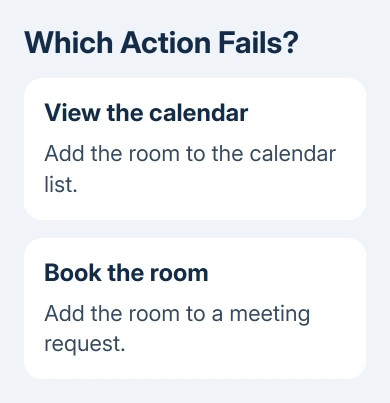
In classic Outlook, open Calendar and use Home > Add Calendar > From Room List when your organization provides that list. Select the room, add it, and confirm whether its calendar appears in the navigation pane.
If your company supplies resource calendars through the address book instead, follow its naming instructions. The calendar viewing guide explains why opening a calendar and having permission to read all its details are separate things.
For a booking failure, add the room to a meeting using its selector or resource address. Read its response. A rejection about duration, conflicts, or permissions needs the room administrator's checks, not a calendar-view repair.
When Outlook refuses to add the room calendar at all, continue with the web comparison. Don't delete existing meetings or recreate the room mailbox to repair a local app connection.
2. Add the same room in Outlook on the web
For the browser comparison, open your work mailbox under the account used in desktop Outlook. Go to Calendar > Add calendar > Add from directory, choose the account if prompted, and search for the room's name or address.
Select the matching room, choose the calendar group when offered, and select Add. Check that the calendar appears and can be selected. Your access level determines whether you see full details or only availability.
If the room opens on the web, let classic Outlook update its calendar list. An owner reported that web addition made calendars appear on desktop even though adding them directly in the desktop app failed.
You can keep using the same mailbox and room with this workaround. It also gives IT a clear distinction: the server can open the room calendar, while one desktop app can't add it directly.
If the web app can't find the room either, have the Exchange administrator verify the resource exists and is visible in the address list. Include the exact address you searched rather than only the room's display name.
If it finds the room but refuses access, send the permission message to the administrator. Changes to a desktop sharing checkbox won't grant permissions the account doesn't have.
3. Compare the shared-calendar setting in classic Outlook
This branch applies to Microsoft 365's classic Windows Outlook app. It doesn't apply to new Outlook's Settings window, Outlook for Mac, or a personal account that doesn't use the organization's Exchange setup.
Open File > Account Settings > Account Settings. On the Email tab, select the Microsoft Exchange account used for the room calendar, then choose Change > More Settings > Advanced.
Record whether Turn on shared calendar improvements is selected. Clear that checkbox, confirm the dialogs, and close and restart Outlook. Try adding the same room calendar again from the room list.
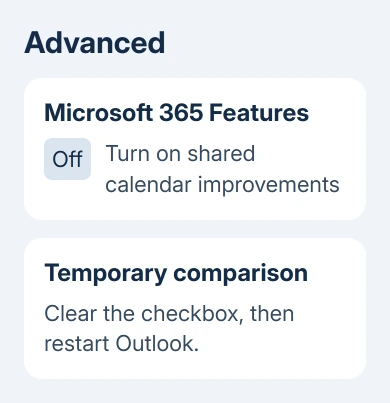
One owner confirmed that clearing this option fixed the room-calendar addition error. If it works for you, tell IT which setting helped. That points to the app's shared-calendar connection, rather than a room that needs replacing.
Microsoft's sharing update instructions still describe turning the option off and restarting Outlook. They also note that eligible shared calendars began automatic upgrades to the improved platform in late May 2026.
Use the checkbox to compare the results and discuss them with IT. Don't turn improvements off across the organization based on this check. If it doesn't help, restore the original checkbox state and restart Outlook again.
If the checkbox is grayed out, your administrator may control it through policy. Report the failed room addition and web result instead of trying to bypass that policy in Registry Editor.
4. Update Outlook and keep the working calendar route
In classic Outlook, open File > Office Account > Update Options > Update Now when that option is available. Close Office apps when prompted, complete the update, and restart Outlook before trying the room again.
Have IT review your desktop's build and update channel. Current Channel and Monthly Enterprise Channel get shared-calendar fixes sooner than Semi-Annual Enterprise Channel. Checking for updates can't change that channel's timing.
Don't change your company's channel yourself. Send IT the About Outlook version and build, the room address, and the result with shared-calendar improvements enabled and disabled.
If adding through the web app works, keep using that calendar while IT checks the desktop problem. The add a calendar guide covers other calendar types; a published internet calendar isn't a substitute for an Exchange room mailbox.
I'd keep the working web route while the desktop build is checked. Rebuilding your entire Outlook profile before confirming the room opens on the server can turn a small access problem into a longer setup job.
What to ask the room administrator to check
If both web and desktop fail, ask IT to confirm the room mailbox, address-list visibility, and your calendar permissions. If only bookings fail, include the rejection message and the meeting's time, duration, and recurrence pattern.
If only classic Outlook fails, ask IT to review its build and shared-calendar policy against the current known-issues list. Provide the web comparison and checkbox result so they can try the same action that fails for you.
For a new Outlook failure, report that app by name. The classic Outlook Advanced-tab workaround isn't available there, so IT needs the matching client and account details when raising a Microsoft 365 support request.
The Short Version
Add the room through the web app first. When only classic Outlook fails, compare its sharing setting and update the app. Ask the Exchange administrator about a missing room or a rejected booking.
Checked November 16, 2026.
 If you have any business, I can build it online