

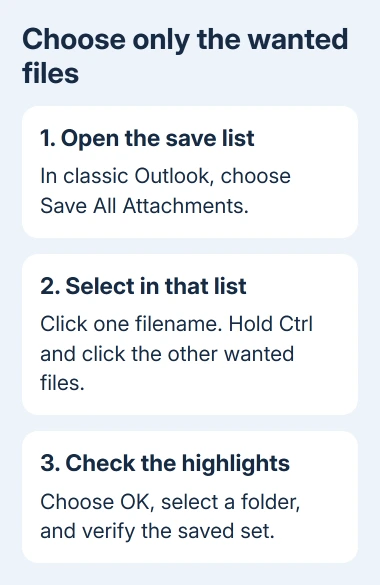
Ctrl-clicking attachments in an Outlook 2016 message may replace the selection instead of adding to it. Open Save All Attachments, then hold Ctrl while clicking files in that attachment list to choose the files you want to save.
This lets you choose a few files from one email. It doesn't restore dragging a selected group directly from the message into an open folder. A save operation that starts and then fails needs a separate destination check.
In this guide
1. Move the selection into Save All Attachments
Open the email containing the files in classic Outlook. Open the menu beside one attachment and choose Save All Attachments. The next window lists the message's attachments before you choose the destination folder.
Click the first file you want in that list. Hold Ctrl and click the other wanted files. Check which filenames remain highlighted, then choose OK to continue with that selected set.
Pick the destination and finish saving. Open the destination in File Explorer and confirm that all the wanted files arrived. Checking the filenames is especially useful when several attachments have similar names.
The original Outlook 2016 discussion describes this specific workaround. In that report, clicking a second attachment in the message cleared the first selection without showing an error.
If the save window also drops selected files, use individual saves next. Selecting inside that window is a separate action; it doesn't repair selection in the message's attachment strip.
2. Save a small number of files individually
For one or two attachments, open the menu beside the first wanted file and choose Save As. Pick the folder, save it, and repeat for the other file. This avoids collecting attachments you don't need.
Microsoft's current attachment instructions explain how Save As handles one file and Save All Attachments handles the full set. Both are classic Outlook commands.
Classic Outlook also supports dragging one attachment from an email to the desktop. The historical complaint was about selecting several files for a group drag, rather than saving a single attachment.
I'd use individual saves for a tiny set and the save-list selection for a larger one. Choose whichever method makes the saved file list easiest to check.
Saving makes a local copy, so keep the original email and its attachments until you've checked the saved documents.
If an attachment isn't listed in the message at all, use the missing attachment checks. Selection commands can't recover a file that wasn't included in that email.
3. Check the destination when selection works but saving fails
If the wanted filenames remain selected but the save fails, try a new local folder on your PC. Use the same attachment set so the only change is where you're saving it.
When that local save succeeds, check the files in File Explorer before moving them to the shared location. If copying them to the share also fails, check access to that destination next; selecting the attachments worked.
For a batch that saves locally but fails directly to a network folder, follow the Outlook network-drive saving workaround. That fault is separate from Ctrl-click failing to retain a selection.
Pay attention to an overwrite prompt when the destination already has files with the same names. Choose a fresh folder for the comparison so you don't replace existing work while trying to check a save failure.
A file that saves but won't open needs another comparison: try saving it individually and check the sender's original. A damaged document isn't repaired by selecting it differently in the attachment list.
4. Use the controls for the Outlook edition that's open
Classic Outlook has the File menu and the Save All Attachments dialog used here. Outlook 2016 belongs to that desktop product line. The older Ctrl-click reports don't tell us whether a newer Outlook edition has the same fault.
In new Outlook, use an attachment's menu and choose Download to keep that individual file. Download all saves the complete set from that message, rather than supplying the classic selection dialog.
For a few wanted attachments in new Outlook, download those files individually. Don't look for the classic COM add-in or profile controls to change which attachments a message lets you select.
Outlook in your browser has download commands too. If you're using it for this task, sign in to the mailbox, open the original message, and use the menu for each wanted attachment.
Use Ctrl in the classic save list to choose a few files. In a newer interface, Download all saves the entire set from the message.
5. Keep ordinary files separate from links and inline pictures
A OneDrive or SharePoint document may arrive as a link instead of an attached copy. Download it through the link if your permissions allow a local copy. Selecting attachments doesn't bypass the linked file's permissions.
A picture inside the message body isn't always an attachment listed beside the subject. Use the listed attachments for batch saving; the attachment list doesn't necessarily include every visible picture.
If you only see a later reply, open the original message that contained the files. The files may belong to that earlier email even though the conversation displays several messages together.
When the workaround doesn't save the selected files
Record your edition and build from File > Office Account > About Outlook in classic Outlook. Tell support whether Ctrl-click fails in the message, in Save All Attachments, or only after you choose the destination.
Include whether one-file saves and a local folder work. Those details give IT a specific operation to reproduce. Saying only that attachments don't work can send IT toward sending, previewing, or permission checks instead.
The discussion contains no confirmed update that permanently repairs selection inside the message. Treat the save-list method as a workaround and ask Outlook support about a continuing selection failure in a supported version.
The Short Version
Select the wanted filenames with Ctrl inside classic Outlook's Save All Attachments list. Save a small set individually if needed. A failed destination or a missing file needs its own repair.
Checked November 17, 2026.
 If you have any business, I can build it online






