

Outlook can still crash when Calendar opens after a reinstall because the old profile settings remain. Compare a separate profile. With Outlook 2019, check Windows' text cursor indicator: one owner stopped their crashes by turning it off.
This page covers classic Outlook on Windows. Crashing while accepting a calendar-sharing invitation is a different problem. These Windows fixes also don't apply to an iPhone app crash.
In this guide
1. Check the text cursor indicator before another repair
The text cursor indicator adds colored markers around the spot where you're typing. One owner found that enabling this Windows accessibility feature made Outlook 2019 crash when they selected a calendar item.
On Windows 11, open Settings > Accessibility > Text cursor and turn Text cursor indicator off. On Windows 10, open Settings > Ease of Access > Text cursor and turn off Turn on text cursor indicator.
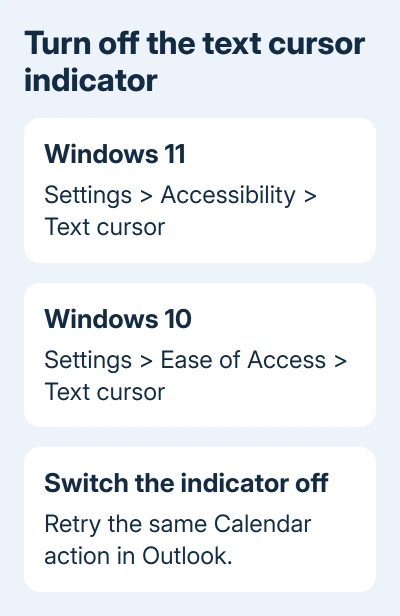
Return to Outlook and try the same calendar item or Calendar switch that failed. If it works, you've found a useful workaround on that PC. If the indicator was already off, move on without changing other accessibility options.
Disabling that feature stopped the owner's crashes after Office repairs and profile rebuilding hadn't helped. The report concerns Outlook 2019 in August 2021. A September reply confirmed the workaround; another said crashes continued.
Microsoft's text cursor controls confirm the Windows 10 and 11 settings paths. Turning it off to stop a crash is the owner's workaround; Microsoft hasn't announced that the feature is broken.
I'd make this quick check before reinstalling again. It changes one visible preference and is easy to undo if you need the indicator and it doesn't affect the crash.
2. See whether Calendar or a particular item fails
Notice whether Outlook closes as soon as you enter Calendar, only after selecting an appointment, or when you display a particular shared calendar. Those details change what support should examine.
If Calendar stays open until an item is selected, try a different appointment. If only one shared calendar triggers it, compare your own calendar with that shared calendar closed. Don't delete meetings just to stop the app displaying them.
Where another working device or your signed-in browser Outlook is available, check the same calendar there. If another app opens the calendar, use it for urgent work while checking Windows Outlook.
In the original Calendar crash thread, the user's calendar worked on the web and in the mobile app. Reinstalling Office and running the old Support and Recovery Assistant hadn't stopped the desktop crash.
Eventually, the crashes stopped for the asker, who couldn't explain the change. They didn't confirm the suggested view reset or profile repair. A later owner supplied the successful text-cursor workaround.
For a calendar that opens but can't find appointments, use the separate Calendar search and List View checks. Missing search results aren't the same failure as the program closing.
3. Run classic Outlook with add-ins disabled
Close Outlook and press Windows key + R. Enter outlook.exe /safe and press Enter. If a profile picker appears, choose the account setup you normally use.
Switch into Calendar and repeat the failing action. If Calendar stays open in safe mode, check the add-ins before changing the calendar's data. If it still fails, continue to a separate profile.
Open File > Options > Add-ins. Choose COM Add-ins in the Manage list, then click Go. Write down the selected add-ins, clear their checkboxes, and confirm the dialog.
Relaunch without the safe-mode command and check Calendar. If it's stable, restore one add-in at a time, restarting between checks. Leave any add-in that restores the crash disabled while IT or its supplier checks it.
A meeting extension can be relevant here even when sending ordinary email works. Check whether the same Calendar action works with that add-in disabled. Getting Outlook to open isn't enough.
4. Compare a fresh Outlook profile
An Outlook profile holds accounts, data-file connections and settings. Reinstalling the program can leave that profile in place, so a reinstall and a profile comparison answer different questions.
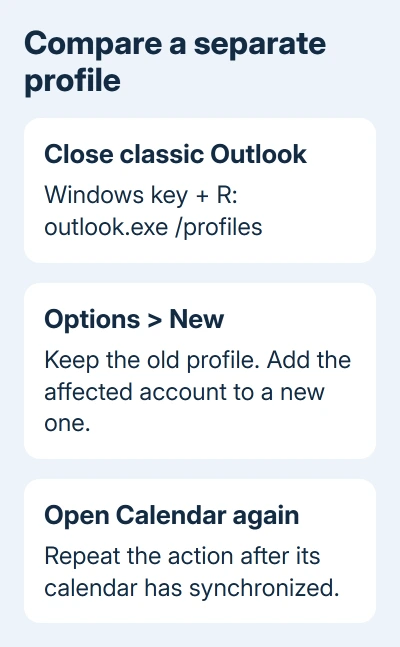
Keep the original profile. Close Outlook, run outlook.exe /profiles through Windows key + R, and select Options. Click New and name it Calendar comparison. This picker also lets you return to your previous profile.
Add the affected account and let its calendar synchronize. Start Outlook with the new profile, open Calendar, and repeat the troublesome action. If Calendar works here, the old profile or its settings could be causing the crash.
If both profiles crash, save those details for the support request instead of making more profiles. Check whether they fail on the same appointment, calendar, or action; that detail is more helpful than another unnamed profile.
Back up locally saved data before you remove an Outlook profile. A cloud calendar can return after sign-in, while tasks, contacts or mail kept exclusively inside a PST file need their own transfer.
If the issue is access to someone else's calendar rather than a crash, review shared-calendar permissions. Changing profiles can't supply missing access rights.
5. Update the app and give support a repeatable case
Check File > Office Account > Update Options > Update Now. If Outlook closes too quickly, use the Office update controls in Word through File > Account. Ask IT to handle this when updates are centrally managed.
If Office hasn't already been repaired, close its apps and open the installation's Modify controls. Windows 11 uses Settings > Apps > Installed apps; Windows 10 uses Settings > Apps > Apps & features.
Locate your installed Microsoft 365 suite or standalone Office edition. Click-to-Run offers Quick Repair and Online Repair; the second needs internet access and is the more complete repair. MSI installations offer Repair instead.
When repair and the separate profile both fail, ask IT to collect the Windows Application crash event. Include the Outlook build, faulting module and whether the Calendar switch or one appointment causes it.
For a work subscription, have your administrator open a support request in the admin center. Include the safe-mode result, profile comparison and working web/mobile apps. Support can match that desktop failure against current issues.
The Short Version
Disable Windows' colored cursor markers for a quick Outlook 2019 comparison. Repeat the failing Calendar action with extensions unloaded and in a fresh profile. Give support the results and crash event if Office repair hasn't helped.
Checked November 17, 2026.
 If you have any business, I can build it online






