

Outlook's Error while preparing to send sharing message can come from a problem with the recipient's existing folder permission. Check the folder's access list first, then correct a bad entry with the owner's approval before sharing again.
The message can appear when you share a calendar or a contacts folder. A person unable to open an already shared calendar has a different problem from an owner unable to send its invitation, so the repair depends on which action fails.
In this guide
1. Check whether the recipient already has access
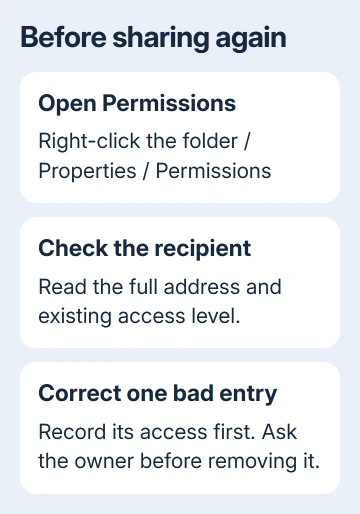
Right-click the calendar in classic Outlook and open Properties > Permissions. Read the recipient's current access level. For contacts sharing, check Properties > Permissions on that contacts folder instead.
Compare the full account address, not just the displayed name. A saved entry for the wrong account, or an unexpected permission level, needs to be checked with the owner or administrator before changing it.
On Microsoft's forum, an owner traced their contacts-folder error to a recipient already listed as Owner. Removing that entry and sharing again worked. That fixed their contacts folder; a calendar error can have other causes.
Write down the person's current permission before removing their entry, which changes their access. With the owner's approval, remove the incorrect entry and apply the change. Retry sharing with the right account and intended access level.
I'd check that recipient before considering a wider permission reset. Leave other people's access and the Default and Anonymous entries intact. Changing those entries isn't needed to correct one recipient's access.
2. Use the calendar's supported sharing controls
For a calendar you own in classic Outlook, select Home > Share Calendar and choose that calendar. In Calendar Properties, select Add, pick the recipient and confirm. Select their name and choose the intended permission, then OK.
The calendar-sharing controls grant access to the selected calendar. A meeting invitation lets someone attend one event. Resending it won't repair their access to the calendar folder.
Check the account that holds the calendar. Outlook can display your own mailbox, extra calendars and calendars other people shared with you together. Being able to view someone else's schedule doesn't make you its owner.
If Share Calendar is unavailable, give IT the account and calendar type. Sharing isn't offered for every setup. If your organization's policy blocks sharing, an administrator needs to check it; resetting the ribbon won't help.
For the normal permissions and viewing levels, the calendar sharing guide explains what each recipient can see. Choose the access needed for the task before sending another invitation.
After applying the permission, have the recipient accept the new invitation and open the calendar. A successful send alone doesn't show that they can view its events, so check access from their side too.
3. Share that owned calendar through webmail
Sign in to the affected work mailbox's Outlook webmail. Open Calendar, select Home > Share calendar and choose the same calendar. Enter the recipient's address, select the intended permission and choose Share.
New Outlook for Windows uses the same general sharing route. It doesn't have classic Outlook's File > Account Settings pages, so don't follow the cached-mode procedure in the next section while using the new app.
If sharing works online, the recipient can use that invitation while IT checks classic Outlook. If both webmail and desktop reject the same recipient, tell the administrator to check folder permissions and the organization's sharing policy.
For an external recipient, include their full email domain in the request to IT. Your company can restrict calendar sharing with people outside the organization. Desktop repair won't change a rule on the mailbox service.
If the recipient's invitation arrives but the calendar won't open, move to the shared calendar access checks. Repeatedly sending access requests isn't useful when the failure happens after acceptance.
4. Test cached mode only for an existing calendar's access
The owner in the original calendar thread eventually regained access to their manager's calendar by turning off Cached Exchange Mode. Creating a new profile and upgrading Office had not fixed that access problem for them.
That owner was trying to open a calendar already shared with them. Use it for that matching symptom, rather than treating it as confirmation that disabling the cache repairs a sharing message that won't send.
In classic Outlook, choose File > Account Settings > Account Settings. Select the affected Exchange or Microsoft 365 account and choose Change. Under Offline Settings, clear Use Cached Exchange Mode, finish and restart Outlook.
Try the existing shared calendar again while connected to the internet. Online mode uses the mailbox on the server instead of the copy saved on your PC. If it now opens, tell IT that the same calendar fails only in cached mode.
Use this only as a temporary check: Microsoft recommends cached mode for Exchange and Microsoft 365 mailboxes. Restore cached mode once the comparison is complete unless IT asks you to keep online mode while they repair the remaining fault.
The option doesn't apply to POP or IMAP accounts, isn't available in new Outlook, and can't be changed for an Outlook.com account. If it isn't offered, don't alter another account just to reproduce the thread's steps.
5. Give support the exact sharing failure
For a failed invitation, record the error and File > Office Account > About Outlook details. Specify Calendar or Contacts, the folder owner and whether the recipient already has a Permissions entry.
Tell IT the recipient's organization and the webmail sharing result. If only opening an existing calendar fails, include the online-mode result. Keep that access failure separate from an invitation that won't send.
For a supported work mailbox, have the administrator report this folder's sharing error through Microsoft 365 support. If you're still using Outlook 2013 or 2016, include a supported Office upgrade in the plan with IT.
The Short Version
Check the recipient's existing folder permission and correct a confirmed bad entry. Try sharing the owned calendar through webmail. Turning off cached mode helped one owner open a shared calendar, but that was a separate access failure.
Checked November 17, 2026.
 If you have any business, I can build it online






