

CAA50021 in Outlook can mean work-account registration isn't completing. Reconnecting that account in Windows fixed it for owners; another Office user cleared the same code by disconnecting their VPN.
Start by checking who owns and manages the PC. Reconnecting an extra work account is different from disconnecting the account that manages the whole PC, which needs your administrator's help.
In this guide
1. Check which account Windows is trying to register
Read the whole sign-in message and note the email address involved. Keep the error code, time and any correlation ID, which is the reference number support can use to look up the failed sign-in.
In Windows 11, open Start > Settings > Accounts > Access work or school. Expand the affected account to see its controls. In Windows 10, the page is also under Settings > Accounts > Access work or school.
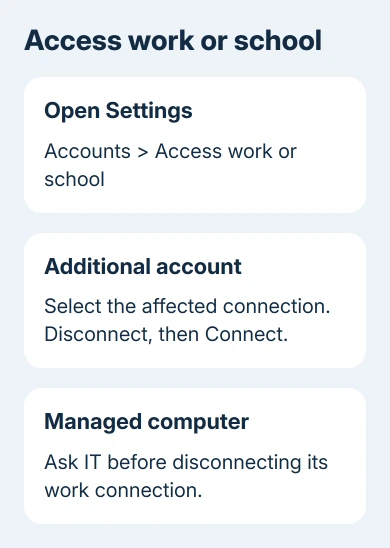
Check what the account connection is used for before choosing Disconnect. A work-owned laptop joined to the organization's directory is different from a personal PC with an additional work account.
For a managed connection, ask IT to handle registration repair. Do the same if you're unsure which Windows sign-in depends on it. Disconnecting the wrong connection can affect access to the computer and work resources.
The same error can appear in Word, Teams or OneDrive. Check one other installed Office app, then tell IT whether the failure follows the account across apps or appears only in Outlook.
When the code differs, follow that code instead. For example, Office's Something Went Wrong 1001 error has its own sign-in steps and shouldn't be treated as the same failure.
2. Test the sign-in without the VPN
If your organization permits it and the account can sign in without a company VPN, disconnect the VPN for one test. Close Outlook, reopen it and try signing in again.
A participant in the CAA50021 discussion reported that this resolved the code in OneDrive. That's useful for a shared Office sign-in failure, although it isn't an Outlook-specific success report.
If the sign-in now finishes, report the difference to IT and reconnect the VPN when required for work. That tells IT the VPN connection affects sign-in. It doesn't mean you should leave work protection turned off.
If it fails both ways, continue to the account connection. Don't disable antivirus and the firewall together as a substitute for this one comparison; the administrator can check whether sign-in traffic is being blocked.
3. Reconnect the affected additional work account
For a personal PC with an extra work or school connection, have your sign-in details and the device you use to approve sign-ins ready. Close Outlook and other Office apps before changing that account's connection.
Open Settings > Accounts > Access work or school, select the affected connection and choose Disconnect. Read the confirmation so you know which account is being removed, then finish the prompts.
Return to the same page, choose Connect and sign in with the correct work or school address. Complete your organization's verification and registration prompts, then reopen Outlook and sign in again.
One owner confirmed that disconnecting and reconnecting the account worked. Other replies reported success, but several Windows 10 and Windows 11 users couldn't find or use Disconnect. Ask IT if your managed PC lacks those controls.
If the button is absent or unavailable, send IT a description of the connection shown on this page. Don't try to force it away with a directory-leave command copied from a forum reply.
Success means Outlook finishes the sign-in and opens the mailbox without returning to the device-registration message. If the code returns, move to the stored Office credentials rather than repeatedly disconnecting the account.
4. Clear the stored Office sign-in for that account
Microsoft's CAA50021 activation guidance includes removing stored Office credentials. These are saved sign-in entries, not the messages in your mailbox.
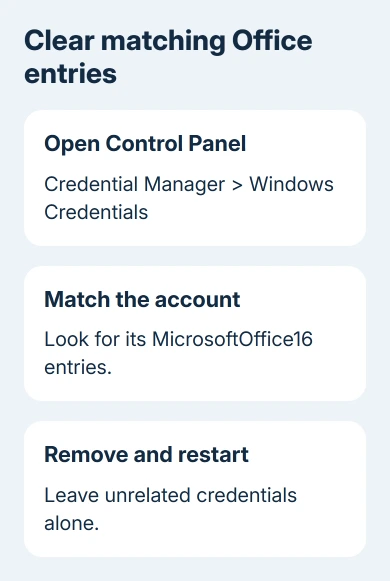
Close the Office apps. Open Control Panel > Credential Manager > Windows Credentials and look for Office entries related to the affected account, including names beginning with MicrosoftOffice16.
Remove the matching Office entries, then restart the computer and try Outlook again. You'll need to sign in, so confirm you can complete the account's verification before clearing its saved credentials.
Leave unrelated credentials alone. If the entries don't clearly identify the affected Office account, ask IT to choose them rather than deleting every Windows credential.
If Outlook accepts a fresh sign-in afterward, the saved entry was part of the problem. If registration still fails, IT should check your account's permission to register devices and this computer's registration.
A password prompt that vanishes before accepting any typing needs a different check. The disappearing Outlook password-box guide covers that behavior separately.
5. Have IT check device registration and sign-in permissions
Have IT inspect this computer's record in Microsoft Entra ID, the directory formerly called Azure Active Directory. They should compare the registered device with the computer that's failing and check its join or registration state.
The support steps use dsregcmd /status to check how the computer is connected. AzureAdJoined is a result to read, not a switch you can type into the command window and set to NO.
IT should handle removing the computer from the directory and joining it again. They need to know how to reconnect it to your organization before using dsregcmd /leave, especially on a computer used to sign in with a work account.
Also ask them to check whether your account is permitted to register devices and has the required Microsoft 365 license. The answer isn't always to allow every user to join every device; the settings must fit the organization's policy.
If the device and permissions are correct, have IT use the support steps to review the Office sign-in component and proxy restrictions. Include which earlier step changed the behavior, even if it didn't finish the repair.
When CAA50021 keeps returning
Send IT the full error, correlation ID, timestamp, affected apps and Windows connection details. Request a check of the matching sign-in record and a Microsoft 365 support case if registration still fails.
The Short Version
Inspect Windows' work-account connection, test the permitted VPN change and reconnect only an additional account you can safely remove. Clear matching Office credentials next. Let IT repair directory registration on a managed computer.
Checked November 16, 2026.
 If you have any business, I can build it online






