

A stalled Outlook inbox on iPhone usually needs its connection or account refreshed. Use Reset Account in Outlook when the mailbox works elsewhere. In Apple's Mail app, check the account's Mail switch and delivery settings.
Separate missing messages from missing alerts. If opening the app brings in delayed mail, check delivery settings. Repeated password prompts call for sign-in help, while an app that closes immediately needs a different repair.
In this guide
1. Check the connection and the affected mailbox
Open Safari and load an unrelated website. If that fails too, switch between Wi-Fi and cellular data, then reopen the mail app. Check Settings > Cellular if the affected app has no cellular access.
If mail arrives on cellular but not Wi-Fi, the mailbox itself is reachable. Check that Wi-Fi connection, its login page, or a VPN that changes the connection before resetting the account.
Next, compare the mailbox on another device that's already signed in. Check the same folder and account, using a specific recent message. An iPhone can't display a message the mail service hasn't received yet.
When the same mailbox fails on several devices, check the provider's service status or ask your work administrator whether Exchange Online has an incident. Don't keep removing the phone's account during a confirmed service interruption.
For several affected devices, the Outlook service checks help separate an outage from a phone-only fault. When the mailbox works elsewhere, continue with the app you actually use on this iPhone.
2. Refresh the account inside the Outlook app
Open Outlook and select the affected inbox from its account menu. Pull down on the message list to refresh it. If the app holds several accounts, make sure you're checking the intended one rather than a different inbox.
If a missing message could be sorted elsewhere, check both Focused and Other when Focused Inbox is enabled. Search for the sender too. If you find the message in another folder, it downloaded, but it didn't land where you expected.
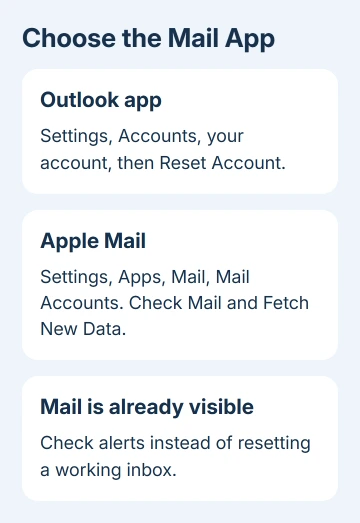
If the inbox still won't update, open Outlook's Settings gear, tap Accounts, and select the account. Tap Reset Account. Outlook refreshes that account's local connection and data; this isn't the iPhone's Reset settings menu.
Let the app reconnect, then check the same recent message. If new mail appears after the reset, the account is connecting again. Send a short test message to another account and confirm receipt if sending was also affected.
Microsoft's mobile sync troubleshooting includes this account reset. If the app instead asks you to sign in, follow the sign-in prompt before repeating a refresh.
I'd try the account reset before reinstalling Outlook. It targets one mailbox and leaves the rest of the phone's apps alone.
3. Turn on Mail and check delivery in Apple's app
For Apple's Mail app, open Settings > Apps > Mail > Mail Accounts on current iOS. Select the Microsoft account and confirm Mail is enabled. On iOS 17 and earlier, start at Settings > Mail > Accounts.
Open Mail, return to Mailboxes, and choose that account's inbox. Pull down to refresh. If the message now appears, the account can receive mail; next check how it retrieves messages while the app isn't open.
Go back to Mail Accounts > Fetch New Data. Use Push for the account if it's offered, or select a Fetch schedule that suits you. Manually means the app checks when you use it rather than on a timed background schedule.
The Automatically Fetch option has a specific limit: background fetching happens when the phone has both a charger connected and Wi-Fi access. That can explain mail arriving after you open the app when you're away from a charger.
Apple's Mail receiving checks explain these delivery settings. Changing the Fetch schedule helps when background checks are delayed. It won't fix a password or connection error.
If messages arrive without sound or a banner, check Settings > Notifications > Mail and the account's notification choices. Keep alerts separate from downloading mail so you can tell which behavior changes.
4. Repair sign-in without losing local messages
At a password prompt, use the current password in the provider's sign-in window and complete verification. A work account may also require Microsoft Authenticator or device registration under company policy.
For repeated prompts after a successful sign-in, use the iPhone Outlook password-loop guide. That guide walks through sign-in problems for the account.
Before removing the account, check that your important mail is on another signed-in device or save a separate copy. Include drafts and unsent messages. Removing the account can remove local data that hasn't reached the server.
In Outlook, open Settings > Accounts, select the affected account, and choose Delete Account > Delete From This Device when offered. Add it again with Add Account and the account's normal Microsoft or provider sign-in route.
In Apple Mail, select the affected entry under Mail Accounts, choose Delete Account, then use Add Account. Select Outlook.com for personal Microsoft mail; use IT's approved Exchange setup for work mail.
An account added as IMAP can receive email, but it doesn't bring calendar and contact sync with it. Don't change the account type simply to make a password box disappear. Use the setup that matches your email provider.
5. Repair Outlook when it closes before the inbox opens
If Outlook crashes immediately, open the App Store and install any available Outlook update. You can't reach Reset Account if the app won't stay open, so repair the app installation first.
Open Settings > General > iPhone Storage > Outlook > Offload App. Offloading removes the app but preserves the documents and data it holds. Then reinstall it from that screen or the App Store and open it again.
Check whether the inbox stays open before deciding whether messages still fail to sync. Getting the app to open doesn't always fix its mail delivery. If the inbox opens but messages don't arrive, return to the account checks.
For a continuing Outlook-only failure, open the app's Contact Support option and report the iOS version, account type, exact error and last successful message time. Include whether Reset Account and offloading changed anything.
If work mail fails after registering the device, have IT check its approval. For an Apple Mail-only failure, request account connection help from Apple Support. Mention that the same mailbox works on another device.
The Short Version
Check connectivity and the mailbox elsewhere first. Refresh or reset the account in Outlook; check Mail and Fetch settings in Apple's app. Repair authentication before re-adding an account, and update or offload Outlook if it crashes.
Checked November 15, 2026.






