

Pasted text in Outlook can keep bold letters but lose colors and strikethrough when the paste merges with the destination's formatting. Open Paste Options immediately after pasting, then keep the source formatting.
Owners in the Outlook.com discussion confirmed that this restored their formatting. A later reply reported a default-paste setting too, but its availability differs between Outlook interfaces.
Try changing the paste option in the app where the problem happens first.
In this guide
1. Change the paste result before leaving the text
Copy a short sample that includes colored text, bold text, and strikethrough. Paste it into a new email with Ctrl+V. Keep the cursor near the pasted text and look for the small paste control beside the final inserted line.
Open that control and choose Keep Source Formatting, or the option described as keeping the original format. In the reported web interface, this was the leftmost choice. Check that the missing color and strikethrough return.
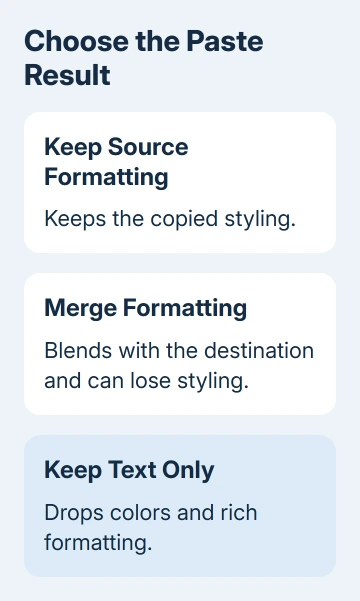
The owner in the Outlook web paste discussion confirmed that using this small paste control restored the formatting. Another owner later confirmed that colors and highlights were preserved.
Don't use Ctrl+Shift+V when the styling needs to survive. In Chrome and Edge, that shortcut pastes text without its original formatting. Plain text keeps the characters but can't carry the colors and other rich formatting you copied.
If that brings the formatting back in your sample, try it on the real passage. Inspect the pasted result before sending, particularly where color or crossed-out text changes the meaning of a price, deadline, or correction.
If the sample still loses its formatting, check the original text in section 4. A paste control can't restore formatting that wasn't included when the content was copied.
2. Keep the paste control visible for a long passage
For a long email, the small control can appear after the final pasted line, outside the visible part of the compose area. Start with the short sample to get familiar with the control before pasting a whole document.
An owner reported that moving through the text with the keyboard could dismiss the popup. If that happens, undo the paste and repeat it, then use the control immediately. Avoid repeatedly pasting the passage and creating duplicate text.
Some versions show Ctrl on the paste control and offer letter shortcuts when it's opened. Follow the displayed choices. Don't press Ctrl+P together as a replacement; that normally opens printing rather than choosing a paste format.
The owner described pressing Ctrl and then the option's letter as separate actions. They also reported trouble when a Hebrew or Arabic keyboard layout meant the physical key didn't produce the expected English letter.
If that applies to your keyboard, use the mouse to select the visible formatting option. It avoids changing keyboard layouts halfway through the paste and losing the popup again.
Once the correct formatting is in place, read the full passage in the draft. A short sample can confirm color handling, but a long passage can also contain tables, links, and paragraph styles that need their own visual check.
3. Use a default-paste option only when your app offers it
Open the paste control and look for Set Default Paste. In an October 2024 follow-up, the original owner reported that this opened a Cut, Copy & Paste settings area with separate choices for Outlook content and other applications.
Another owner then said that the change solved the problem. That worked for them, but you won't necessarily see the same settings in every Outlook.com account or app.
If the control is present, choose Keep Source Formatting for the source types you want and save the setting. Start a fresh draft and paste the same sample again to check whether it now keeps the colors without another selection.
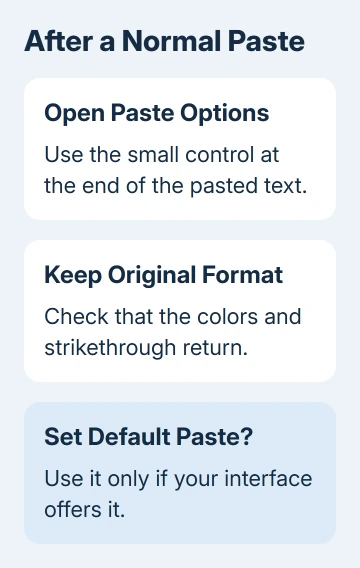
If you don't see Set Default Paste, choose the formatting each time you paste. Don't search classic Outlook's File menu inside webmail or assume a Windows desktop preference has changed your browser editor.
Classic Outlook has advanced editing options with separate paste defaults. The Outlook paste and AutoCorrect guide gives that desktop route and separates formatting from unwanted capitals.
I'd keep the original formatting when colors and strikethrough carry information. Merge Formatting is useful for making a casual quotation match your email, but it can discard the styling this particular message needs.
4. Check that the copied source contains the styling
Look at the original selection before copying again. Make sure the colored or crossed-out words are actually selected, rather than copying a plain-text preview of the same message or a different unformatted version.
Paste into a fresh draft and choose the source-format option. If a short passage works but one particular block doesn't, compare what's different about that block, such as an embedded table or content copied from another app.
Keep the account and browser the same during this check. The original owner reproduced the loss in both Chrome and Edge, so clearing one browser's data wasn't the confirmed correction for that report.
If fresh text you type is also using the wrong font, the Outlook default-font settings address that separately. Your default font controls newly typed text; pasted text brings its own formatting.
The discussion also includes a signature-specific failure after the normal email-body workaround worked. Check a pasted signature in its own editor and save a fresh draft to inspect it; don't assume the body result applies there too.
5. Escalate a paste that still loses meaning
If color or strikethrough still disappears, make a harmless sample showing the original and pasted result. Include the source app, Outlook interface, browser, and which paste option you selected.
Send that example to workplace IT or Microsoft Support through the help option available in your Outlook. Ask why that editor is losing the original formatting, and say whether the problem affects ordinary message text or only signatures.
For an urgent document whose layout must stay intact, attach the original file instead of relying on copied email text. Tell the recipient which file contains the formatted version, then check that the attachment is present before sending.
The Short Version
Use Paste Options to keep source formatting. If Set Default Paste is offered, verify it in a fresh draft. Check signatures separately. Attach the formatted file when the email editor can't preserve styling that matters.
Checked November 16, 2026.
 If you have any business, I can build it online






