

Recurring Outlook meetings can miss reminders even while the series shows a reminder time. If new events alert but old series don't, check an affected occurrence first. Recreating a series helped an owner, though results weren't consistent.
If every event stays silent, check reminder delivery instead. A missing reminder on an individual meeting and an alert hidden behind another window are different problems.
In this guide
1. Compare one missed meeting with a fresh appointment
Pick an affected recurring meeting and note its date and expected reminder time. Open that occurrence, then open the whole series and compare their Reminder values. The series reminder doesn't tell you what's saved for each date.
Next, create a personal appointment far enough ahead to leave time for its scheduled reminder. Give it a short reminder interval, save it, and leave Outlook open until the alert is due.
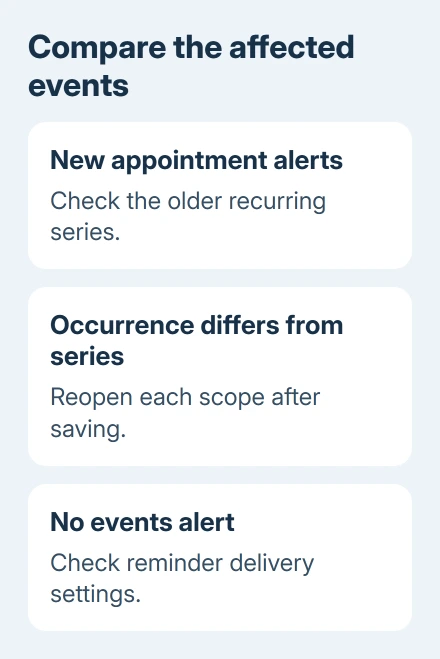
If the new appointment alerts and the old series doesn't, focus on the recurring item. If neither alerts, continue to the delivery checks in section 4. Note both results to compare them after any changes.
I'd compare the two events before attempting an Office reinstall. In the original report, reinstalling hadn't helped, while new recurring meetings worked for another affected owner. That helps you decide which events to focus on.
2. Check the series and its individual occurrence
In classic Outlook, double-click the meeting in Calendar. Choose Just this one to inspect a particular date, or The entire series to inspect the repeating meeting. Note which one you're editing.
Use the Reminder dropdown on the meeting ribbon to select a time. Save and close, then reopen the same occurrence or series to see whether the change stayed. Don't compare a changed occurrence with the unchanged series by accident.
In new Outlook, open the meeting and choose View series to change all occurrences. Use Options > Reminder to select the interval. To edit one occurrence, leave View series alone. Save the change offered by the editor.
Microsoft's reminder instructions distinguish editing one occurrence from changing the series. The reminder setup guide also covers appointments, tasks, and email follow-ups separately.
In classic Outlook, hover over the event in Calendar and check its reminder preview. The accepted reply suggested this because an opened occurrence could show None while the preview showed the series reminder.
Later replies showed a limit: some owners saw a reminder in the preview and still never received the alert. Note what the preview shows, then wait for the scheduled reminder. A reminder in the preview doesn't mean the alert will arrive.
3. Ask the organizer to recreate an affected old series
An owner reported that deleting the series and having the organizer send a new invitation worked for the most part. They suspected an Office 365 migration, but the discussion didn't confirm that cause.
Another organization reported the same symptom without a recent migration. Don't assume your mailbox move caused it simply because an old meeting is affected.
For a meeting you don't own, contact its organizer. Explain that reminders on the existing repeating meeting fail while reminders for newly created events arrive normally. Ask them to arrange a replacement series for future meetings.
Before replacing it, preserve the meeting's important details and agree on the change with attendees. A series can contain changed dates, notes, individual meeting changes, and joining information. Keep those details in the replacement.
The organizer should review the future schedule, create the replacement with the intended reminder, and send the new invitation. Accept it, then check an upcoming occurrence and wait for its next scheduled reminder.
Simply removing an attendee and adding them again isn't the same workaround. A later owner specifically reported that this didn't help, while meetings they newly scheduled with the same people did work.
Start with one affected series rather than replacing your entire calendar. If the replacement also fails, stop repeating the workaround and give IT the old-versus-new comparison.
4. Repair delivery when even new events stay silent
In classic Outlook, open File > Options > Advanced and check the Reminders section. Confirm Show reminders is enabled. Keep Outlook running when a test reminder is due.
If the alert appears behind your work, the separate reminder visibility guide covers Show reminders on top of other windows and the version limits for that option.
For reminders that appear in a tiny window without usable Dismiss buttons, apply the dialog update before changing event reminder times.
In new Outlook, open Settings > General > Notifications and expand Calendar. Review the notification style and choose Reminder where offered if you want its separate reminder window.
Also review Automatically dismiss reminders for past events. When enabled, it can clear reminders for meetings that have already started. That differs from an event losing its saved reminder time.
A notification restriction in Windows or a Teams Do not disturb status can interrupt alerts. Check them when a saved reminder exists but notifications don't arrive. They don't explain a Reminder field that returns to None.
Changing the default won't repair every existing meeting. Classic Outlook's File > Options > Calendar > Default reminders sets the usual interval for new items. Check the affected event itself when repairing an old series.
5. Give support examples of both results
If a replacement works, check reminders for its next meetings before treating the calendar as repaired. The owner reported partial success; the thread doesn't contain a fix that worked for all affected recurring meetings.
If it continues, ask your company's Microsoft 365 administrator to open a recurring-reminder support case. Include your Outlook edition and build, account type, meeting dates, and whether occurrence and series reminders differ.
Say whether a new personal appointment shows a reminder and whether the organizer's replacement series changes the result. Send meeting details privately to support, especially if they include confidential participants or joining links.
The Short Version
Compare an old series with a fresh appointment, then check an occurrence separately from its series. Recreating a series helped an owner but wasn't a complete fix. If new events also stay silent, repair delivery first.
Checked November 16, 2026.
 If you have any business, I can build it online






