

A tiny Outlook reminder window with missing Dismiss or Snooze buttons can come from a known display bug. Install your channel's current Office update first. It fixes problems caused by long meeting subjects and Location text.
The fault can leave only one reminder visible or prevent resizing altogether. A reminder hidden behind another app, or no reminder appearing at all, needs different checks. Changing the default reminder time won't repair a cut-off window.
In this guide
1. Install the Outlook update for the drawing fault
In classic Outlook, select File > Office Account > Update Options > Update Now. Finish the installation, close Outlook and reopen it. If IT manages Office updates, ask them for the current approved build for your update channel.
Open View > Reminders Window and check whether the reminder list and its buttons fit again. If several reminders are due, check that the list shows them and the controls stay usable after closing and reopening the window.
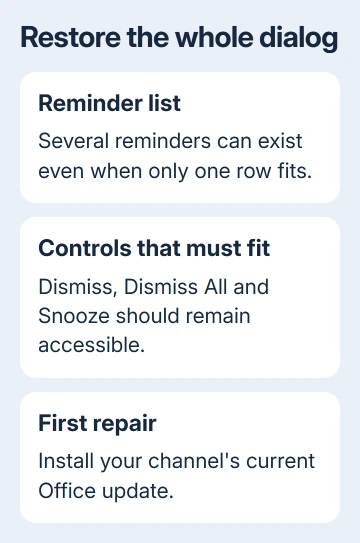
Microsoft's reminder dialog issue page describes the fault after Version 2405, Build 17628.20110 or later. Symptoms include a single visible row and a window that's too small or too large to resize.
The original long-Subject fault was fixed in Current Channel Version 2408, Build 17928.20114. A second fix for a long URL or other text in Location was listed for Version 2410, Build 18129.20000 in Current Channel.
Those 2024 builds identify the fixes; install today's approved update instead. Have IT check the fix for your channel rather than switching the organization's update policy.
Outlook 2016 and 2019 ended support on October 14, 2025. If either remains installed, arrange a supported Office release with IT.
2. Fully restart Outlook when the dialog stays distorted
Save open messages and other unfinished Outlook work first. The temporary workaround uses Task Manager to end Outlook, which can interrupt anything the app is still doing.
Press Ctrl + Shift + Esc to open Task Manager. On Processes, select Microsoft Outlook and choose End task. Reopen Outlook from Start, then open View > Reminders Window again.
Simply closing the main Outlook window and starting it again doesn't always clear this drawing problem. The published workaround specifically calls for ending the Outlook process. Check whether the dialog now has a usable list and buttons.
If the window breaks again, note the action just before it changed. The issue can follow minimizing and restoring the dialog. Include that sequence in a report if it matches what happens on your PC.
I'd use a full restart as a short-term recovery while IT supplies the update, rather than making it a daily routine. If the window keeps breaking, you still need the update and a check of the meeting details that trigger it.
3. Check long Subject and Location text
Open an event that produces the distorted reminder and inspect its Subject and Location. The documented triggers include long subjects and lengthy URLs or text in Location. Either field can trigger it; the fixes were released separately.
If it's your own appointment and the Location text can be shortened without losing needed information, shorten it and save. Keep any joining link available in the event details so you can still attend the meeting.
For a meeting organized by someone else, ask the organizer to review an unusually long Location field. Don't remove the joining information from a shared meeting just to make your local reminder window look better.
Shortening Location may help temporarily, but the update remains the lasting repair. Even with a short Location field, a long subject can still cause the separate bug. Check both fields if the dialog still breaks.
If the reminder window looks correct for a short personal appointment but breaks for one long meeting, send that comparison to IT. That gives them an example of the window breaking without having to reset your entire calendar.
4. Try display scale without making text unreadable
Another listed temporary workaround is setting Windows display scaling to 100%. Record your current scale before changing it, especially on a high-resolution laptop where text can become difficult to read at 100%.
On Windows 11, open Settings > System > Display and choose the affected monitor if several are connected. Under Scale & layout, set Scale to 100%. Reopen the reminder window and check the controls.
On Windows 10, use Settings > System > Display. Under Scale and layout, change Change the size of text, apps, and other items to 100% for the display where Outlook is being used.
If that makes the dialog usable, report the original scale and the monitor involved to IT. Then return to a readable setting if necessary. A temporary workaround that makes the whole desktop hard to use isn't a good permanent repair.
Don't confuse display scale with the reading zoom inside an email. The message-body zoom control changes email text, while this workaround changes how Windows scales application controls on the screen.
5. Rebuild reminders only if the list itself needs it
Some owners restored a usable window with Outlook's /cleanreminders switch. It clears the reminder list and builds it again. Try it if updating and restarting leave that list looking wrong.
Close Outlook. Press Windows + R, enter outlook.exe /cleanreminders and select OK. Separate outlook.exe from the slash with one space. Let classic Outlook open, then check View > Reminders Window and the affected appointments.
Owners reported mixed results: the switch helped some, while others saw the tiny window return. If a current build stays distorted, send support the example that causes it instead of rebuilding the reminders over and over.
If the window is readable but appears behind other apps, use the Outlook reminder visibility settings. If only repeating events fail to alert, check the recurring reminder fault.
For a window that remains cut off, send IT the Outlook build and channel, Windows version, monitor scale and the long Subject or Location pattern. Ask them to escalate the cut-off reminder window on the current supported build.
The Short Version
The current Office update includes the dialog fixes. A full restart, shorter Location or 100% scale may help temporarily. Reserve cleanreminders for list trouble; report persistent drawing failures with the build and meeting details.
Checked November 17, 2026.
 If you have any business, I can build it online






