

Garbled umlauts and tabs in an Outlook signature can come from its saved cloud copy. Owners corrected signatures in webmail during the spring 2025 fault, and the original reporter later confirmed the corruption had stopped.
Check whether the signature is damaged in a new draft or changes only after sending. Changing outgoing encoding won't rebuild text that's already corrupted in the signature editor.
In this guide
1. Check the saved signature before changing encoding
Create a new message without sending it. Compare the signature with ordinary text typed into the body. If only the closing block is garbled, inspect the saved signature rather than the Windows keyboard layout.
In classic Outlook for Windows, open File > Options > Mail > Signatures. Select the affected account and signature. Check whether the same broken characters appear inside the editor.
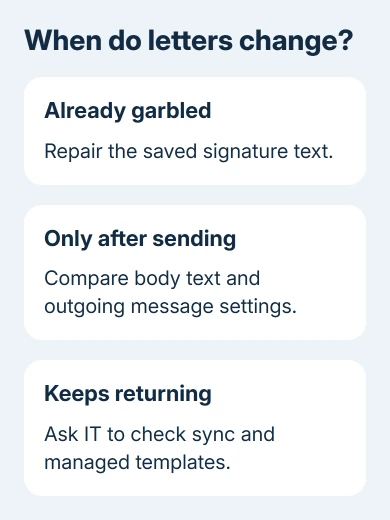
The spring 2025 reports involved accented letters turning into growing strings of symbols, and tabs gaining extra characters. Some organizations found the damage returning after they had manually repaired the text.
A signature that's intact during editing but changes after sending needs a separate message-format check. Keep a sent example and note whether ordinary accented body text changes too.
For a missing signature or the wrong default, use the signature settings for your Outlook version. Those settings decide which block appears; they don't restore letters that have already changed.
2. Correct the signature through webmail
Open your organization's webmail and sign in with the affected account. Start a draft there and compare its signature with the desktop version. This shows whether the damaged text exists in the web copy as well.
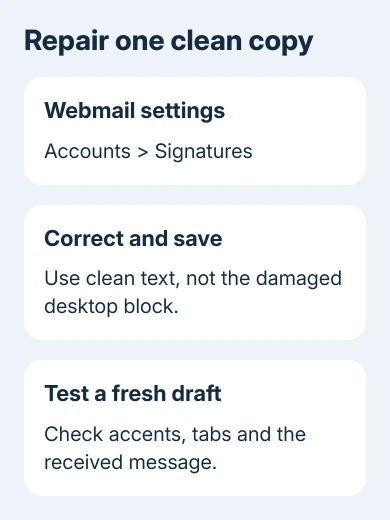
In the current web layout, open Settings > Accounts > Signatures. Select the signature, replace the broken text with a clean copy and save. Older layouts can place the editor under Mail > Compose and reply.
Use a trusted original for the spelling, phone numbers and links. Copying the broken desktop block into webmail carries the damage with it, even if you change its font.
One owner in the signature-corruption discussion reported that correcting the signatures in webmail kept them intact for a week. They were guessing about the cause, but confirmed that the web edit worked.
After saving, create a fresh web draft. Check the actual accented characters and tabbed contact lines, then send a test to your own second mailbox. Compare what arrived with the draft.
If the web copy works but desktop Outlook still inserts old text, close and reopen desktop Outlook and start a new message. An existing draft can still contain the signature that was inserted earlier.
Keep edits in the web editor while checking whether the repaired text stays stable. If the desktop editor writes the damaged version back again, the next step is to preserve a clean copy and involve your administrator.
3. Preserve clean signatures before clearing damaged copies
Save each correct signature in a separate document or text file, including its contact details and links. Organizations with many departmental signatures should collect the approved versions before removing anything.
A second owner reported success after deleting desktop signatures and their local files, correcting the web versions and letting them synchronize again. That changes more than repairing one block, so I'd try the web edit first.
The classic local folder is %APPDATA%\Microsoft\Signatures. Ask IT to back up its contents before clearing damaged copies, particularly when signatures include images or locally managed templates.
For a single signature, it's easier to check your changes if you remove and recreate it in the editor instead of deleting everything in that folder. Use Microsoft's signature creation instructions for the Outlook version you actually use.
After rebuilding, test new mail and replies separately. Each can use a different default signature, so a good new-message test doesn't check the reply block.
If the Signatures button itself freezes or won't open, follow the desktop signature-button repair instead. File cleanup won't explain an editor you can't reach.
4. Don't rely on disabling cloud settings alone
Turning off roaming signatures had mixed results in 2025. This feature keeps signatures available across Outlook installations. One person reported short-term success; another said the same approach hadn't helped.
The original reporter also said changing outgoing encoding to UTF-8 and turning off cloud saving hadn't stopped the corruption. Don't expect those changes to repair text that's already garbled in the signature editor.
If your company manages signatures centrally, ask its administrator to repair the affected accounts. An automatically restored template can replace a manual correction, making it difficult to tell which version you're checking.
Tell IT which editor last saved the correct version, which computer inserted the damaged one and whether webmail still looks correct. That is more useful than repeatedly rebuilding the same block on every PC.
5. Keep the historical bug separate from a new failure
The thread's accepted reply said the issue should be resolved in April 2025. A later participant still reported affected customers, and the original reporter then confirmed in May that signatures no longer corrupted themselves.
That confirms the problem stopped for the original reporter. A similar failure today could have a different cause. Record your current Outlook version and build under File > Office Account > About Outlook.
If ordinary accented text changes to question marks after sending, include that difference in the report. Don't label every non-English character problem as cloud-signature corruption just because both involve accented letters.
If a clean web edit becomes damaged again, have IT report it to Microsoft 365 support. Send a before-and-after example with private details removed, along with the affected mailbox, build and time when the saved text changed.
Until the cause is corrected, use a short clean signature typed into the message or saved in the working web editor. Check the received test message before returning to customer correspondence with a long formatted block.
The Short Version
Inspect the saved signature, repair its text in webmail and test a fresh message. Preserve clean copies before desktop cleanup. For repeated corruption, have IT check synchronization and centrally managed templates.
Checked November 16, 2026.
 If you have any business, I can build it online






