

Outlook's signature settings can fail because the mailbox's saved web settings are damaged.
When the browser shows a problem loading your options and several settings pages fail together, try another browser once, then ask your mailbox administrator to check the account.
These steps cover a 2016 Outlook-on-the-web problem, even though the discussion was labeled as desktop Outlook. It differs from the Windows Signatures button freezing, which needs a desktop repair.
In this guide
1. Match the error to the Outlook version
Check where the message appears. A browser address bar means you're using webmail. Classic Outlook for Windows opens as a desktop application with a File tab and has its own signature editor.
The older web error said there was a problem loading the user's options and asked them to try again. The same person couldn't open Mark as Read, Message Options, Read Receipts, Connected Accounts, Message Format or Link Preview settings.
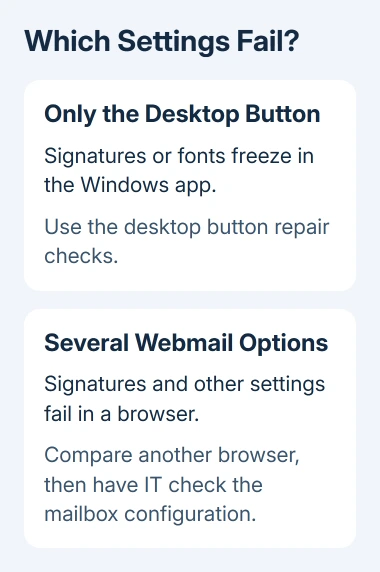
That pattern matters: rebuilding the text of one signature won't repair several settings pages that can't load. Keep a list of which pages fail so your administrator can check the mailbox configuration.
For a Windows desktop app that hangs when you click Signatures or Stationery and Fonts, follow the broken signature-button fixes.
The mailbox reset discussed here isn't that procedure.
For current Outlook on the web, open Settings > Accounts > Signatures. Older work webmail layouts use different Options pages. Match the error and the failing controls rather than looking for the 2016 page design.
If the editor opens normally but a signature is missing from messages, use the version-specific signature settings.
That's a defaults or insertion problem, rather than an options page that won't load.
2. Try another browser and check other settings
Open the same mailbox in another current browser and revisit its signature settings. Use the same account, since comparing two different mailboxes won't tell you whether this one's settings are broken.
If it works there, use that browser to make the needed edit. That points toward the first browser's session or setup, so check that browser before asking for a mailbox repair.
If it fails in both, open one other settings page that was affected. Note whether messages themselves still open and send, or whether the failure now affects the mailbox more widely.
An owner in the original webmail discussion reported the error in more than one browser.
One report covered Chrome and Internet Explorer; another described trouble on a Mac.
Switching browsers didn't fix the problem for those owners. It's a quick comparison that helps avoid repeatedly clearing a browser when the account fails everywhere.
If you're already seeing the same error in two browsers, move on. I'd send those results to the mailbox administrator instead of reinstalling desktop Office to repair a page running in a browser.
3. Ask the administrator to check Exchange service health
For an organization's Microsoft 365 mailbox, tell the help desk whether coworkers are affected. Include when the error started, the mailbox address and which options no longer open.
Have an administrator check Exchange Online in the Health > Service health area of the Microsoft 365 admin center. This shows whether a reported service incident could explain the error or whether IT needs to open a case for your mailbox.
The service-health instructions explain who can view the dashboard.
You don't need administrator rights to report broken signature settings.
If an incident matches, give IT your affected mailbox details and follow its update. If no relevant incident is listed, ask IT to open a support request with the browser comparison and the list of failing settings.
The 2016 support exchange involved tenant details, meaning information about the organization's Microsoft 365 service. Send those details through your help desk or a private support case, not a public forum reply.
For a personal Outlook.com address, use Outlook's Help area to reach its support options. An employer's admin center can't manage a personal mailbox that isn't part of its organization.
4. Have support assess the saved web configuration
Microsoft says the cause of that incident was linked to incorrect MAPI values in Outlook on the web configuration.
MAPI is an interface used to access mailbox data; here, the problem involved saved settings rather than signature wording.
The response said resetting the affected configurations fixed the problem. Its procedure used MFCMAPI, a specialist Windows mailbox tool, with an existing Outlook profile and access to the server-side mailbox store.
This is an administrator or support task. Don't permanently delete hidden mailbox entries yourself from an old forum recipe; support needs to confirm that the current mailbox has the same problem and identify the right entries.
For the support case, describe it as an Outlook-on-the-web options-loading error affecting signatures and other settings. Ask whether the mailbox's saved OWA user configuration needs repair. OWA is the older name used for Outlook webmail.
The old instructions closed Outlook and webmail before changing the server-side configuration. They targeted configuration messages, not the Inbox. Your administrator should plan the work and tell you when to sign back in.
MFCMAPI doesn't run as a Mac application. A Mac owner in the thread hit that exact obstacle. Using a Mac to access webmail doesn't mean you need to install Windows to fix the mailbox yourself.
5. Retest saving, then keep a usable signature meanwhile
After support finishes, reopen the webmail settings and check both Signatures and another previously failing page. Check more than the signature page to see whether the other settings work again too.
Save a small signature edit, leave settings and return to confirm it remains. Then start a new message and check whether the signature appears automatically in new mail, replies and forwards, as needed.
The current signature instructions use Settings > Accounts > Signatures and Save.
Use the controls in your account, since the original thread predates this layout.
While the editor is unavailable, paste your approved contact text into the message body before sending. This lets you send a correctly signed message without waiting for the automatic signature setting to work.
One later reply in the old discussion reported that the mailbox briefly worked and then failed again.
If your error returns, update the same support case with the time and the pages affected, so support knows the repair didn't last.
When the error survives the repair
Ask the mailbox administrator to escalate the existing Exchange Online case. Include the first failing time, the recent repair time, browser results and whether opening messages is now affected too.
That gives support a specific mailbox and a repeatable failure to check. Replacing your signature text or repairing the Windows app doesn't address several web settings pages failing together.
The Short Version
Test your affected mailbox through a second browser.
When multiple webmail options fail, have IT check service health and the mailbox's saved web configuration.
Use manual contact text while support repairs the settings, then retest saving and insertion.
Checked November 16, 2026.
 If you have any business, I can build it online






