

Remember my preference can be missing because Outlook has opened Zoom While Composing rather than Zoom While Reading. Return to the inbox, select a received message, and open its zoom percentage before clicking Reply.
That worked for the original asker, but later owners reported different composing results. The reading preference is supported for Microsoft 365; composing zoom isn't retained the same way in every Outlook edition.
In this guide
1. Open the zoom control before starting a reply
In classic Outlook for Windows, save any unfinished reply and return to the inbox. Select a received message so its contents appear in the Reading Pane. Look in the window's lower-right corner for the zoom percentage.
Click the percentage itself, rather than moving the slider or opening Format Text > Zoom inside a draft. Check the title of the dialog that opens. For this step, it should be Zoom While Reading.
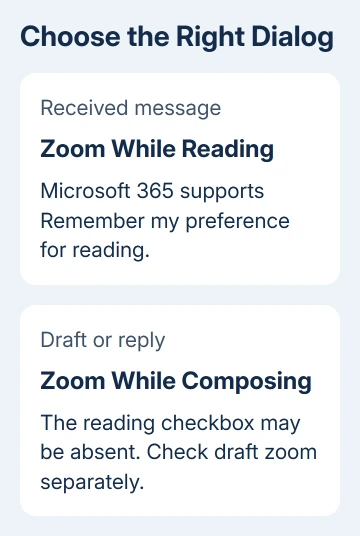
Choose your preferred percentage, select Remember my preference if offered, and choose OK. Now start a reply and inspect the text size. This is the order that helped the original asker: change the reading control before clicking Reply.
In the original zoom discussion, the asker confirmed that correction. Another owner later said the reading setting persisted while composing, while a different owner said it only retained reading zoom.
Use the next section to check what your copy actually saves. Don't keep searching the composing dialog for a checkbox that belongs to a different dialog.
2. Check reading persistence separately from draft zoom
Open another received message and check the percentage. If it stays at your chosen value, Outlook has saved your reading preference. That result answers the reading part of the problem even if a new draft behaves differently.
Then create a new email and compare it with a reply. A reply can contain text and formatting from the original message, so one reply on its own isn't a useful check of every composing window.
Save and close a draft, then reopen it and look at its displayed zoom. Also try a fresh message. Compare those results to see whether one draft behaves differently or each fresh composing window resets.
Once reading zoom stays at your chosen percentage, leave that setting alone. If composing zoom still resets, report that separately so support knows which part isn't saving.
I'd check those two windows before changing any fonts. Zoom changes how large the message looks on your screen; changing the composing font can change the text sent to the recipient.
3. Use the supported reading-window route
If the Reading Pane control isn't available, double-click a received email in classic Outlook to open a separate message window. Choose Zoom on the ribbon's right-hand side.
If the ribbon doesn't show Zoom directly, open its more commands menu at the right and look there. Set the percentage, select Remember my preference, and confirm with OK.
Microsoft's Reading Pane instructions give this standalone-message route for a permanent reading zoom. Those steps save the size of received messages; they don't set a composing default for every version.
Check the saved value in another received message. If it works there but not in drafts, report that difference. Repeating the reading steps won't make a composing preference save when your edition doesn't retain it.
For a missing pane or a window arrangement that hides the control, check the Outlook layout settings. Restore the reading area first so you're changing zoom for the received message.
4. Check the edition when the checkbox never appears
In classic Outlook, use File > Office Account and check the product name in Product Information. Note the build and version from About Outlook too. Keep both the subscription name and version number; they tell you different things.
The current view instructions say that saving reading zoom across messages requires a Microsoft 365 subscription. Without one, you can change zoom temporarily, but it resets when you move between messages.
That explains why two people can follow the same reading steps and see different controls or find that only one copy saves the setting. An Outlook 2016 owner reported that their copy lacked the suggested percentage controls.
If you're using new Outlook, these classic File and Format Text dialog steps aren't the right interface. Use View > Zoom for reading size there. Don't switch clients solely to make an old screenshot's checkbox appear.
For a larger default font in outgoing mail, use the Outlook font settings. That's a separate choice from preserving the sender's formatting while enlarging the message on your screen.
5. Adjust composing zoom for the message in front of you
Open the draft in classic Outlook. Use Format Text > Zoom if that command is available in the composing window, choose a comfortable percentage and accept it. Check the body text while editing.
If the message opens as an inline reply, opening it in its own window can make the composing ribbon easier to find. Judge the current draft's display instead of expecting it to match the reading dialog's controls.
A larger zoom is useful when the message itself should keep its existing font size. You can enlarge the text for your own screen without sending unusually large text to the recipient.
If another draft resets the percentage, apply the zoom to that draft as needed. Owners disagreed about whether composing zoom stayed saved, so don't expect the reading checkbox to fix it in every edition.
When a supported reading preference still won't save
If Microsoft 365 shows the checkbox but received messages still reset, use File > Office Account > Update Options > Update Now where offered. Save work before closing Outlook, then open it again and compare received messages.
If your managed PC hides the update controls, ask IT about its build and how updates are managed. Include the dialog title, product, percentage and whether the reset affects received messages, new mail or replies.
For a personal subscription, open Outlook's Help support option with those details. Say which window won't keep your zoom setting. Include the dialog title so support can identify the missing control.
The Short Version
Open reading zoom before clicking Reply. Save Remember my preference if available, then check reading and composing separately. Microsoft 365 supports saved reading zoom; owner reports differ on whether composing keeps it too.
Checked November 17, 2026.
 If you have any business, I can build it online






