Edit Points commands can suddenly turn gray when an add-in takes over PowerPoint's menus. Disabling Cisco Webex Productivity Tools fixed this for one owner. Start there if it's installed, then check the other add-ins.
Missing Edit Points altogether is a different problem. Check that you've selected a shape, rather than its text or a picture, before changing Office settings.
In this guide
1. Turn off Webex Productivity Tools first
The reported fault wasn't a missing command. The owner could open a point's menu, but options such as deleting a point became unavailable before they could select one.
An owner on Microsoft's forum fixed the disappearing commands by switching off the Cisco Webex Productivity Tools add-in. Check that add-in first if these symptoms match what you're seeing.
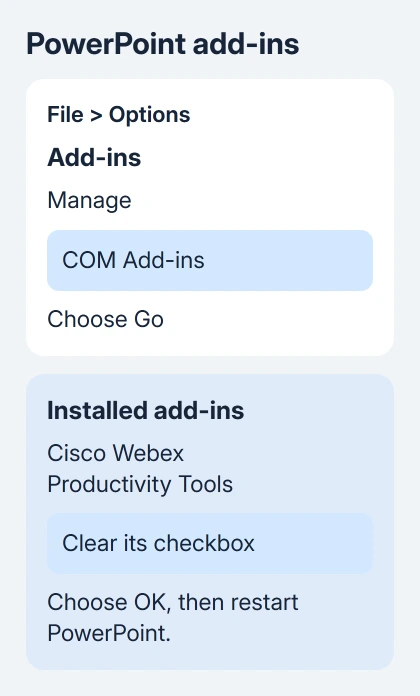
- Save your presentation, then open File > Options > Add-ins in PowerPoint for Windows.
- At the bottom, set Manage to COM Add-ins and select Go.
- Look for an entry belonging to Cisco Webex Productivity Tools. Clear its checkbox, then select OK.
- Close PowerPoint completely, reopen it, and try editing a point in the same presentation.
Leave other entries as they are for this first attempt. If the point menus now work, you'll know turning off Webex helped. Changing several add-ins at once would leave you guessing which one made the difference.
If the entry isn't installed, move to the next check. You don't need to install Webex or hunt for its files. This fix helped on a computer that already had the add-in.
2. Compare the same shape in Office Safe Mode
Safe Mode limits the add-ins and custom settings PowerPoint loads. Try it when the same menus work on one computer but fail on another.
- Close PowerPoint.
- Press Windows + R to open Run.
- Enter
powerpnt /safe, including the space before /safe, and press Enter. - Open your saved presentation from inside PowerPoint.
- Select the same shape, enter Edit Points, and try the command that failed.
The title bar identifies the Safe Mode session. This is Office Safe Mode; leave Windows running normally.
If the point menu works here, continue with the add-in checks. In the original thread, the asker could edit points in Safe Mode, and another owner later identified the Webex add-in.
If it still fails, note that result and continue with a new shape. I'd try a new shape before an Office repair. If the rectangle works, focus on the original object.
Close the Safe Mode window and launch PowerPoint normally when you've finished. For a presentation that also closes unexpectedly, our PowerPoint crash guide covers the wider crash checks.
3. Disable other add-ins one at a time
Back in normal PowerPoint, return to File > Options > Add-ins. Keep a note of the entries currently enabled so you can restore integrations you need.
Open COM Add-ins > Go, clear one checked entry, and restart PowerPoint. Try the same point menu after each restart. If nothing changes, restore that entry before checking the next one.
Also inspect PowerPoint Add-ins in the Manage list if that category contains installed extensions. These are separate lists. An add-in can still be active in one even after you've checked the other.
If disabling an add-in brings the menu back, finish editing with that add-in switched off. Ask its supplier or your help desk for an updated version, and give them the add-in's name and your PowerPoint version.
A disabled integration can lose its own ribbon buttons or other features. That's a reason to identify the individual entry, so useful extensions can keep working.
If no add-in changes the result, re-enable the entries that didn't help and keep going. Webex caused the problem for the owner in that report, but a menu failure on your PC can have another cause.
4. Check the selected object and a new shape
Click outside the object, then click its edge once. A text insertion cursor means you're editing text inside the shape; select the shape itself before looking for its drawing commands.
Use Shape Format > Edit Shape > Edit Points. Older releases label the contextual tab Drawing Tools > Format. Small square points should appear around the selected shape.
To check a new shape, create a blank presentation and use Insert > Shapes to draw a rectangle. Select its edge, enter Edit Points, and test moving a point and opening its menu.
If the rectangle works, reopen the affected slide. Check which object is selected. A photograph isn't a shape path, and a collection of objects can need individual selection before shape commands apply.
Microsoft's shape-editing instructions show the Edit Points route. A command that's absent until you select a shape differs from a menu that becomes gray after opening.
Points that move freely but refuse to land on the grid are another separate behavior. Our Freeform snapping guide explains that limitation and the drawing methods that work around it.
5. Update PowerPoint, then repair Office if needed
If even a new rectangle fails with extensions disabled, check File > Account > Update Options > Update Now. Install available Office updates, reopen PowerPoint, and repeat the rectangle check.
On a work computer, a missing update control can mean IT manages Office updates. Give them the version and build listed under File > Account > About PowerPoint, rather than installing a different Office package yourself.
For a persistent fault, exit your Office programs and launch Settings. On Windows 11, choose Apps > Installed apps, find Microsoft 365 or Office, open its three-dot menu, and select Modify.
On Windows 10, use Apps > Apps & features, select the Office entry, and choose Modify. For Click-to-Run, choose a repair type: Quick Repair or Online Repair. An MSI installation labels its repair choice Repair.
Start with Quick Repair when it's offered. Online Repair uses an internet connection for a more thorough repair. Finish and save anything open in Word, Excel, or other Office programs first; the repair affects the whole Office suite.
When the menus still turn gray
Ask Microsoft support or your workplace's help desk about the failing menu. Include your build, the failing command, whether a new rectangle fails, the Safe Mode result, and the add-ins you've checked.
If it occurs only in one presentation, provide a copy containing a single affected slide after removing private content. Support can then check the affected object without needing your whole deck.
The Short Version
Disable Cisco Webex Productivity Tools if it's installed, then reopen PowerPoint. Otherwise compare Safe Mode, check add-ins individually, and try a fresh rectangle before updating or repairing Office.
Checked November 21, 2026.
 If you have any business, I can build it online