

PowerPoint's Lock option can be missing because of your edition or where you're looking. Open the Selection Pane first: if your version supports locking, you can protect a shape there without using the right-click menu.
A reinstall isn't the first thing I'd try. Check the installed product, update it, and compare a new shape with the troublesome object before changing the presentation.
In this guide
1. Look for the lock beside the object name
Open the presentation in the Windows desktop app. Select Home > Select > Selection Pane, or press Alt + F10. Another route is Shape Format > Selection Pane after selecting a shape.
The pane lists objects on the current slide. Select the name of the shape or picture you want to protect, then use its lock control. Microsoft's Selection Pane instructions describe locking and unlocking there.
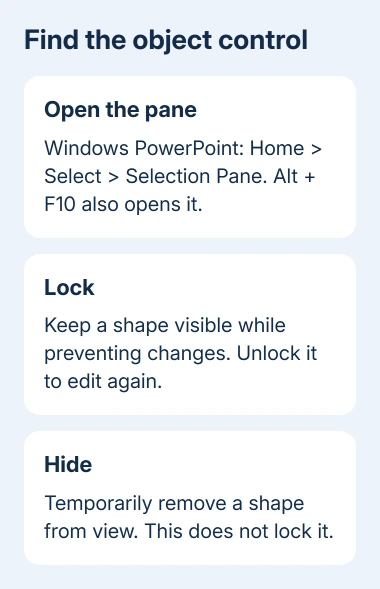
Try dragging the object after locking it. It should stay in place and resist editing. Unlock it in the same pane when you need to change it again. Locking is useful for a background shape while you arrange other objects around it.
The visibility control does a different job. Hiding removes an object from view without deleting it; locking keeps it visible while preventing changes. Don't hide a background just because its lock control is missing.
If the pane opens without a lock control, leave the original slide alone for now. Check your edition, then try locking a plain shape to see whether the problem is with this slide or PowerPoint itself.
2. Check the installed product, not just the file name
Choose File > Account and read Product Information. Record whether it says Microsoft 365, PowerPoint 2024, or an older one-time purchase. Then open About PowerPoint and write down its build and version.
Opening a .pptx file doesn't tell you which PowerPoint edition is installed. Signing into a Microsoft account doesn't turn an older one-time purchase into the subscription app, either.
The Windows object-locking feature originally rolled out to Microsoft 365 subscribers. The preview build number in that announcement is from that rollout. Installing that old build isn't a sensible repair today.
The original missing-lock discussion includes a Microsoft 365 owner who also lacked the command in January 2022. That 2022 report doesn't explain every missing lock today.
For a work computer, send IT your PowerPoint edition and build number. Ask whether its edition and update channel support object locking. Ribbon customization won't add a feature the edition lacks.
3. Update the desktop app and check a plain shape
In File > Account, choose Update Options > Update Now. If the menu offers Enable Updates, enable them first, then check again. Save open documents, then let the updater close Office when requested.
Reopen PowerPoint after the update finishes. Make a blank presentation, insert a simple rectangle using Insert > Shapes, and open the Selection Pane. Check both its lock control and the rectangle's right-click menu.
When even a blank file has no lock control, check which features your PowerPoint installation includes. If locking works in the blank file, check the original slide before repairing all of Office.
If Update Options is absent and only About is available, updates may come through your organization, or your copy may use a volume license. Ask IT for the supported update route rather than downloading a second Office copy.
Keep the test file separate from your presentation. No need to replace your design or copy every slide just to learn whether PowerPoint can lock one ordinary shape.
4. Check whether the object belongs to the slide master
An object you can't select can belong to the layout or slide master, which holds shared design elements. Open View > Slide Master and inspect the master and the layout used by that slide. Close Master View when you've finished checking.
A background image can also be a slide background rather than a separate picture object. In that case, searching for it among ordinary slide shapes won't reveal a missing lock button.
Work on a copy before changing a master. A master or layout change can affect multiple slides, so check which slides use it before unlocking or moving anything.
For selectable objects you can't easily reach, click their names in the Selection Pane. You can temporarily hide the object covering them, make your change, and show it again. Check the finished slide so nothing stays hidden by accident.
When the trouble appeared after copying slides between presentations, compare the source and destination layouts. Imported design elements may belong to a different layout than the one you expected.
5. Use the desktop app for a control missing on the web
The browser and desktop versions don't always have the same object controls. For a presentation open in your browser, try locking a rectangle in your installed Windows application instead.
Don't confuse permission to edit the presentation with permission to change a locked object. A read-only file needs editing access first; a locked shape needs its object lock removed in a supporting app.
To control editing of the entire file, check PowerPoint protection choices and keep account permissions separate from a single shape lock.
Experiment on a copy of a shared presentation. Turning the design into a single background image keeps individual elements from moving, but you can't edit them separately afterward. Use it only when that tradeoff suits the design.
If PowerPoint also reports an error while saving the file, resolve that before relying on any locking changes. Reopen that saved presentation and confirm the object changes remain.
If a current installation lacks locks on a new rectangle, send support or IT the product name, build, update channel, and test result. Ask whether that installation supports object locking.
The Short Version
Open the Selection Pane and check the object's lock control. If it's missing, check the installed edition, update PowerPoint, and test a new rectangle. Examine masters and layouts when only one presentation behaves differently.
Checked November 16, 2026.
 If you have any business, I can build it online






