

PowerPoint lacks Word's Restrict Editing pane; its per-person permissions need rights-management support. To let others view a file while discouraging casual edits, set Password to modify through Save As > Tools > General Options.
An opening password does a different job: it stops people opening the file without that password. Decide which permission you need before changing the protection settings, especially if the presentation must remain available to coworkers.
In this guide
1. Which missing option do you need?
Open File > Info > Protect Presentation in Windows PowerPoint. Mark as Final, Encrypt with Password and Add a Digital Signature aren't replacements for a per-person editing permission.
Mark as Final discourages accidental edits; it isn't a security lock. An opening password protects access to the file. A digital signature serves a different purpose from restricting editing.
If a set of Word instructions sent you looking for Restrict Editing, stop at that mismatch. PowerPoint's controls aren't the same as Word's, even though both apps place protection tools under File > Info.
One owner in the PowerPoint 2013 discussion recognized that their Home and Student edition lacked the rights-management option. A later participant installed a rights-management client and still couldn't see it.
Your account still needs permission to create protected presentations after the client is installed. Don't keep installing components just to make the menu match a screenshot from another Office edition.
For a local file that all recipients should be able to view, start with Password to modify in the next section. For named people with enforced Read or Change permissions, skip to the rights-management section.
2. Set a password to modify the presentation
Keep an editable original in a folder you control. Work on a separate distribution copy so an incorrect password or a rushed Save As doesn't replace your only useful source file.
In Windows desktop PowerPoint, use these controls:
- Open File > Save As.
- Open the full save dialog, using Browse if your edition shows that choice.
- Select Tools, then General Options.
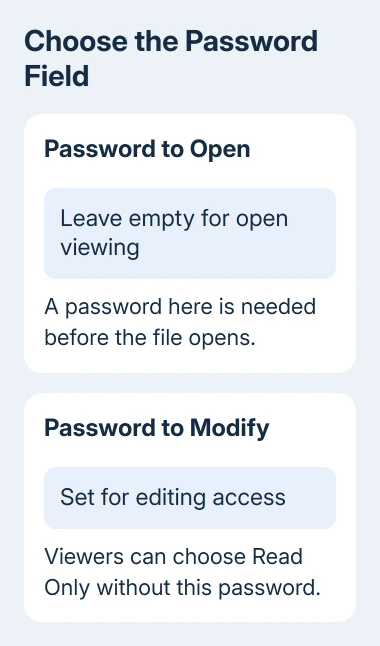
- Enter a password in Password to modify.
- Leave Password to open empty if viewers must open the file without a password.
- Select OK, confirm the modify password when asked, and save the copy.
Reopen your distribution copy after closing it. It should ask for a password for editing and offer a Read Only choice. Choose Read Only to check that people can view the file before you share it.
The password protection instructions distinguish passwords for opening and modifying a presentation. In PowerPoint 2013, the modify-password control is in Save As, not the Encrypt with Password box.
I'd do the reopen check immediately. It catches the easy mistake of filling Password to open and accidentally keeping the intended audience out of the presentation altogether.
This is useful for discouraging casual changes to a shared copy. A viewer may still be able to save a separate copy. Choose rights management if you need more control over how people use the contents.
On a Mac, open File > Passwords. Under Password to modify, select Require a password to modify the presentation, set and verify the password, then save. Leave the opening-password option clear for unrestricted viewing.
3. Use rights management for named readers
Information Rights Management, or IRM, attaches access permissions to the presentation. A licensing service checks the reader's account and the rights assigned to it. That requires more than a password field on a home PC.
If your Windows installation supports IRM, save the file and open File > Info > Protect Presentation > Restrict Permission by People > Restricted Access.
Select Restrict permission to this presentation and add the people who need access.
Read allows viewing without editing, printing or copying. Change allows reading, editing and saving changes but doesn't allow printing. Your administrator can apply policies that limit the choices available to you.
If the command is absent from a work installation, have your Microsoft 365 administrator confirm that your account can create rights-managed Office files. Give them the product name from File > Account and the missing command's name.
Ask for an account and service check, rather than a general Office repair. The administrator can confirm the license and company policy before deciding whether the installation needs attention.
On a supported Mac edition, the equivalent route is Review > Protection > Permissions > Restricted Access. The account and permission requirements still apply; only the menu path differs.
Home and Student 2013's limitation in the old thread isn't a rule for every modern subscription. An Office subscription alone doesn't tell you which permissions your organization allows you to set.
4. Choose a viewing copy when editing isn't needed
For instructions, handouts or a finished slide deck, a PDF can be a better distribution format. Keep the PowerPoint original for revisions, then export the presentation as a PDF for readers who only need its pages.
A PDF changes the format; it doesn't automatically add access control. Choose it because readers need a stable viewing copy, and check the exported pages before replacing the presentation link in your shared folder.
Don't expect a .ppsx file to lock the presentation either. It opens as a slide show, but the file type alone doesn't prevent someone opening it for editing from inside PowerPoint.
If the concern is only one object being moved accidentally, PowerPoint's object lock addresses that smaller task. Locking an object and controlling who can change an entire presentation are separate jobs.
When the required protection is still missing
PowerPoint 2013 is out of support. For enforced permissions, ask your organization to provide a supported Office installation with the required rights-management service, then test the distribution copy with a reader's account.
For a local shared folder, also have its administrator review who can replace the official file. Protecting a presentation and protecting the folder that holds the official copy work at different levels.
The Short Version
Use Password to modify for a copy that people can open read-only. Use IRM when named readers need enforced permissions, with your administrator's help. Mark as Final and the .ppsx extension don't give you that control over access.
Checked November 21, 2026.
 If you have any business, I can build it online






