

A PowerPoint link on a slide master or layout can't be clicked in Normal view because the object isn't selectable there. Use Slide Show to follow it, or put a linked shape on each slide for navigation while editing.
A link that works during the show but ignores Ctrl-click during editing usually needs a different placement, not an Office repair. A link that also fails during the show needs its destination checked.
In this guide
1. Try the shared link in Slide Show view
In desktop PowerPoint, start the slide show on a slide displaying the button. Click the linked text or shape. An internal link should take you to its target slide, such as your overview or contents slide.
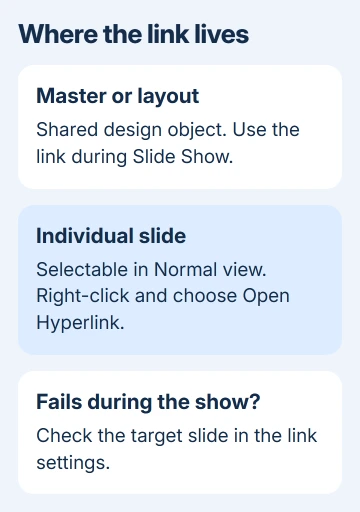
If it works, the destination is valid. The link doesn't respond in Normal view because of where the object lives. The master supplies the design, but that shared object isn't an editable object on the individual slide.
The original owner confirmed that their shared return link worked in Slide Show view. The accepted explanation was that objects on custom layouts can't be clicked, Ctrl-clicked or right-clicked in Normal editing view.
That distinction matters when a deck doubles as a reference document. During a show, clicking follows the navigation. While you're editing, you can open links on objects that belong to the slide itself.
If the link doesn't work during the show either, move to the destination check in section 4. If it works there, choose between presenting the deck and adding buttons to individual slides for editing.
2. Put editing links directly on the slides
For a return button that must work while you edit, add the linked object in Normal view. Don't add another copy to the layout: that would leave it in the same shared design layer.
- Close Master View and select one detail slide in Normal view.
- Choose Insert > Shapes, add a small shape and type a useful label, such as Return to contents.
- Select the shape itself and choose Insert > Link. On Windows, choose Place in This Document and select the contents slide.
- Confirm the destination, then right-click the new object and choose Open Hyperlink to test it without starting the show.
Microsoft's hyperlink instructions describe both linking to another slide and testing with Open Hyperlink. That puts the linked shape on the slide you're editing.
On Mac, the internal-slide destination is This Document in the Insert Hyperlink dialog. Pick the target slide there. For a mouse or trackpad without a separate right-click, Control-click opens that menu.
Once the test reaches the right slide, copy the shape to the other detail slides that need it. Check a pasted copy before filling the rest of the deck. That catches an incorrect destination before it spreads.
I'd add this to a few working slides first. A deck used mainly for presenting may be easier to maintain with the shared master button alone; a deck used for research while editing benefits more from individual buttons.
3. Decide which copy should stay visible
A master button and a slide button in the same position can look like a single object. That makes later edits confusing: moving the slide copy can reveal an identical shared copy underneath it.
Keep the new shape away from the shared button while testing. After choosing the final design, remove the shared button you no longer need from its master or layout if every relevant slide now has its own button.
Open View > Slide Master, select the master or layout that carries the old button and edit it there. A change on the top master can affect several layouts, so check which slides depend on it before removing a shared object.
If a design change doesn't reach existing slides, use the Slide Master layout checks. Reapplying a layout updates its design; it doesn't turn a layout object into a selectable slide object.
That's also why some logos and text can't be selected on an individual slide. For a slide that blocks editing more broadly, check the PowerPoint editing restrictions before changing its design.
4. Repair a link that also fails during the show
Return to View > Slide Master and select the linked text or shape on its actual master or layout. Open its link settings and check the target. A return button should point to the intended slide in this presentation.
For an internal destination on Windows, use Place in This Document. On Mac, use This Document. Select the contents slide by its title, confirm, close Master View and test the show again.
If the button points to another file, that file must still be reachable. Moving a presentation to another computer doesn't move every linked file with it. Within one deck, a link to another slide avoids needing a separate file.
Check the actual destination after following the link. Reaching a slide isn't enough if it is the wrong overview page in a presentation with several sections. Correct that target before copying the button elsewhere.
If a new link on an individual slide works but the old shared one doesn't, compare the two link settings. If both fail in a new test presentation, save an example for support rather than repeatedly rebuilding the original deck.
When the presentation still won't navigate
Create a small copy with a contents slide, one detail slide and the failing button. Remove private material, then request support through PowerPoint's Help menu. For a managed installation, give the example to your Office administrator.
Explain whether the button is on the master, a layout or the slide, and whether it works in Slide Show view. With those details, support can distinguish a broken link from the editing limitation.
The Short Version
Use master and layout links during the show. For links you need while editing, create linked objects on the individual slides and test them with Open Hyperlink. Check the destination only when the link fails during the show too.
Checked November 22, 2026.
 If you have any business, I can build it online






