

An unused PowerPoint master can disappear when its last slide is deleted. Restore it from the original template, then check Preserve on the master thumbnail in Windows. If it's already enabled, an older reported fault may be responsible.
On Mac, PowerPoint 2016 owners reported different behavior with Preserve, including a missing button. Keep the original template intact while recovering the master in a separate working presentation.
In this guide
1. Restore the master from a copy that still has it
Open the working presentation and the original template or presentation containing the missing design. In the source file, choose View > Slide Master and locate the master you need in the thumbnail pane.
Choose the large thumbnail at the start of the design's group, rather than one of the smaller layout thumbnails beneath it. Copying the master brings its associated layouts with it.
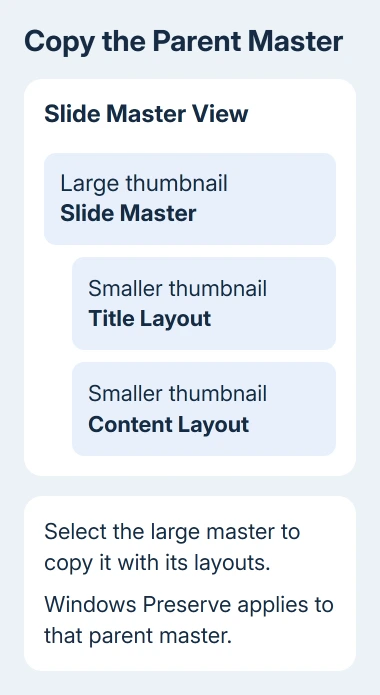
On Windows, right-click that large thumbnail and choose Copy. Switch to the destination presentation, open View > Slide Master, and right-click in its master thumbnail pane to paste.
Choose Keep Source Formatting when you want the original design's theme colors, fonts and effects. Use Destination Theme instead adopts the destination presentation's theme, which can make a recovered design look different.
Select Close Master View, then check the Home > Layout gallery on a working slide. Look for the recovered layouts there before continuing with the presentation.
Microsoft's master-copying instructions use these Windows steps. Owners in the Mac discussion also reported copying masters back from their original template to recover them.
On Mac, use View > Slide Master, select the large source thumbnail and copy it with Command+C. Switch to the destination's Slide Master view and paste with Command+V, then check the imported group and layouts.
If the original template has lost the master too, find an earlier saved copy that still contains it. Without a saved copy, the empty layout gallery can't bring back the design's exact fonts, objects and layout rules.
2. Preserve the master, not a layout or slide
In Windows PowerPoint, open View > Slide Master. Select the large parent thumbnail and choose Slide Master > Preserve. A small pin beside the master shows that preservation is enabled.
The large thumbnail represents the master; the smaller thumbnails represent its layouts. Selecting a layout and searching for a master-level command can leave you checking the wrong item in a long presentation.
Inspect each master group separately if the file contains several designs. Preserve can be enabled for one master and off for another, so check each one.
Preserve is meant to retain the design when slides stop using it. It doesn't lock normal slides or protect their wording from edits. It also won't apply this layout to slides that use another master.
Check the result on a disposable copy. Delete the last slide using that master, return to Slide Master view and look for the large thumbnail and its layouts. Save that copy, close it, then reopen it and check for the design.
If it survives, keep the original template as your reusable source and continue with the working file. If the pinned master disappears, don't keep deleting and rebuilding your real slides; use the version-specific checks next.
3. Treat older Mac Preserve behavior separately
The owners in the 2017 discussion were using PowerPoint for Mac 2016, including versions 15.33 and 15.34. Replies describe no Preserve button in that Mac interface, so the Windows ribbon instruction wasn't a complete answer for those users.
A file created on Windows could also carry its preservation setting into Mac. That means two files opened in the same Mac app could behave differently because of how the masters were saved earlier.
One owner reported that copying masters back from the template was their continuing workaround. A Windows report in that discussion describes a master disappearing despite Preserve being on.
One contributor said duplicating the original master seemed to work in a quick check of version 15.33. Their later reply stressed that the check was brief; the asker said they'd try it, without reporting a result.
In that old version, try duplicating the large master in a copy, then applying the duplicate's layouts to the slides. Check that the slides use the duplicate before deleting the last slides tied to the original.
That brief check in 15.33 doesn't tell us whether duplication will work in your current Mac version. If the design disappears after reopening, return to the intact template instead of repeating the experiment on your only file.
4. Check whether the master vanished or the layout changed
Open Slide Master view and look for the parent design first. If the master is still there but a slide shows the wrong layout, change the slide's layout instead of restoring the master.
In Normal view, select the affected slide, open Home > Layout and choose the intended recovered layout. If you edited the layout after the slide was created, reapply the changed slide layout to update it.
That check avoids copying another master into a presentation that already has it. Several near-identical master groups can make the correct layout harder to identify the next time you work on the file.
For content that's visible but can't be selected on a normal slide, check what is blocking editing before deciding it disappeared. Master artwork isn't selected in the same way as an ordinary slide object.
I'd keep one unchanged source template and use separate files for individual presentations. It gives you a clear recovery source when an unused design disappears during slide cleanup.
When a preserved master still disappears
In a supported Office edition, record the version and the exact event that removes the master: deleting its last slide, saving or reopening the file. Keep a small copy with two master groups so support can see what happens.
Use Help > Contact Support if available, or give your Office administrator that small copy. Include whether the file has moved between Windows and Mac and whether the Windows pin was visible before the loss.
The Short Version
Recover the large master and its layouts from an intact template. Enable Preserve in Windows, then check a disposable copy after deletion and reopening. Reapply an existing layout; restore a deleted master.
Checked November 21, 2026.
 If you have any business, I can build it online






