
A Mac can print on both sides of the paper when the selected printer supports automatic double-sided printing. Open File > Print and set Double-sided to On.
A missing Double-sided setting can depend on the printer or the app. Check which printer the print window is using first; choosing a PDF save destination will not enable two-sided paper printing.
Turn on double-sided output for the selected printer
Apple documents the Mac print options, including the binding choice. Open the document in its usual app and choose File > Print.
Status: Duplex labels checked against Apple's current print-options guide and macOS Tahoe 26 duplex instructions on October 29, 2026. No printer or paper-feed direction was tested.
- Check the printer name in the print window.
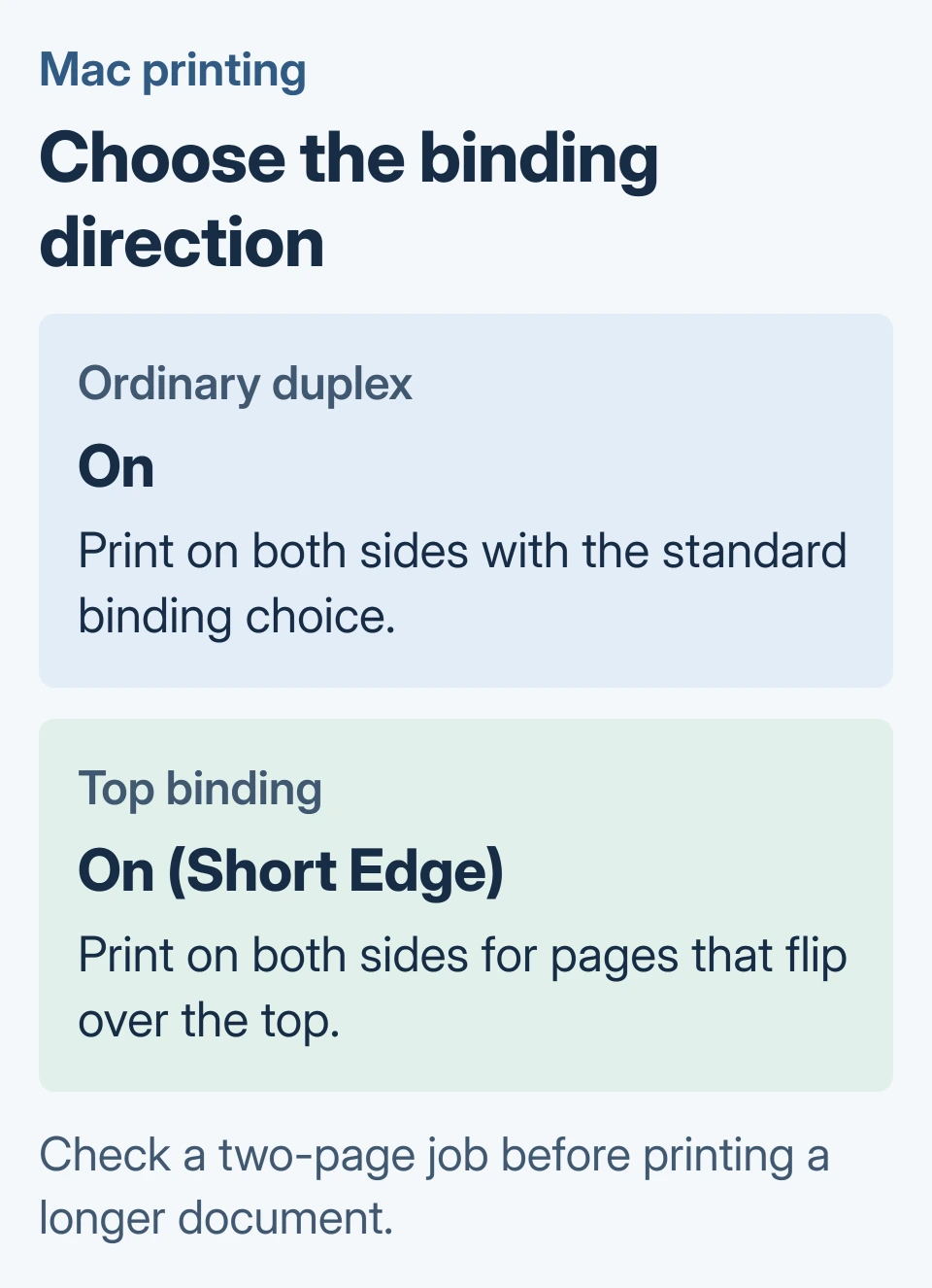
- Open Double-sided and select On.
- Use On (Short Edge) instead if the document should turn over its top edge.
- Confirm the page selection and copy count, then click Print.
Start with a two-page print job. Turn the sheet the way the finished document will be read. Both pages should face the reader correctly after the turn.
If the reverse side is upside down for that reading direction, change the binding choice and repeat that small job. Check the physical sheet rather than judging binding from the first page alone.
Check support when the control is missing
Apple says duplex needs a printer that supports it, and the available choices also depend on the app. Consult the exact model's manual for automatic two-sided printing.
A printer specification that mentions manual duplex is not a promise of an automatic Double-sided control. Manual feeding involves turning and reloading the paper yourself.
For a printer that is absent, paused or failing to output any page, use the Mac printing checks first. Duplex settings will not repair a queue that cannot print at all.
After a system upgrade, a macOS printer connection or driver problem may need separate attention. Record the printer model and the app showing the missing choice before changing its software.
Treat manual two-sided printing as a model-specific job
Apple states that Paper Handling > Sheets to Print can select odd or even pages, while Sheet Order controls their order. These options are useful when following a printer maker's manual-duplex instructions.
The settings do not tell you which way your particular tray feeds paper. Use the maker's instructions for face direction, edge direction and the order of the second pass.
I would use a two-page document to confirm those directions before refeeding a stack. A reversed feed or reversed page order wastes much more paper on a full document.
Do not choose Pages per Sheet as a substitute. That layout option fits multiple document pages onto one printed side; it answers a different question from printing on the reverse.
If the manual promises automatic duplex but the control is unavailable, ask the printer maker which Mac connection and driver expose it. Include the macOS version and the app's print window details.
The Short Version
Choose the printer, enable double-sided printing and verify the binding with a small print job. Use the printer manual for manual refeeding or a duplex option that should be available but is missing.

Isaac Smith is the founder and editor of PC Glance, a website that covers computers, laptops, and technology. He is a tech enthusiast and a computer geek who loves to share his insights and help his readers make smart choices when buying tech gadgets or laptops. He is always curious and updated about the latest tech trends.