
Yes, an older Wi-Fi + Cellular iPad with a SIM tray can take a compatible physical SIM card. A Wi-Fi-only iPad can't, and newer cellular models use eSIM instead. Check the model before buying a card or searching for a missing tray.
The iPad Pro M4 and later, iPad Air M2 and later, iPad A16 and later, and iPad mini A17 Pro and later use eSIM for cellular service. Their cellular versions don't have a physical SIM tray.
In this guide
Identify the iPad before choosing a SIM
Open Settings > General > About and read Model Name. Tap the part number beside Model Number to reveal the number beginning with A. That number tells apart versions with the same product name.
Apple lists each A-number in its iPad model reference. Check whether your exact version is Wi-Fi or Wi-Fi + Cellular. The screen size or the fact that it has a USB-C port doesn't answer that question.
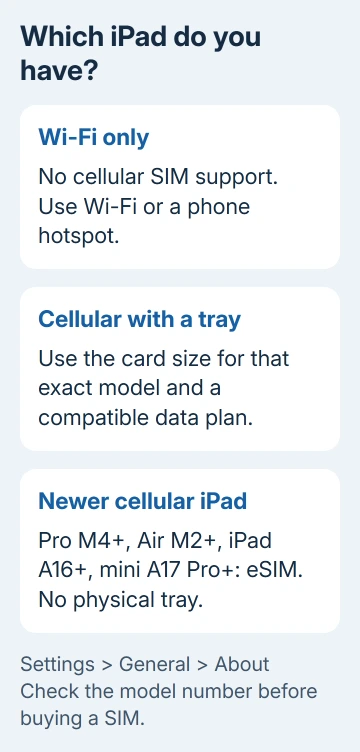
A Wi-Fi-only iPad doesn't gain cellular hardware from a SIM adapter or a software update. For internet away from Wi-Fi, connect it to a phone's Personal Hotspot or another Wi-Fi hotspot.
If that connection is unavailable, check the iPhone's Personal Hotspot settings. That's a useful route for a Wi-Fi iPad, but the phone supplies the cellular data.
On a cellular iPad, Settings > Cellular Data is where you manage its connection. Use the model list when you're buying a used device or when the iPad won't turn on to show Settings.
Match the SIM type to the generation
For cellular models with a tray, the required physical card size depends on the iPad's generation. Most later tray-equipped iPads use nano-SIM, while the original iPad through the fourth-generation iPad use micro-SIM.
Common nano-SIM models include the iPad fifth through tenth generations, iPad Air through its fifth generation, and iPad mini through its sixth generation. Those are cellular versions; Wi-Fi versions with the same names don't have a tray.
Tray-equipped iPad Pro models include the 12.9-inch models through the sixth generation, 11-inch models through the fourth generation, and the older 9.7-inch and 10.5-inch models. Check the model rather than buying by screen size alone.
Some of those later tray-equipped models also support eSIM. An eSIM option doesn't automatically rule out a physical tray. The newer generations listed in the opening use eSIM only, so you won't find a tray on those.
Ask your carrier for the correct card and a compatible iPad data plan. Don't cut a larger SIM to fit a smaller tray. A misshapen card can damage the tray or prevent a reliable connection.
I'd check the model number with the carrier before ordering a replacement SIM. It avoids the common mistake of buying a nano-SIM for an eSIM-only iPad or for an older micro-SIM tray.
Insert a physical SIM in a tray-equipped iPad
Find the tray position for your model on the SIM removal instructions. Its position varies by generation, so look for the tray outline and its eject hole before using a tool.
Insert a SIM-eject tool or straightened paper clip into the hole beside the tray and push inward gently. If the tray won't release without force, have the carrier or an Apple Store help instead of pushing harder.
Place the card in the tray with its notched corner aligned. It fits in one orientation. Put the tray back completely, facing the same way it did when you removed it.
Open Settings > Cellular Data and turn cellular data on. If the carrier supplied an activated card and the plan supports the iPad, it should be able to connect where that carrier has coverage.
To check the connection, temporarily disconnect from Wi-Fi and load a fresh page in Safari. Seeing the Wi-Fi icon and a working page only confirms Wi-Fi; it doesn't test the new cellular plan.
If the card is recognized but data doesn't work, ask the carrier to confirm activation, the account's data allowance, and compatibility with this iPad. Moving a SIM from another device doesn't mean its plan will work on the iPad.
Activate newer cellular iPads with eSIM
An eSIM-only iPad needs its plan activated without a physical card. Your carrier can activate it, give you a QR code, use its app, or support a transfer from another iPad.
For a carrier QR code after iPad setup, open Camera, scan the code, and tap Cellular Plan Detected. Tap Continue, then Add Cellular Plan. Enter a carrier confirmation code if the process requests one.
On iPadOS 17.4 and later, a QR code received by email can also be added by touching and holding it, then choosing Add eSIM. Use the code supplied for your plan rather than a general carrier advertisement.
During initial iPad setup, the Set Up Cellular screen has a Use QR code option. Use that option if you haven't reached the Home Screen yet.
For eSIM Carrier Activation after setup, tap Carrier Cellular Plan Ready to Be Installed in its notification or in Settings, then tap Continue. The carrier decides which activation methods it supports.
Availability also depends on the country and exact iPad model. For a model bought in China mainland, check local eSIM support with the carrier rather than assuming an overseas activation process will apply.
When the card or plan still won't connect
Return to Settings > Cellular Data and check that the intended plan is selected and enabled. With multiple stored plans, adding a plan doesn't mean the iPad is using it.
If cellular works but the iPad loses Wi-Fi, check its Wi-Fi connection separately. A Wi-Fi password or router problem won't be fixed by replacing the cellular SIM.
Older iPads may mention Apple SIM. New cellular-plan activations using Apple SIM technology ended on October 1, 2022. Ask the carrier which current SIM or supported activation route works with that older model.
Contact the carrier with the iPad's A-number, IMEI from About, plan name, and exact activation message. Ask whether the account supports this tablet and whether its physical SIM or eSIM has been activated successfully.
If the carrier confirms the plan but the iPad can't read a correctly fitted physical SIM, ask Apple's repair team to check the tray and cellular hardware. Bring the SIM and the model details.
The Short Version
A physical SIM works only in a cellular iPad with a compatible tray. Newer cellular iPads use eSIM, while Wi-Fi-only iPads need Wi-Fi or a hotspot. Identify the model first, then get the matching card or activation from your carrier.
Checked November 12, 2026.






