Click or tap the Reactions button near the top of an open Outlook email, then choose a reaction. The full feature requires eligible Microsoft 365 access through work or school. A missing button can be an account limitation.
With supported Exchange Online mailboxes, the reaction appears on the message. If the sender isn't on Exchange Online, Outlook can send a fallback email instead.
In this guide
Confirm account eligibility first
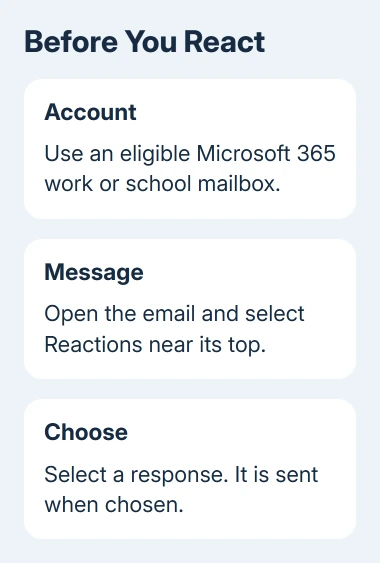
Microsoft says reactions are limited to work or school users with eligible subscriptions. Opening a personal mailbox in Outlook doesn't give it every feature available to work accounts.
With multiple Outlook accounts, start by opening a work or school message. Selecting an account elsewhere in the app doesn't change which mailbox the open message belongs to.
The feature is available across supported Windows, Mac, mobile and web versions. Shared Exchange mailboxes aren't supported, so check whether you're viewing your own mailbox or a shared team inbox.
Don't buy another Outlook app just because the button is missing. First confirm the mailbox, subscription and organization settings. Check eligibility for the mailbox itself, rather than its app.
Send a reaction from the open message
- Open the email you want to acknowledge. On desktop, read it in the preview pane or double-click to open a separate window.
- Find the Reactions control near the top of the message window. It opens a gallery of available reactions.
- Choose the reaction that matches what you mean. A thumbs-up can acknowledge a routine update without starting a separate written reply.
- Check the reaction displayed with the message controls. The sender can see the reaction on supported mailboxes.
On Outlook for Android or iPhone, select the email, then open its reactions gallery when available. You aren't looking for the emoji picker in a reply's keyboard; that inserts a character into a new email instead.
In the web version, open the email after signing into the eligible organizational mailbox. Use the control in the message header, rather than assuming a toolbar button for replying performs the same action.
When the reactions gallery opens, you've found the right button. Choosing a reaction sends it; there isn't a separate draft to review like a normal email reply.
I'd write a reply when the sender needs a decision, a correction or a deadline. A reaction is convenient for acknowledgment, but it can't explain which part of a complicated message you agree with.
Change a reaction and see who reacted
To replace the reaction you sent, open the gallery again and select a different one. The new choice replaces your initial reaction, so you don't need to send a follow-up email just to change it.
When someone reacts to an email, the reaction appears near the message controls. On desktop, point at the reaction to see the people who used it and which reaction each person chose.
Open the original email to check its reaction display. A reaction to a message in a long conversation belongs to that message; don't assume a response to one update applies to every later message in the thread.
Outlook's Notifications area also shows reactions to messages you sent or received. Use the bell control where your version provides it, then review the relevant notification.
A digest email can summarize reactions received during the previous day or so. The digest is a summary of activity, rather than a new reaction sent at the moment you open that email.
If those summaries clutter your inbox, use the unsubscribe option in the digest. That changes the digest subscription; it doesn't remove the reactions already attached to email messages.
Understand who can see the response
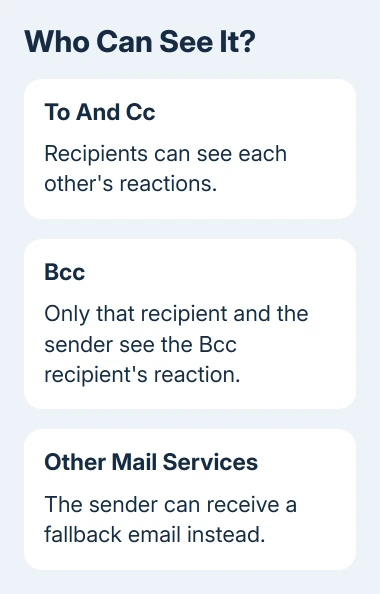
Recipients in the To and Cc fields can see each other's reactions. A reaction in a group conversation isn't necessarily a private acknowledgment between you and the sender.
A recipient added through Bcc shares their reaction with fewer people. That person's reaction is visible to themselves and the sender, rather than the other To, Cc or Bcc recipients.
This is one reason to check the message recipients before reacting. A reaction doesn't use the normal Reply or Reply All composer, but it still has visibility rules of its own.
Reactions work fully when both you and the sender have Exchange Online mailboxes. You can belong to different organizations, as long as both mailboxes meet that requirement.
If the sender isn't on Exchange Online, the reaction can arrive as a fallback email. Seeing a small email acknowledgment instead of a reaction attached to the original message can happen because of the mailbox service the sender uses.
For a message that must remain private, use Outlook's supported encryption options when composing the actual reply. Check the recipients and protection separately.
Work through a missing Reactions control
Start with a recent message in your own eligible mailbox. A shared mailbox or personal account won't have the same reactions support as your Microsoft 365 work mailbox, even when Outlook shows them together.
Install available Outlook updates and reopen the message. For a managed installation, ask your IT team which update channel and version the organization supplies rather than downloading an unrelated Outlook installer.
The Outlook 2024 feature notes limit reactions to commercial LTSC 2024 with cloud-based accounts. Consumer Outlook 2024 lacks the feature.
An organization can also restrict reactions. Some government and regional cloud environments have different availability. For repeated failures, give IT the mailbox type and Outlook version to check.
If only one message lacks the button, ask whether that message permits reactions. Don't remove and recreate the whole account to test a control that the sender or organization may have restricted.
If the sender needs an answer now, use a short written reply. If the real issue is a message that never arrives, follow the Outlook receiving checks separately from reactions.
Ask support about the account and the message
For an organizational mailbox, send IT the Outlook version, account type and whether the issue affects your own mailbox, a shared mailbox, one message or every message. Ask them to check reactions availability and policy for that mailbox.
If an eligible setup still fails, use Outlook's Help support options. Describe whether the gallery won't open, your reaction disappears, or the sender receives a fallback email. Each of those needs a different explanation from support.
The Short Version
Open the message, choose Reactions, and select a response. Check work or school account eligibility before troubleshooting a missing button. To and Cc recipients can see reactions; non-Exchange Online senders can receive a fallback email.
Checked November 11, 2026.