

To reset an Epson printer with a display, look for Settings > Restore Default Settings and choose what to clear. Network resets, full resets, and restarts do different jobs. Button-only models have their own steps.
For example, the ET-2850 has separate network, copy, scan, and all-data choices. The ET-2600 uses its network-status and power buttons to clear network settings. Match the procedure to your model before pressing buttons.
In this guide
Match the reset to what needs clearing
Use a network reset to clear the printer's saved network setup. Choose a copy or scan settings reset when you want those control-panel settings back the way they were originally.
A full reset clears more: stored information as well as control-panel settings. It isn't the first choice just because a computer says the printer is offline or a print has missing colors.
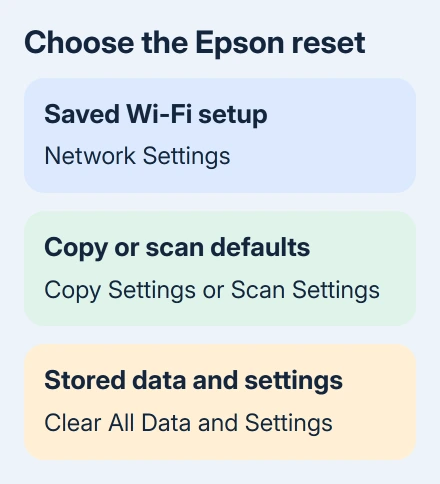
Read the model from the printer's label, including its letters and numbers. Two EcoTank printers can have different controls. The steps for the ET-2850 and ET-2600 here aren't interchangeable instructions for every Epson.
I'd reset only the settings involved in the problem. Keeping working network settings is helpful when the only problem is a changed copy setting, and a network reset creates extra setup work if Wi-Fi was already working.
Restart first when the printer shows an ordinary error
A restart means turning the printer off and then on again. It doesn't mean selecting Clear All Data and Settings. Use the normal power button and let the printer complete its shutdown before starting it again.
On an ET-2850, error E-01 calls for a restart and a paper-jam check if the error continues. Error E-02 also calls for turning the product off and back on. Read the displayed code before deciding a factory reset is needed.
If E-01 keeps appearing without a paper jam, contact support. Repeatedly clearing preferences won't remove a mechanical obstruction or repair a part that needs service.
For an offline printer that is already on Wi-Fi, check the computer connection first. The Epson connection guide explains adding the correct printer on Windows or Mac without first deleting its network setup.
Reset selected settings on an Epson ET-2850
Press Home if needed, then open Settings > Restore Default Settings. The screen offers separate choices, so read the selected item before confirming it.
- Network Settings clears the network settings.
- Copy Settings returns copy settings to their defaults.
- Scan Settings returns scan settings to their defaults.
- Clear All Data and Settings clears the control-panel settings and stored information.
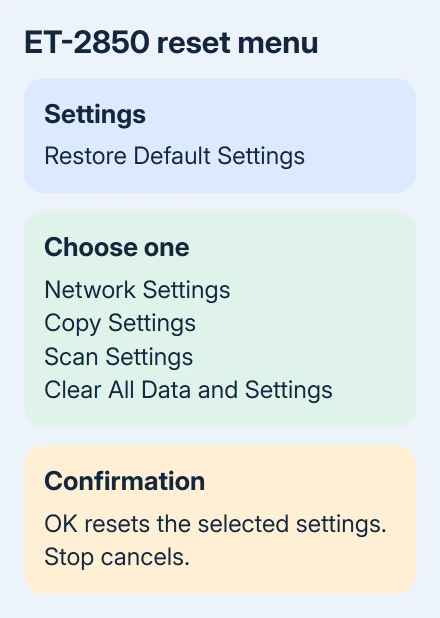
Select the option that matches your purpose. A confirmation screen appears. Press OK to carry out that reset, or press Stop if you chose the wrong item and want to cancel.
Epson documents these choices in the ET-2850 reset procedure. Confirming clears the settings you chose.
Before choosing the all-data option, keep any stored information or settings you'll need to recreate. For a network reset, have the current Wi-Fi name and password ready so you can reconnect afterward.
Once the reset finishes, try the task you were having trouble with. Check the copy or scan defaults if that was your choice; start network setup again if you selected Network Settings.
Reset an ET-2600's network using its buttons
The ET-2600 doesn't use the ET-2850's menu sequence for this operation. Its network-reset instructions use the network-status button together with Power.
- Turn the printer off.
- Press and hold the network status button.
- Keep that button held and hold Power too. Wait for alternating green and orange WiFi flashes.
- Wait for both WiFi lights to turn off. That is the completion sign for the network reset.
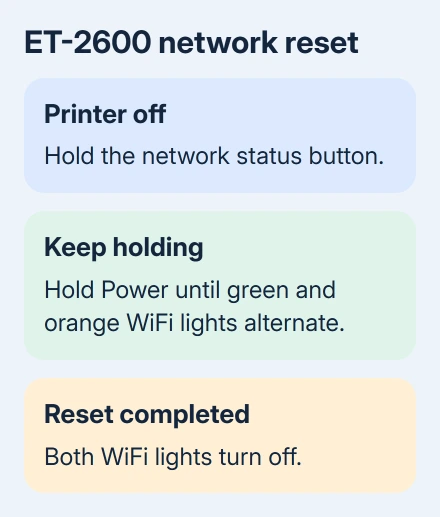
Use the button identified as network status in this model's manual. Don't substitute the Wi-Fi button because its name sounds similar, and don't apply this timing to a different printer without checking its instructions.
This clears network settings. It doesn't serve as a general reset for ink levels, print quality, or every error light. Afterward, you'll need to set up the printer's network connection again.
Reconnect and check one print after a network reset
Complete the wireless setup for your model using your router's current name and password. A reset removes the old setup; it doesn't discover a replacement password or change the router's security settings for you.
The Epson Wi-Fi troubleshooting steps explain the network connection report and model-specific Wi-Fi limits. Use the report if setup fails instead of clearing the network repeatedly.
After the printer connects, send one small print job from the computer you normally use. Check that the selected queue belongs to this printer. If Windows needs a fresh printer entry, follow its printer installation steps.
If the printer can make a local copy but the computer's job won't print, describe that difference when asking for help. That points to the connection or software, so a full reset isn't the next thing to try.
Keep ink-pad service separate from settings resets
On the ET-2850, E-11 means the ink pad needs replacement. W-11 means the pad is nearing the end of its service life; the status instructions allow pressing OK to continue printing at that warning stage.
The ET-2850 status-code table directs those cases to support. Resetting copy or network settings doesn't replace the ink pad.
For a different model, read its exact message in its own manual. Some printers use different maintenance parts and procedures. A generic reset utility isn't a substitute for knowing which part the message refers to.
Get the right reset instructions for another model
Open Epson Support, search the complete model number, and use its user guide. Look for Restore Default Settings, Resetting Control Panel Defaults, or Resetting Network Settings, depending on the job.
If you can't find that menu, ask support for the reset steps for your exact model and region. Include the error code, connection type, and what you want to clear. Those details help support tell you which reset you need.
The Short Version
Choose a targeted reset on an ET-2850, use the documented button sequence for an ET-2600 network reset, and reconnect after clearing Wi-Fi settings. Persistent hardware errors and ink-pad messages need their own service advice.
Checked November 10, 2026.
 If you have any business, I can build it online






