File Explorer can get stuck while the rest of Windows 11 still works. Restarting explorer.exe from PowerShell reloads your folders, desktop and taskbar without restarting the whole computer.
That restart doesn't restore folder settings or erase your files. Start with the process restart for a frozen window; use File Explorer Options afterward only if the problem is a changed layout or opening location.
In this guide
Open PowerShell before restarting Explorer
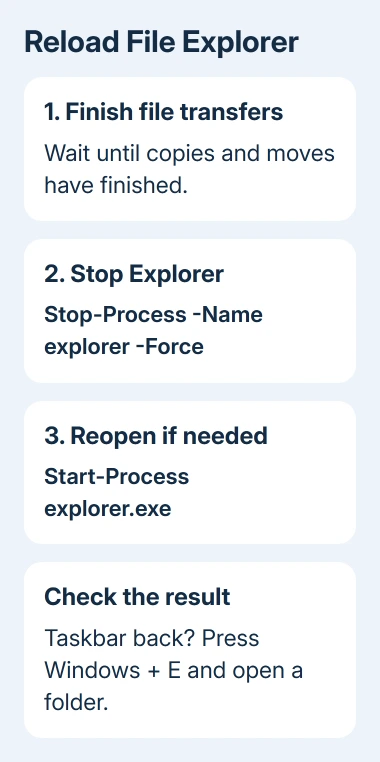
Finish any file copies or moves first. Restarting Explorer closes its windows and can interrupt a transfer, so wait for the progress window to finish before running the command.
Press Windows + X, then choose Terminal. Open a PowerShell tab if Terminal starts with Command Prompt. A PowerShell prompt normally begins with PS and shows the current folder.
Windows Terminal is the window that holds command tabs. Windows PowerShell and PowerShell 7 are shells that can run inside it. The commands in this procedure work in either PowerShell version on Windows 11.
Use a normal Terminal window for your own desktop. Administrator access isn't needed to stop a process you own. Leaving administrator access off also keeps the command from stopping Explorer for other signed-in users.
If the taskbar won't respond, press Ctrl + Shift + Esc. In Task Manager, select Run new task, enter powershell.exe, and press Enter. Leave the administrator checkbox clear for this restart.
The Task Manager keyboard routes are useful when the desktop menus won't open. Keep PowerShell open throughout the procedure, including while the taskbar disappears.
Stop the current Explorer process
Enter this command in PowerShell and press Enter:
Stop-Process -Name explorer -ForceThe process name is explorer, without the .exe ending. The command stops Explorer processes that your account is allowed to stop. Any open File Explorer windows can close together.
The desktop icons and taskbar can briefly vanish too. Explorer runs those parts of the Windows desktop, so it's normal for them to disappear during the restart. Your open browser or document editor is a separate program.
The -Force switch skips a confirmation prompt. It doesn't repair Explorer, change Windows permissions or do a more complete restart.
Microsoft's Stop-Process reference explains its permissions and parameters.
PowerShell usually returns to its prompt without a success message. Windows may bring the desktop and taskbar back automatically. Wait until you can see whether the taskbar has returned before entering another command.
If PowerShell reports that it can't find a process named explorer, there wasn't a matching running process at that moment. Continue with the launch step rather than repeating the stop command.
An Access is denied message means the command couldn't stop a particular process. On a shared computer, that process can belong to someone else. Don't keep escalating permissions just to restart your own folders.
Reopen Explorer and check the result
If the desktop hasn't returned, enter:
Start-Process explorer.exeThis asks Windows to launch Explorer again. If the desktop and taskbar already returned, the command may just open a folder window. That isn't a failure or a reason to stop the process again.
Press Windows + E once the taskbar is back. Open a local folder, such as Documents, and repeat the folder action that failed earlier. A responsive window and working taskbar show that the restart completed.
To check whether Explorer is running without changing anything, run:
Get-Process -Name explorerIf Explorer appears in the results, it is running. More than one row can appear when Windows uses separate Explorer processes. A running process can still contain an unresponsive folder window.
If Explorer still won't launch, use Task Manager's Run new task and enter explorer.exe there. If neither launch route works, save documents in the remaining apps, then restart Windows from Ctrl + Alt + Delete > Power > Restart.
I'd restart Windows at that point instead of running the same stop command repeatedly. You've already tried restarting Explorer; doing it again won't change the folder or file that keeps making it freeze.
Restore a changed opening location or folder view
A process restart keeps your Explorer preferences. If the window opens normally but starts in the wrong place, open File Explorer, select the three-dot menu, and choose Options.
On General, check Open File Explorer to. Choose This PC if you want your drives rather than Home, then select Apply. This changes the starting location without removing files or resetting the computer.
For changed folder layouts, open the View tab of File Explorer Options. Reset Folders resets views of that folder type. Restore Defaults restores the options on that tab. Read the confirmation before applying either change.
These controls change different settings, so there isn't one button that resets everything. Changing Home to This PC won't cure a damaged thumbnail, and reloading explorer.exe won't restore a view preference you changed earlier.
Follow the symptom if the freeze returns
Notice whether every folder hangs or just one. A local Documents folder that works while a network location stalls needs different checks from an Explorer window that never appears.
If folders keep freezing across Explorer, the Search service and index checks cover a confirmed cause.
Resetting folder views won't repair the search index, the list Windows uses to find your files.
If a specific file, preview or network path triggers the hang, record that detail before seeking help. Include whether restarting Explorer helped briefly and whether a full Windows restart changed the behavior.
Open Settings > Windows Update > Check for updates and install available fixes. If it keeps failing, open Feedback Hub, choose Report a problem, and describe the exact folder action that makes Explorer stop responding.
The Short Version
Open a normal PowerShell tab, finish file transfers, and run Stop-Process -Name explorer -Force. If the desktop doesn't return, run Start-Process explorer.exe. Check a folder with Windows + E, then address recurring faults separately.
Checked November 12, 2026.