

The Samsung share symbol has three dots joined by two strokes. Tap it after selecting a photo, file, or link, then choose a person, app, or nearby device. Opening that panel doesn't send anything by itself.
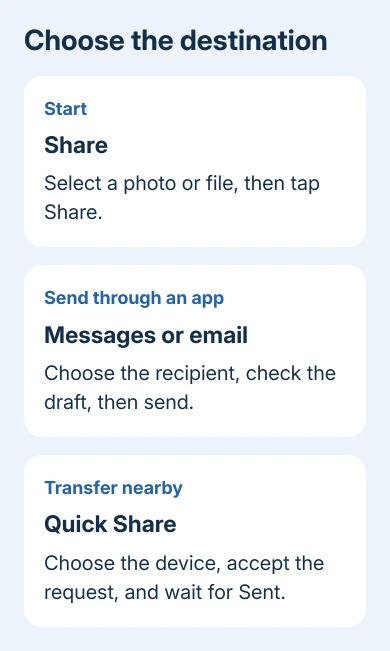
Quick Share is one choice inside the panel, rather than another name for every kind of sharing. Use it for a nearby device; choose Messages, email, or a chat app when you want to send through that service.
In this guide
Find Share on the item you want to send
Start in the app that has the item you want to share. For a picture, open Gallery and touch and hold its thumbnail. The selection mark shows which picture you chose. Tap more thumbnails if you want to send those pictures together.
Look for Share in the actions that appear. Its connected-dot design differs from More options, which usually has three separate dots. More options opens extra commands; Share opens the list of destinations.
Screenshots are saved in Gallery too. After taking a Samsung screenshot, open its preview or find the capture in Gallery before choosing Share.
For a document, select the file in its file app and use that app's Share command. A browser shares the page's address through its own menu. The button's position changes with the app, so don't expect Gallery's toolbar on every screen.
Check the selected item before continuing. Use the thumbnail, filename, or page preview to check that you picked the right item. Cancel and select again if the preview isn't the thing you meant to send.
Choose an app for a message or email
After tapping Share, pick your preferred app. You still need to choose who gets it. For example, opening a messaging app's sharing screen doesn't mean the conversation you want is already selected.
Pick the conversation or address, inspect what's attached, and tap its send control. A picture showing in a draft is waiting to be sent. For a link, check that the draft contains the intended page address.
Suggested contacts can appear near the top of the sharing panel. Each suggestion belongs to a particular app or conversation. Read both the person's name and the app marker before tapping, especially when a contact appears more than once.
I'd choose the app first when sending something important. It gives you a clearer chance to confirm the conversation and see the draft before sending, instead of relying on a familiar-looking contact picture.
Sharing a message you've already received is a different task. Use the message app's forwarding controls when the content should remain a forwarded text instead of a picture showing the conversation.
Use Quick Share for a nearby phone
Quick Share transfers selected content to another supported device. It doesn't require choosing an email address or conversation. Keep the receiving phone nearby and available to accept the request.
- Select the photo or file and tap Share.
- Choose Quick Share from the destinations.
- Wait for the receiving device to appear, then tap its name.
- Have the recipient accept the request if their phone asks.
- Wait for the sending screen to confirm completion.
On the sending screen in Samsung's guide, Sent appears under the receiving device's name when the transfer finishes. Seeing a device in the list only means it's available to choose; it isn't the completion message.
On supported Galaxy phones, open Settings > Connected devices > Quick Share > Who can share with you. Choose Contacts if it includes the sender, or use the temporary 10-minute receiving option.
The temporary receiving option helps when the sender isn't in your contacts. More people can find your phone during those 10 minutes. Turn it on when the sender is ready, and stay with the transfer.
Other Android phones can receive through Quick Share's nearby sharing controls. The receiving screen and visibility labels can differ from Samsung's, even though the transfer starts from the same Share action.
Don't confuse the panel with the Quick settings button
The Share symbol beside a photo acts on that photo. A Quick Share tile in Quick settings opens sharing or receiving controls. Turning on that tile doesn't select a picture from Gallery for you.
On versions that have the Send screen, Quick Share offers Send > Select file. Choose a category, select the files, and tap Done. This is another way to send files to a nearby device when you haven't started inside Gallery.
Using Gallery first is usually easier when the item is already on screen. Starting from Quick Share is useful when you're preparing a transfer and want to browse for the file. Both routes still need a receiving device.
Missing contact suggestions need a version check
Samsung says to use Settings > Advanced features > Show contacts when sharing content on supported versions. Turning it on allows contact suggestions in the panel, which can save a step for frequent conversations.
That guide also states the option isn't available on One UI 7. Don't keep searching Advanced features for that switch on One UI 7. Its absence doesn't mean the Share command itself has disappeared.
Open the destination app from the sharing panel and select the recipient there instead. This keeps sharing usable even when the suggested-contact row doesn't contain the person you want or your version lacks that setting.
When the destination or receiving device is missing
First check which list is missing something. A missing app in the sharing panel differs from a missing phone inside Quick Share. Check whether the app is installed and accepts that content. Try a single ordinary photo to compare.
For a nearby phone, check receiving visibility, then enable Bluetooth and Wi-Fi on each device. Samsung also lists mobile hotspot, Wi-Fi Direct, and Smart View as activities that prevent Quick Share use in its documented workflow.
Stop that activity, then try Quick Share again. If the device still doesn't appear, check for updates and restart both phones. Note whether it fails while finding the phone, accepting the request, or sending.
For continued trouble, request Quick Share help in Samsung Members. Include the Galaxy model, One UI version, receiving device, and the stage that fails. Describe the transfer failure as well as the symbol you tapped.
The Short Version
Select the item, tap the connected-dot Share symbol, and choose a destination. An app sends through its own conversation or draft; Quick Share sends to a nearby device. Confirm the recipient and wait for the actual send result.
Checked November 15, 2026.
 If you have any business, I can build it online






