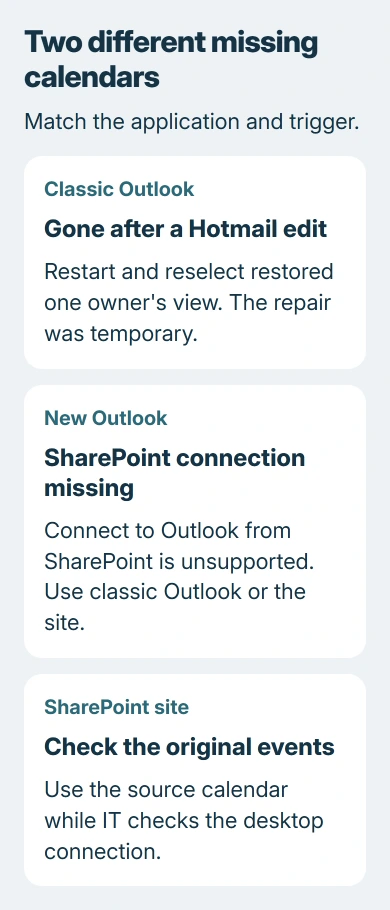
Restarting classic Outlook and selecting the SharePoint calendar again can bring it back after a Hotmail edit makes it disappear. One owner restored their view this way, but the discussion never confirmed a permanent repair.
If the calendar vanished after switching to new Outlook, that's a different problem: Connect to Outlook from SharePoint isn't supported there. Use classic Outlook for that connection or open the original SharePoint calendar on its site.
In this guide
1. Restore the calendar view in classic Outlook
Save any unfinished appointment before closing Outlook. Close Outlook normally, reopen classic Outlook and return to Calendar. Find the SharePoint calendar in the folder list and select its checkbox again.
In the original report, the failure happened when the owner added an event to a Hotmail calendar while displaying calendars together. Adding events to their Microsoft 365 calendar or SharePoint calendar didn't cause the same disappearance.
The calendar also moved under My Calendars with (1) appended to its name. Checking that entry didn't restore the view. Restarting Outlook and selecting the calendar again made it appear without that suffix.
If your calendar returns, check a known event and its date before trusting the restored view for planning.
If it doesn't return, don't keep closing Outlook in a loop. Check the application and the calendar's original SharePoint location next. A missing view and a missing event on the actual site are different problems.
2. Check whether this is new Outlook instead
Classic Outlook has a File tab with account and application options. New Outlook uses a different settings layout. Confirm which application is open, especially if Windows or a recent Office change moved you to another Outlook shortcut.
Microsoft's Outlook feature comparison shows that Connect to Outlook (from a SharePoint site) works with the classic app. New Outlook doesn't support that connection.
If this started during that switch, use your existing classic Outlook installation for the SharePoint connection. If it isn't installed or licensed, ask IT which supported calendar route your organization provides.
Reinstalling the new application won't add this unsupported feature. Its ordinary calendar sharing features don't mean it can use the same SharePoint connection as classic Outlook.
For other differences between calendar sources, the Outlook calendar addition guide explains shared calendars, subscriptions and imported files. Keep those separate from a SharePoint calendar connected through its own command.
3. Open the original calendar on SharePoint
Open your organization's SharePoint site and navigate to the calendar connected to Outlook. If you don't know its location, request the original link from the site owner instead of creating another calendar.
Check that the events you need are present there. Open one recognizable appointment and compare its title, date and time with what Outlook last displayed. This tells you whether the site data is available while the Outlook view is missing.
If the original calendar works, use it there while IT checks the Outlook problem. Make an urgent change in the source calendar only if you have permission, then reopen the item to confirm the saved result.
A permission error on the site needs the SharePoint owner or administrator. A calendar that remains accessible on the site but disappears only in Outlook needs a different support description.
Don't delete the underlying SharePoint list to fix a disappearing Outlook view. That list is the source of the calendar data, rather than just the checkbox shown in the mail application.
4. Avoid repeating repairs that already failed in this case
The owner tried removing the calendar from Outlook and connecting it again from SharePoint. It initially appeared under Other Calendars, then moved back under My Calendars when the same Hotmail-event problem happened.
They also created a completely new SharePoint calendar with one event and no special workflow. The fault still happened. Because the simple calendar disappeared too, the problem wasn't limited to their customized calendar.
Safe Mode didn't help either. The owner saw repeated password prompts and an HTTP 401 error (access wasn't authorized), then the same disappearance. The diagnostic assistant they tried didn't offer a relevant fix for this connection.
I'd give the help desk that history before spending time recreating the calendar or rebuilding its custom views.
The owner later confirmed that a new Outlook profile failed too. The case was escalated to the support team. A clean boot was suggested, but they never reported that it worked.
A newly created Hotmail account worked in their comparison, while re-adding the original account didn't help. IT should check that particular account based on this comparison. It doesn't explain why that account behaved differently.
5. Keep the affected calendars separate while working
Note exactly which action triggers the disappearance. In the reported case, the problem involved creating an event in the Hotmail calendar, not editing the SharePoint calendar itself.
While IT checks the fault, open the calendar you want to change on its own for important edits. Confirm which calendar receives the saved event.
If the calendar is actually another person's Exchange calendar rather than a SharePoint list, use the Outlook shared-calendar access steps for that connection instead.
Record any suffix added to the calendar name and whether it moved between calendar groups. Those changes help IT recreate the problem and distinguish it from a calendar whose checkbox is simply cleared.
Ask IT to reproduce the calendar combination
In classic Outlook, collect the version from File > Office Account > About Outlook. Send that version, the SharePoint calendar link, account types, the action that makes it vanish and any permission error to your help desk.
Ask them to reproduce creating a Hotmail or Outlook.com event with the SharePoint calendar displayed. Include whether restarting restores the view and whether the original site remains usable.
Your Microsoft 365 administrator can take the case to Microsoft support with both Outlook and SharePoint details. If the events are missing on the site itself, ask the SharePoint administrator to check the original calendar first.
The Short Version
Restart classic Outlook and reselect the SharePoint calendar for the reported Hotmail-triggered fault. Use the original site while IT reviews the recurring problem. New Outlook doesn't support SharePoint's Connect to Outlook feature.
Checked November 16, 2026.
 If you have any business, I can build it online