

Do Not Disturb can tell people in iMessage that your notifications are silenced, but the setting that shares that message is Share Focus Status. Open Settings > Focus > Focus Status, allow Do Not Disturb sharing, and activate it.
The message tells someone that alerts are quiet. It doesn't send them the name of your Focus or an automatic explanation of what you're doing, and muting an individual conversation is a separate control.
In this guide
Turn on the status for Do Not Disturb
Keep Settings > Focus > Share Across Devices on. Status sharing requires this setting, which also coordinates Focus changes with your other Apple devices.
Open Settings > Focus > Focus Status. Turn on Share Focus Status, then enable Do Not Disturb among the profiles allowed to share their status.
Apple's Focus status instructions say people contacting you through supported apps may see that notifications are silenced. That means the banner may not appear for every contact or every message.
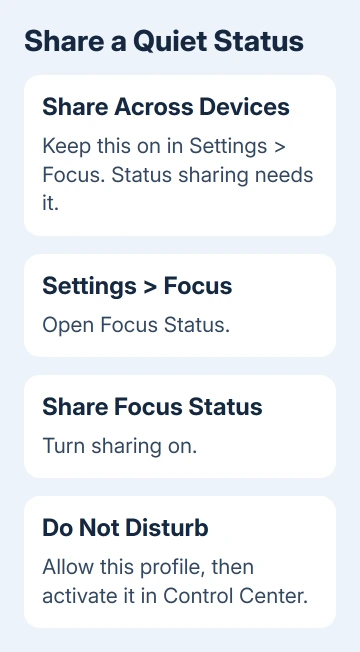
The main switch allows sharing; each profile's switch decides whether that Focus shares its status. If Work is enabled in that list but Do Not Disturb isn't, switching on Do Not Disturb isn't the setup you intended.
Choose the profiles you want people to know about. For example, sharing during Do Not Disturb doesn't require sharing during every Personal or Work session.
These controls are in the Focus section on current iOS versions, including iOS 26 and iOS 27. They're separate from Settings > Apps > Messages, where many other message options live.
Activate the Focus that is allowed to share
Allowing sharing doesn't turn Do Not Disturb on. Open Control Center and activate that profile so Messages can show that your notifications are silenced.
For a Face ID iPhone, pull down starting at the upper-right corner. For a Home-button iPhone, start at the bottom screen edge and swipe upward. Touch and hold Focus, then choose Do Not Disturb.
Check for its moon icon on the Lock Screen or status area. The Do Not Disturb controls also explain timed sessions if you want it to end after a meeting or when you leave a place.
Use a short session while checking the setup. It's easier to understand the result when you know exactly when you switched the Focus on, rather than waiting for an old schedule to activate it.
You can silence alerts without sharing a status. The phone can stay quiet with sharing off, and sharing can stay enabled while no Focus is active.
Check sharing for the person you're messaging
Open Messages, select the conversation, and tap the conversation's contact heading. Check the conversation's Share Focus Status control if it's available, and allow sharing for that person.
This is useful when the main Focus Status screen looks correct but one conversation behaves differently. Sharing with that person also depends on the conversation's setting, even when the main switch is on.
Ask a trusted iMessage contact to open your chat during the quiet session. They may see the notifications-silenced message when contacting you. Check their view; your own chat isn't the place to look for that banner.
Don't treat a missing banner as evidence that somebody blocked you. Focus status is a sharing feature, and its absence doesn't identify the reason another person hasn't replied.
I'd use the status as a polite signal, rather than a delivery receipt. If someone needs to know when you'll be free, a short message with the time is much clearer.
Keep device sharing separate from status sharing
Open Settings > Focus and check Share Across Devices if your iPhone is following a Mac or iPad's Focus changes. This setting coordinates Focus between devices using your Apple Account.
The Focus setup guide describes that device-sharing control separately. Share Focus Status lets apps report silenced alerts; Share Across Devices coordinates the quiet mode itself.
That difference explains a common surprise: the phone starts showing a silenced status when another device activates a Focus. Check which profile became active before changing the sharing permission.
If bedtime is the cause, follow the Sleep Focus schedule checks. Turning off the status display won't stop the underlying schedule from silencing your phone.
On a work phone, your organization may control some settings. If a setting can't be changed, ask the administrator whether Focus or Messages permissions are controlled on that phone.
Understand what the other person can still do
A silenced-notifications message isn't an unavailable or blocked message. Supported conversations can offer a way to notify you anyway when something is urgent.
Your Focus has a list of people and apps allowed to interrupt you. Contacts on that list can behave differently from those whose alerts are silenced. Check the intended person instead of expecting identical results for all contacts.
Open Settings > Focus > Do Not Disturb to review those allowances. Change them for the interruptions you want to permit, rather than trying to make the status banner act as a call-blocking control.
The banner also doesn't advertise whether you're asleep, at work, or driving. If you want to explain the situation, send a message yourself. Renaming a Focus isn't a way to publish a custom away message.
Turn the message off or get a missing status checked
To keep quiet mode but stop sharing its status, return to Settings > Focus > Focus Status and disable sharing for Do Not Disturb. Disable the main switch there to end status sharing for all profiles.
To end the quiet session itself, disable its active Focus through Control Center. Check the moon indicator again so you know which change you made.
If the status still looks wrong, tell support which Focus is active, your iOS version, and whether that profile shares its status. Say whether just one chat is affected or several. Ask Apple Support to check Messages status sharing.
The Short Version
Enable Share Focus Status and allow the Do Not Disturb profile, then activate it. Check conversation sharing if needed. The recipient may see a notifications-silenced message, without learning which Focus you selected.
Checked November 16, 2026.
 If you have any business, I can build it online






