

On an ASUS laptop, choose Start > Power > Shut down to end a Windows session. Save open files, then wait until it finishes before packing the laptop away. A brief power-button press or closing the lid may send it to sleep instead.
A frozen laptop needs a different approach from one that still responds. Use the normal Windows controls while they work, then try the keyboard options before holding the power button to force it off.
In this guide
Shut down from the Windows Start menu
Finish copying files and save your documents. Close apps that are waiting for your input, such as a document asking whether to save changes. Windows can then finish shutting down without waiting for an answer from you.
On Windows 11, select Start on the taskbar, choose the Power button, then select Shut down. Your taskbar may place Start in the center or at the left, but the command is the same.
On Windows 10, select Start, choose Power, and select Shut down. Windows 10 uses a different Start layout, so don't look for the exact Windows 11 panel shown in another laptop's instructions.
Wait while the desktop closes and the shutting-down message finishes. The display should go dark and the light showing that the laptop is running should turn off. A separate charging light can remain on while the adapter is connected.
ASUS's shutdown, sleep, and hibernation instructions describe these Windows power choices. The normal Windows shutdown command is the same on Zenbook, Vivobook, TUF, and ROG laptops.
If Windows offers Update and shut down, it has update work to finish as part of shutting down. Keep the charger connected and follow the on-screen instructions rather than forcing the machine off while it installs.
Use the keyboard when the mouse or touchpad is awkward
Press Ctrl+Alt+Delete. If the security-options screen appears, use its Power control and choose Shut down. This is useful if Start freezes while the security screen still responds.
Another route is Alt+F4 with the desktop active. Press Windows+D first to show the desktop, then press Alt+F4. In the Shut Down Windows dialog, select Shut down and confirm with OK or Enter.
Make sure the desktop is active first. Alt+F4 inside an active program closes that program instead of opening the shutdown dialog. If the app asks to save a document, handle that prompt and return to the desktop.
Both keyboard options let Windows shut down normally. Give it time to close your session and finish its work, just as you would after choosing Shut down from Start.
If the laptop is responding normally but you're still learning its controls, the basic laptop guide explains the keyboard and touchpad. A difficult touchpad doesn't require a force shutdown.
Decide whether you actually want sleep or a fresh restart
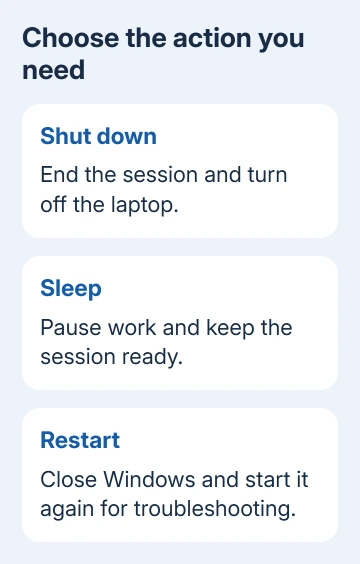
Choose Sleep for a short break when you want your apps ready when you return. Use Shut down to finish the session and switch the laptop off. Those commands serve different purposes.
Your power settings control the lid action and what happens with a short press of Power. Closing the lid often triggers sleep. Choose Shut down in Windows when you want to be sure which action you're requesting.
Choose Restart when a software repair calls for it. Windows Fast Startup can keep part of the system ready for the next startup when you shut down. Turning the laptop back on afterward doesn't always do the same repair work as Restart.
The Restart versus Shut down explanation covers that distinction. You don't need to disable Fast Startup just to finish an ordinary working day.
I'd finish an ordinary session through Start. It makes the chosen action clear and avoids guessing what the laptop's power-button setting does on battery compared with when it's plugged in.
Make a full shutdown when Windows needs one
If Windows appears to shut down but the laptop won't power off properly, save open files and request a full shutdown. Hold Shift while selecting Start > Power > Shut down. Release Shift after the shutdown begins.
This shuts Windows down fully instead of using Fast Startup. Try it when a normal shutdown isn't working properly; you don't need to hold Shift every time you switch the laptop off.
If that works and the normal command repeatedly doesn't, follow the ASUS shutdown troubleshooting steps. They cover Fast Startup, system-file repair, and further checks for a laptop that won't shut down.
If a program is preventing shutdown, read the app name on the screen. Cancel shutdown if you need to save its work, close that app yourself, and then request shutdown again. Forcing past it can discard unsaved changes.
An update screen differs from an app waiting for a save decision. Leave an active update connected to power. Don't judge shutdown by a dark display alone; check the light that shows whether the laptop is still running too.
Hold Power for a completely frozen session
For a laptop that's frozen and won't respond to normal shutdown or Ctrl+Alt+Delete, press and keep holding the power button until the light showing that it's running turns off. ASUS recommends this for a machine stuck shutting down.
Unsaved changes can be lost when you force the machine off. Use it for an unresponsive machine, not as the regular way to finish using the laptop. Don't apply it during a BIOS update, where interrupting power can prevent startup.
Find your model's button by its power symbol, either in the keyboard area or elsewhere on the laptop's body. Don't hold an unfamiliar function key just because it's in the same corner as another model's power button.
Don't turn that hold into a generic 40-second hardware reset. ASUS EC/RTC reset procedures restart the laptop's power-control hardware and vary by model. They are a separate repair from shutting down a frozen session.
After one freeze, start normally and save recovered files. For repeated shutdown freezes, give ASUS Support your model, Windows version, and last visible screen. Ask them to check why it keeps freezing before you try a hardware reset.
The Short Version
Use Start > Power > Shut down on Windows 11 or 10. Keyboard shutdown options help when the pointer fails. A frozen laptop may need a power-button hold until its power light goes off; repeated shutdown failures need model-specific support.
Checked November 13, 2026.






