Slack stuck on a loading screen often needs its local cache cleared. Try Help > Troubleshooting > Clear Cache and Restart.
A connection error in both the app and your browser points instead to the network, while missing notifications need their own settings check.
A fresh Slack installation can't get past a network block or switch Windows notifications back on. Choose the fix for your symptom, then check whether your workspace works again.
In this guide
1. Clear the cache when Slack opens but won't load
Open Slack's Help menu, select Troubleshooting, then choose Clear Cache and Restart. Depending on the app's layout, its menus may be inside the three-line button in the window's upper-left corner.
The app closes and starts again with a fresh cache, which is its local store of working data. Slack's own connection troubleshooting steps recommend this for loading trouble.
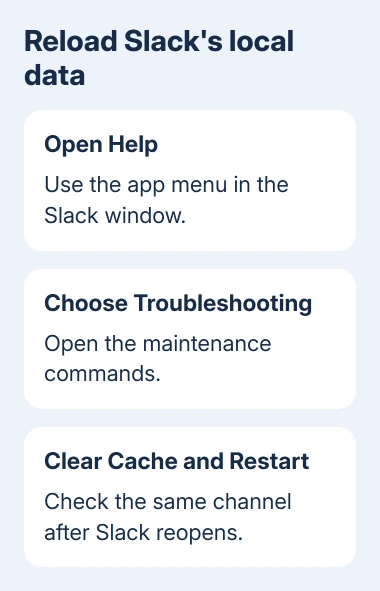
Wait for your channel list to appear, open a recent conversation, and check whether messages load. If the loading error returns, check the connection next instead of clearing the same cache again.
For a window that doesn't respond at all, save work in other apps and close Slack. If needed, open Task Manager with Ctrl+Shift+Esc, find Slack, and end that app before reopening it from Start.
Choose Slack carefully in the list. The Task Manager shortcut guide explains the other opening routes if the keyboard shortcut doesn't respond.
2. Separate a desktop failure from a blocked connection
Open your workspace in a browser. If the workspace works there while the Windows app fails, you can keep working in the browser while checking the app's update or installation.
If both fail, open the Slack connection test. This checks the connections Slack needs. A normal website loading successfully doesn't mean that every connection used by a messaging app is allowed.
Note any failed results and the network you're using. A company proxy, VPN, firewall, or security product can interfere. Give those results to your network administrator instead of changing company security settings yourself.
On your own computer, try another trusted connection if one is available. If Slack works there, the original network needs attention. If it fails on both, keep the exact error message for the later support step.
An error appearing at the same time for coworkers can also be a service problem. Check the service status linked from Slack's help site. During an outage, leave the app's files alone and wait until the service works again.
A gray banner about when Slack last updated can mean its live connection has stopped. Refreshing the window may reconnect it temporarily, but a repeat needs the connection-test results and logs.
3. Update the version that's actually installed
For the direct-download desktop version, open Slack's Help menu and choose Check for Updates. If an update is offered, use Restart to Apply Update, then reopen the workspace that failed.
For a Microsoft Store installation, open Microsoft Store, find its Downloads or Library update area, and check Slack for an update. Store layouts differ, so use the update control shown by your installed Store version.
The Store and website downloads are separate installations. A Store update may leave a second copy from Slack's website unchanged. If two Slack entries appear in Installed apps, check which one you launch before removing either.
If your organization installs Slack centrally, ask IT to update the copy they installed. An update that repeatedly fails is useful information for them; download-and-install attempts can leave you opening the old copy again.
After updating, return to your workspace and repeat the failed action, such as reading a channel or receiving a message. If the app still can't load while the browser can, reinstall the matching edition next.
4. Reinstall only after the lighter app checks
Before uninstalling, check that your workspace sign-in details are available. You'll need its sign-in method, which may include your company's single sign-on and a verification prompt.
Quit Slack, then open Settings > Apps > Installed apps in Windows 11. Find Slack, open its three-dot menu, and select Uninstall. Reinstall from the Microsoft Store if that's your edition, or use the official Slack Windows download.
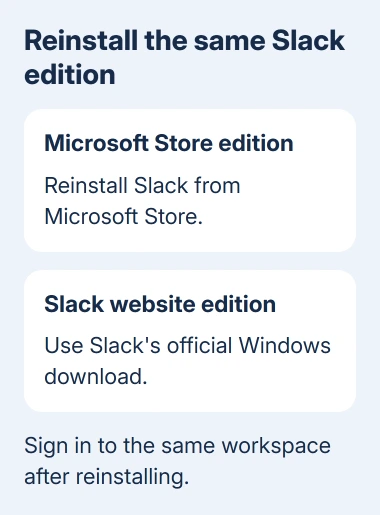
For general Windows app controls, the app repair options explain why Repair or Reset appears for some apps and not others. Don't assume every Slack edition offers both.
If a normal reinstall keeps the same update error, the Slack desktop update instructions include cleanup paths for each edition. The Store package and direct download keep their local data in different places.
I'd follow the path for that exact edition, rather than delete every folder with Slack in its name. Local cleanup can remove sign-in data and unsent local work, so use it only after the ordinary reinstall fails.
5. Fix notifications separately from loading
If your workspace opens and sends messages but its alerts are silent, check notifications separately. In Slack, check whether notifications are paused, then review Preferences > Notifications and the notification schedule.
Check the affected channel too. A channel can have a different notification choice from the rest of the workspace, so compare a direct message with a message in that channel.
In Windows 11, open Settings > System > Notifications. Turn notifications on and check Slack's entry if it's listed. Also check Do not disturb, which can silence banners while messages continue to arrive normally.
For alerts missing only during part of the day, compare Slack's schedule with Windows' automatic Do not disturb rules. A cache reset won't change either schedule. Use the notification troubleshooting option in Slack when available.
6. Send a useful failure report
To record the connection failure for support, choose Help > Troubleshooting > Restart and Collect Net Logs. When the log window appears, reproduce the failed action, return to that window, and select Stop Logging.
The ZIP file is saved in Downloads. Send it through Slack's official support contact route with the error text, app version, and whether the browser workspace works. Follow your employer's process for sharing diagnostic files.
For a company network failure, give IT the connection-test results as well. If Task Manager also freezes while closing Slack, use the frozen Task Manager recovery steps.
The Short Version
Clear the cache for loading trouble and compare the browser for connection errors. Update your installed edition before reinstalling. For silent alerts, check notification settings. Send Net Logs if connection trouble persists.
Checked November 13, 2026.