

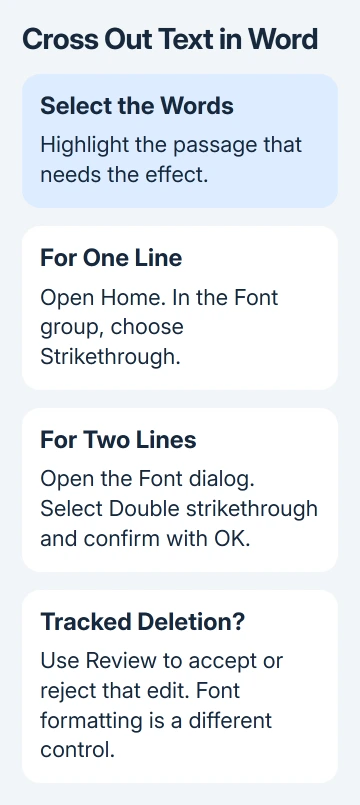
Select the words in Microsoft Word, open Home, and click Strikethrough in the Font group. The same button removes a single line from selected text. For two lines, open the Font dialog and choose Double strikethrough instead.
A crossed-out sentence can also be a tracked deletion. Word's review tools control that line, so a formatting button won't accept or reject the deletion. First decide whether you're styling text or reviewing someone else's changes.
In this guide
Cross out selected words from the Home tab
Click and drag across the text that should have a line through it. Include only the words you want to change. If you don't select any text, the formatting applies where your cursor is, rather than to words you've already typed.
Open Home and find Strikethrough among the font controls. Its icon shows letters crossed by a horizontal line. Hover over a button if you need its name before selecting it.
Click the button once, then click elsewhere in the document to check the result without the selection highlight. The original words should remain readable with a line through their middle. They haven't been deleted from the file.
For a task list, select the completed task's words rather than the entire page. For a price revision, select the old price. This keeps the effect attached to the information that actually changed.
Microsoft says to use Home > Strikethrough for the single-line effect. The same instructions cover two lines in desktop Word, including Microsoft 365 and the listed versions sold as a one-time purchase.
I'd highlight the intended passage first, even for a short phrase. It makes the change easy to check and keeps the next sentence from inheriting the effect.
Choose double strikethrough in desktop Word
In Windows, the font settings include effects that aren't all shown directly on the ribbon. A small dialog launcher sits in the corner of the Home > Font group.
- Select the text that needs two lines through it.
- Open Home and select the Font dialog box launcher.
- Switch to the Font tab.
- In the effects settings, choose Double strikethrough.
- Confirm with OK and check the selected words in the document.
These settings affect the text you've selected, which can include words that already have different formatting. Select just the words you want if only part of a paragraph needs two lines.
On Windows, Ctrl + D opens the Font dialog without hunting for its launcher. Choose the named effect there rather than assuming a shortcut copied from another Office app applies it directly in Word.
For example, Excel has its own formatting controls and shortcuts. The Excel strikethrough procedure applies to spreadsheet cells; the surrounding app matters even when the effect looks the same.
Remove the effect without deleting the words
Select the crossed-out text again and use Home > Strikethrough to remove a single line. Check the actual words after deselecting them. A selection covering both normal and crossed-out text can make the button's state less clear.
For double strikethrough, open the Font dialog and clear Double strikethrough, then confirm. Alternatively, select the text and click the Home tab's Strikethrough button twice.
Avoid using Clear All Formatting just to remove this one effect. That command changes more formatting than the line alone, which is unhelpful when the document already has the right font, size, or emphasis.
If the next words you type also appear crossed out, strikethrough is still turned on at your cursor. Turn the effect off before continuing. To repair existing text, select that text and remove the effect from the selection.
For a quick mistaken click, Undo is another useful choice. If the formatting change is still your last edit, Undo reverses it without making you select the words again.
Use the version's own controls
In Word for Mac, select the words and use the strikethrough control on Home. The Mac strikethrough shortcut is Command + Shift + X, which differs from the Windows Font-dialog shortcut.
Don't substitute an Excel shortcut or a TextEdit menu route simply because you're using a Mac. Both the operating system and the app determine which keys apply the effect.
In Word for the web, switch the document into an editing mode first. Highlight the words and look in Home for the font-formatting controls. A compact ribbon can place additional commands inside its menus.
The desktop Font dialog isn't the browser's settings dialog. If the web editor lacks the double-line effect you need, continue in the desktop version of Word and select it in the Font settings.
Some shared documents permit viewing but not editing. If the formatting controls can't change the document, request editing access from its owner rather than trying a series of keyboard shortcuts against a read-only file.
Check whether the line is a tracked deletion
A reviewer's removed words can appear crossed out because Track Changes is recording the edit. Open Review and look at the document's change display before treating that mark as ordinary font formatting.
For a deletion you want to keep, accepting that change removes the deleted words. Rejecting the deletion keeps the words. Neither works like removing ordinary strikethrough formatting, which leaves the words unchanged.
Turning off Track Changes stops it from recording future edits. Existing changes still need a decision: review the relevant edit and accept or reject it. Don't accept every change in a shared document just to remove one crossed-out passage.
If a formatting line won't change in an editable document, enter a sample phrase in a new file and apply the effect to that phrase. If it works there, ask the original document's owner about protection or review settings.
For trouble across new files as well, ask Word support about the Font control and give the app version and whether you're using Windows, Mac, or a browser. Those details identify the correct interface and avoid advice for another editor.
The Short Version
Use Home > Strikethrough for one line or the Font dialog's Double strikethrough choice for two. Select the same words to remove the effect. A tracked deletion needs an Accept or Reject decision under Review instead.
Checked November 13, 2026.
 If you have any business, I can build it online






