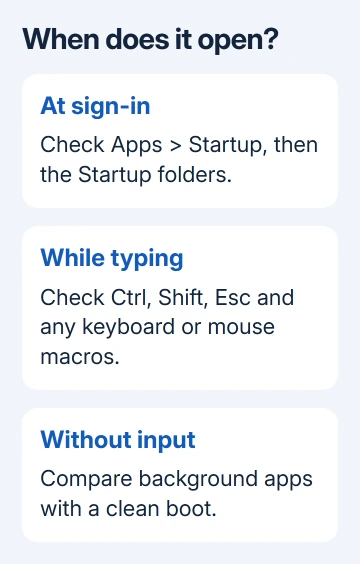
When Task Manager keeps popping up, its timing tells you what to check. If it opens at sign-in, check its startup entry first. If it opens while you're typing or gaming, check for a keyboard shortcut or utility that's launching it.
Close the window once with its X, then watch what brings it back. If it returns only after restarting Windows, start with the startup checks. If it reappears immediately, check the keyboard and background apps.
In this guide
1. Remove an unwanted launch at sign-in
Open Settings > Apps > Startup on Windows 10 or 11. Look for Task Manager or a utility you configured to open it. Turn off that entry if it's present, then restart Windows and sign in again.
This list controls registered apps that open at sign-in. Task Manager won't necessarily have an entry, so don't disable unrelated programs if its name is missing. Check the Startup folders next if the list doesn't explain the launch.
Right-click Start, choose Run, enter shell:startup, and press Enter. This opens the current account's Startup folder. Look for a Task Manager shortcut. Right-click it and open Properties to inspect the program it launches.
On a standard Windows installation on C:, Task Manager's program is C:\Windows\System32\Taskmgr.exe. Check which program it opens, rather than relying on the shortcut's name. A shortcut can be renamed without changing what it opens.
Remove an unwanted shortcut from that folder, then repeat the check with shell:common startup for all users. Delete only the shortcut that starts Task Manager, keeping the Windows program itself in place.
Microsoft's startup-app instructions cover both the Settings list and those folders. If the window stops appearing at sign-in, leave the rest of the startup items alone.
2. Check the keys and shortcuts that open it
Ctrl+Shift+Esc opens Task Manager directly. Press and release each of those keys separately, checking that they spring back normally. A stuck Ctrl or Shift key can make an ordinary keypress do something unexpected.
Disconnect an external keyboard, gaming keypad, or macro controller, then close Task Manager using the mouse. Keep working with the laptop's built-in keyboard or another keyboard and see whether the window returns.
On a desktop, connect a spare keyboard if one is available. Trying another keyboard helps you check whether typing triggers the launch. You don't need to delete drivers or change Windows settings for this check.
Check keyboard and mouse software for a button assigned to Task Manager, Ctrl+Shift+Esc, or a macro containing that combination. Remove that one assignment temporarily. A side button can trigger a command without an obvious keyboard press.
I'd try this before a system repair when the window appears during a game. The Task Manager shortcut reference explains the opening routes, but repeatedly sending the command is the behavior to stop here.
If disconnecting the accessory stops the launches, reconnect it and repeat the same action once. If that action opens it again, check the accessory's keys or button assignments. If Task Manager returns without it, check background software.
3. Compare a closed session with restored apps
Save your work, close Task Manager, then choose Start > Power > Restart. Sign in and wait before opening other programs. This checks whether it opens before you've started your usual apps.
Windows also has a setting for reopening eligible apps after sign-in. Open Settings > Accounts > Sign-in options and look for Automatically save my restartable apps and restart them when I sign back in. Switch it off temporarily.
The sign-in settings reference describes that switch. It controls apps that support restarting; it won't stop every program that can launch Task Manager.
Restart again and compare the result. If the window still opens, continue with startup software rather than repeatedly changing the sign-in switch. Restore your preferred setting when the comparison is finished.
A work or school computer may have settings controlled by IT. Give them the timing and the name of any startup entry you found if the switch isn't available in your account.
4. Find the background app with a clean boot
A clean boot temporarily stops optional startup software and non-Microsoft services. Use this when Task Manager keeps reopening despite the earlier checks. Write down which items are enabled; you'll need that list to restore the settings.
Sign in as an administrator. Search Start for msconfig, open System Configuration, and select Services. Check Hide all Microsoft services before selecting Disable all, then click Apply.
Don't change the Boot tab or its advanced settings. You'll only need the Services and Startup controls for this check.
Open the Startup tab and select Open Task Manager. In Windows 11, use Startup apps; Windows 10 calls the tab Startup and may first show More details. Disable the items that were enabled, recording each one.
Close Task Manager, select OK in System Configuration, and restart. Try the same activity that normally brings the window back. Some optional features won't work while their software is disabled.
If the launches stop, reenable half your recorded items and restart. Narrow down the group that brings the problem back until one item remains. Update that software or remove its launch assignment instead of leaving everything disabled.
If it still happens during the clean boot, tell support that result. An ordinary startup-app conflict is less likely, and support can skip another round of disabling the same programs.
5. Restore normal startup and get the right help
Open msconfig again and select Normal Startup on the General tab. On Services, clear Hide all Microsoft services, select Enable all, and apply the change. Reenable the startup apps from your original record.
Follow the restoration section of the clean-boot procedure and restart. Keep a confirmed problem app disabled only while arranging its update or repair.
For a window that freezes rather than reopening, use the Task Manager response repairs. Ending the process can close a frozen window, but it won't remove a startup command that launches it again.
If the launches continue, send Microsoft Support or IT the Windows version, launch timing, keyboard comparison, and clean-boot result. Ask them to find what's starting Taskmgr.exe before considering a Windows reset.
The Short Version
Check startup entries for sign-in launches, keys and macros for launches during use, then compare background apps with a clean boot. Restore normal startup afterward and give support the result that repeats the problem.
Checked November 12, 2026.