

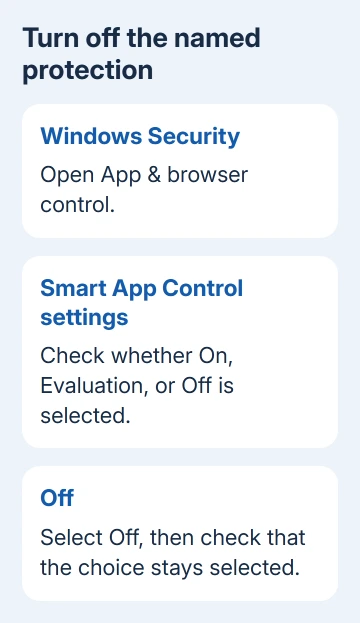
Turning off Smart App Control in Windows 11 takes one change in Windows Security: open App & browser control, choose Smart App Control settings, and select Off. Check that the warning actually names Smart App Control before changing it.
Turning it back on no longer always requires reinstalling Windows. Recent updates allow that change without a clean installation, though your device and its settings still affect which options are available.
In this guide
Check which protection blocked the app
Read the full message shown when the app stopped. If the warning names Smart App Control, you've found the right setting. A Microsoft Store recommendation, SmartScreen warning, or administrator restriction needs its own controls.
Open Start, type Windows Security, and open the matching app. Select App & browser control. Find Smart App Control settings rather than switching off a different protection just because it sits on the same page.
If an installer says it isn't a Microsoft-verified app, the desktop installer restriction checks explain Store-only settings and S mode. Turning off Smart App Control won't remove those separate limits.
For an organization-managed PC, send IT the application name and full warning before requesting a change. Even an administrator account can still be subject to your organization's app restrictions.
I'd check the publisher's current installer before disabling the feature. A correctly signed replacement can solve the app's trust problem while keeping this protection available for everything else you run.
Select Off in Smart App Control settings
Save anything you're working on in the blocked application, if it was already running. Then use the Windows Security page you've just checked. Turning it off changes protection across the PC; it doesn't just allow this one file.
If App & browser control won't open, or shuts a few seconds after you select it, fix that page first before looking for the Smart App Control switch.
- Open Windows Security > App & browser control.
- Select Smart App Control settings.
- Read the current selection: On, Evaluation, or Off.
- Select Off and complete any confirmation Windows shows.
- Check that Off remains selected before closing the page.
If Off was already selected, Smart App Control wasn't actively blocking the app at that point. Read the original message again to see which protection it names instead of changing the same option again.
After switching from On to Off, reopen the app from its trusted installer or installed shortcut. If it starts, you've cleared this block. You'll still need your usual file checks, since an app starting doesn't tell you it's safe.
If the app still fails with a different warning, handle that new warning separately. A second security control or broken installer can stop an app after Smart App Control no longer blocks it.
Understand what On, Evaluation, and Off change
On checks whether an app is trusted before it runs. Windows checks with a cloud service, then checks the app's digital signature if the service can't decide. That signature identifies the publisher and helps detect changes to the app.
An unsigned or invalidly signed app can therefore be blocked even when you recognize its name. The name and icon aren't enough to settle whether this copy came from its developer or was changed afterward.
Evaluation lets Windows check whether the protection suits how you use your computer. It doesn't block apps while it does that. If Evaluation is selected, reread any warning you thought came from Smart App Control blocking an app.
Off stops this feature from blocking untrusted apps. It doesn't uninstall Windows Security. Microsoft Defender Antivirus, or your other active antivirus, is a separate protection and can continue checking files.
For the rest of your protection settings, follow the Windows virus-prevention checks. Keep antivirus and download checks working instead of turning off every warning around one installer.
Keep a route back to protection
Microsoft's current Smart App Control FAQ says recent updates allow the feature to be re-enabled without a clean installation. That's a change from the older blanket reinstall requirement.
Open Settings > Windows Update > Check for updates and finish any available updates before checking which options your PC offers. Restart when requested, then return to Smart App Control settings and check whether On is available.
Don't reset a PC just because an old tutorial says that's always required. The FAQ still lists device and configuration limits, including enterprise management, developer configuration, S mode, and optional diagnostic-data settings.
Some of those situations have their own reset requirements in the FAQ. Read the reason that fits your machine rather than treating a missing On choice as a reason to wipe it immediately. A reset affects much more than this feature.
Returning to Evaluation is a separate issue from selecting On. The settings guide says the evaluation state can't simply be restored after it finishes or after a manual On or Off choice without a reset or reinstall.
If On stays unavailable, note your Windows build with Windows+R > winver. In Get Help, include that build and the setting currently selected. Ask whether your PC's setup allows turning it back on with the latest update.
When one trusted app is the reason for the change
Smart App Control doesn't let you make an exception for one app. Switching it off changes this protection for all apps. You can't keep the feature fully On and add one blocked program to an allow list in this settings page.
Contact the application's developer and ask for a current installer with a valid digital signature. Include the download address, file version, and exact Smart App Control message so they can identify the affected release.
For an internal business tool, ask IT whether the developer can sign it or whether the organization has an approved alternative. That gives IT something to act on, instead of leaving you to download the same blocked version elsewhere.
Windows 10 doesn't include Smart App Control. If a Windows 10 PC displays a security warning, read its actual protection name. The Windows 11 path in this guide won't appear on that operating system.
The Short Version
Select Off in Windows Security > App & browser control > Smart App Control settings. Check the warning first. Recent updates can allow re-enabling without reinstalling, but device limits and Evaluation mode differ.
Checked November 13, 2026.
 If you have any business, I can build it online






