Turtle Beach game audio can work while the microphone is muted or on the wrong input. Lower a Recon 70's boom, check an Elite Atlas's boom and in-line mute, or inspect a wireless model's transmitter before changing Windows settings.
A wired headset can use the PC audio-jack name instead of Turtle Beach. A Stealth 700 Gen 2 PS uses a USB transmitter and its own named input. Check how your model connects before choosing the input.
In this guide
1. Unmute the microphone using its model's control
On a Recon 70, flip the microphone down to its speaking position. Leaving the boom raised mutes it. You can still hear the game through the earcups while the microphone is muted.
With an Elite Atlas, check the in-line mute control. A visible red line means the microphone is muted. Move the control to the unmuted position, then try speaking again before changing software settings.
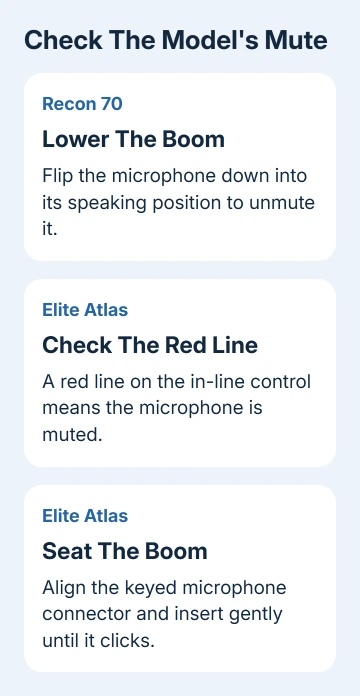
Other Turtle Beach models have different controls. Check the exact name on the headset or its packaging instead of applying a Recon 70 button sequence to a Stealth model. Keep that model name for the connection checks that follow.
I'd check these controls before reinstalling an audio driver. A raised mic or an in-line mute switch takes seconds to fix, and Windows can't move either control for you.
2. Seat the Elite Atlas boom and use the right jack
For the Elite Atlas, line up the keyed parts of the detachable microphone and its socket. Insert it gently until it clicks into place. Also check that the headset cable is fully seated at the headset end.
For separate headphone and microphone sockets, use the included PC Splitter Cable. Plug each end into its matching headphone or mic socket. With only the headphone end connected, you'll hear sound, but the PC won't receive your voice.
Turtle Beach says the Elite Atlas PC microphone checks start with the boom, cable, splitter, and mute control. These are separate connection points, so check each one.
Use the compatible headset connection for a combined jack. A desktop's need for a two-plug splitter doesn't mean a laptop needs one too. Read the symbols beside the sockets to distinguish a combined port from separate inputs.
If you're also checking the headset on a phone, the wired headphone connection checks cover compatible ports and adapters. A plug fitting physically doesn't mean the adapter carries microphone audio.
3. Choose the jack input for a wired headset
A Recon 70 or Elite Atlas connected through 3.5 mm audio won't necessarily appear in Windows by its retail name. Look for the computer's microphone or audio-jack input, often labeled with its audio hardware maker, such as Realtek.
Open Settings > System > Sound. Under Input, select the input connected to the headset. A moving meter beside the laptop's built-in microphone doesn't make that the correct headset input.
For the older Recording panel used in the headset instructions, press Windows + R, enter mmsys.cpl, and open Recording. Select the connected microphone input and use Set Default when it isn't already selected.
Speak into the boom and watch the input meter. If the meter moves for the headset microphone, the PC is receiving your voice. If it stays still, get that input working before changing the chat app.
Device names vary between computers. The general Windows microphone guide covers missing or disabled inputs if the correct audio-jack device isn't available. Don't wait for a new Recon 70 device name to appear.
4. Use the Stealth 700 Gen 2 PS transmitter on PC
For a Stealth 700 Gen 2 PS, plug its transmitter into a free USB port on the computer. Check the transmitter light: a solid light indicates its paired connection, while a double-blinking light calls for the model's pairing procedure.
In Settings > System > Sound, choose Speakers (Turtle Beach Stealth 700 G2) for output. Select Microphone (Turtle Beach Stealth 700 G2) for input. Selecting only the speakers fixes where sound plays, not which microphone the computer uses.
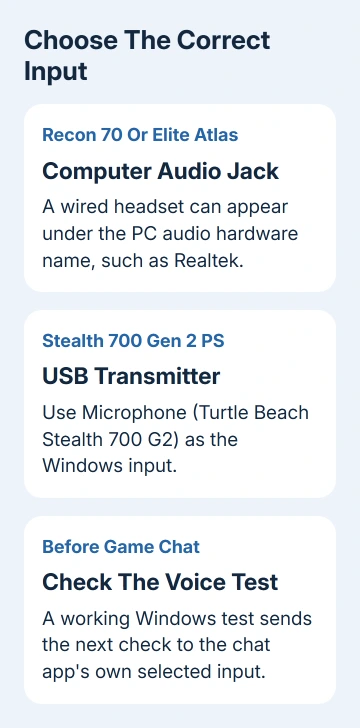
Use the Stealth 700 Gen 2 PS PC instructions for that exact version. Other Stealth generations and console versions can need a different PC setup.
If pairing hasn't completed, use the pairing link in your model's instructions before changing game-chat settings. Windows can see the USB transmitter even when the headset isn't connected to it. Pair it first so it can send your voice.
5. Check the voice signal before opening game chat
On Windows 11, open the selected microphone's properties from Settings > System > Sound > Input. Choose Start test, speak normally, then Stop test. Use Play for the recorded sample when offered.
On Windows 10, choose the input in Settings > System > Sound and watch Test your microphone while speaking. For the Elite Atlas recording check, open Voice Recorder, record a short sentence, then play it back.
Use the Windows microphone testing instructions if the input volume is too low. Raise Input volume for the selected microphone, then repeat the same short test.
For a Recon 70 that remains silent, test it on a compatible phone as its PC support instructions describe. During a test call, keep the phone itself covered or in a pocket so its own microphone doesn't produce a misleading result.
If the headset also fails there, give Turtle Beach Support that result. If the other person hears you through the headset on the phone, return to the PC's input selection and app access rather than replacing the boom immediately.
6. Fix the chat app when the Windows test works
A clear Windows test means the PC receives your voice. In the game's or chat app's audio options, choose the microphone that passed the Windows test. The app can use a different microphone from the Windows default.
In Discord, open User Settings > Voice & Video > Voice, then choose the matching Input Device. Use its Mic Test to check that Discord receives the selected microphone. Check the app's mute control as well.
Check Settings > Privacy & security > Microphone in Windows 11, or Settings > Privacy > Microphone in Windows 10. Enable microphone access and the needed app permissions, including access for desktop chat apps.
For a persistent failure, give Turtle Beach Support the model, connection type, Windows version, and recording result. Specify whether the Windows test is silent or just one chat app fails.
The Short Version
Match the mute and connection checks to your headset model. Wired Recon and Atlas models use the PC's audio input name; Stealth 700 Gen 2 PS uses its transmitter and named mic. Check Windows voice input before changing game-chat settings.
Checked November 12, 2026.