The right fix for a Windows 10 error code depends on which screen displayed it. A number in Device Manager, a failed update, and a stop code on a blue screen belong to different lists, so match the message to its source first.
For an ordinary file or program error, start with the system-code table. For update, activation, or device errors, keep the full code and use the matching repair route.
In this guide
1. Keep the code and the failed action together
Write down the complete number, including an opening 0x, and the words next to it. Also note what you were doing: copying a file, installing an update, activating Windows, or connecting a device.
A code beginning with 0x is written in hexadecimal, a number system that uses letters as well as digits. Don't remove the letters or search for only the last two digits.
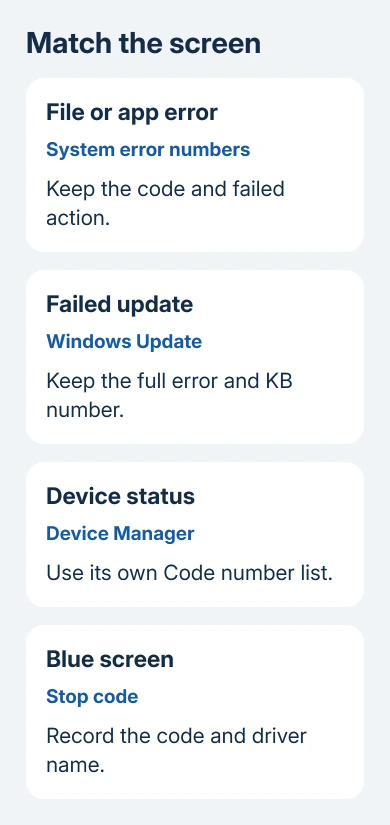
A screen that says Code 10 in Device Manager isn't reporting the same thing as decimal system error 10. Where you see the code changes what it means. This distinction saves you from installing a driver for a file-permission problem.
If the message disappears quickly, photograph the screen using a phone, or copy the dialog's text when possible. Keep account names and private file paths out of anything you post publicly.
I'd record the failed action before changing settings. A useful support report pairs the error with what failed. The same number can appear during operations that need completely different repairs.
2. Match common system numbers to a practical check
Microsoft lists the official descriptions in its system error reference. Use these common entries to choose your next check. The description alone won't tell you every step of the repair.
| Decimal code | Hex code | Meaning and first check |
|---|---|---|
| 2 | 0x2 | File not found. Check that the named file still exists. |
| 3 | 0x3 | Path not found. Check the folder and drive location. |
| 5 | 0x5 | Access denied. Check permission for the failed action. |
| 15 | 0xF | Drive not found. Check the selected drive letter. |
| 21 | 0x15 | Device not ready. Check that the device or media is available. |
| 32 | 0x20 | File in use by another process. Close the app using it. |
| 53 | 0x35 | Network path not found. Check the share address and connection. |
| 80 | 0x50 | File already exists. Check the destination filename. |
| 87 | 0x57 | Incorrect parameter. Check the command's options and inputs. |
| 112 | 0x70 | Disk full. Check available space where the file is being saved. |
| 122 | 0x7A | Buffer too small. Record the app and operation for its support team. |
| 183 | 0xB7 | Cannot create an existing file. Check the intended output name. |
For errors 2 and 3, open the exact folder shown in the message. Reconnect an external drive if it's missing. If you moved the folder, put it back or tell the app where to find it now.
For error 32, save and close the program that has the file open, then repeat the original action. Closing an unrelated app won't release a file being held by a different process.
For error 5, confirm that your account should have access. Don't give every user full control of a system folder. A work account may need the administrator to grant access to the particular file or service.
If the file, path, or permission is correct and the error repeats, tell the app's support team exactly what you were doing. Some system-code messages describe a software problem you can't fix by changing a Windows setting.
3. Use the Windows Update list for failed updates
On Windows 10, open Settings > Update & Security > Windows Update > View update history. Record the failed update's KB number, full error, and date. That identifies which installation needs attention.
An update error such as 0x80070005 includes an access-denied meaning, but the fix needs to address how Windows installs updates. Changing a document's permissions won't fix the update service's access problem.
Similarly, 0x80070070 means there isn't enough space when it appears during an update. Check Settings > System > Storage and the update's requirements before removing files or altering partitions.
Use the Windows Update error-code guide for the update-specific repair. It covers low space, drivers, policies, and the component store (stored Windows system files), which a general number list can't fix.
After applying the matching repair, retry that KB in Windows Update and read its installation result. If a different code appears, write it down separately. It doesn't necessarily mean the first repair did nothing.
4. Read device numbers inside Device Manager
Right-click Start, choose Device Manager, and open the affected device's Properties. On General, read Device status. Record the device name and the number printed there.
Code 22 means the device is disabled; Code 28 means its drivers aren't installed. Code 10 means it can't start, while Code 43 means Windows stopped it because the device reported a problem.
Those descriptions lead to different next steps. If a device was switched off intentionally, enable it when you need to use it. A missing driver needs the correct driver for that computer or device model.
The Device Manager code list covers those repairs. Check it before uninstalling a device that may only be switched off or temporarily disconnected.
5. Keep activation and blue-screen errors separate
For activation, open Settings > Update & Security > Activation. Save the full message and check the installed Windows edition against the license you own. A Home license doesn't activate an installation of Pro.
Use the activation troubleshooter when the page offers it, especially after a hardware change. If activation still fails, provide the error and purchase details privately through Get Help. Don't post a product key.
A blue screen instead reports a stop code, sometimes with a driver filename. Record both. Use that stop code when looking for help, rather than a Device Manager number or an ordinary file-error description.
For repeated crashes, give the PC maker the stop code, any named driver, and the recent hardware or software change. Ask for the repair for that model and code rather than applying every registry fix found in a search.
The Short Version
Pair each Windows 10 number with the screen displaying it. Use system numbers for file and program errors, the update list for failed KB installations, and Device Manager's own list for device-status numbers.
Checked November 16, 2026.