

A cumulative update that climbs to about 35 percent and then stops with Install error - 0x80073701 has run into a damaged component store, the folder of system parts that every update builds on.
Start with DISM and SFC, Windows' own repair tools. If the update still fails, switching .NET Framework 3.5 off or using Reinstall now in Settings can get it through, and a repair install after a clean boot handles the stubborn ones.
In this guide
What 0x80073701 means
The code's name is ERROR_SXS_ASSEMBLY_MISSING, which means a component the update expects isn't there. Microsoft's table of update errors blames "a component store corruption caused when a component is in a partially installed state."
That's why you can press Retry again and again and it stops at the same spot every time. The fixes work on the store underneath, or reinstall Windows so the store gets rebuilt, rather than on the update itself.
To find out which update you're stuck on, open Settings > Windows Update > Update history; the failed one shows its KB number and the date it failed.
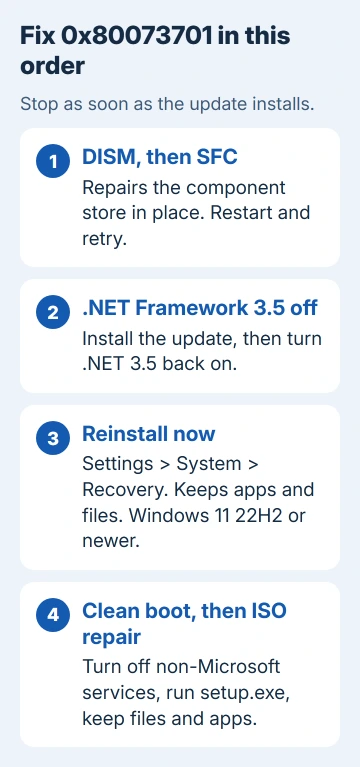
1. Run DISM, then SFC, and restart
Search for cmd and choose Run as administrator under Command Prompt in the results. Enter these two commands one after the other, letting each finish:
Dism.exe /Online /Cleanup-Image /Restorehealth
Sfc.exe /Scannow
DISM pulls replacement components from Windows Update, so stay connected to the internet while it runs. It can look stuck for several minutes before it moves again; leave it alone until it reports the result.
SFC's last line tells you where you stand: no integrity violations means the protected system files are fine, and repaired files are good news too.
Whichever result you get, restart, go back to Settings > Windows Update and select Retry. If SFC finds corrupt files and can't fix all of them, the SFC guide explains that result.
Don't keep repeating this step, though. The owner who first asked about the July 2022 update ran both with no change, and another owner had no luck with DISM, SFC or a manual install from the Microsoft Update Catalog.
2. Turn off .NET Framework 3.5 for the install
One owner got the stuck update through by switching off .NET Framework 3.5 first. I'd try this before the Settings reinstall, since it takes about five minutes. Search for Windows Features and open it.
Clear the box for .NET Framework 3.5 (includes .NET 2.0 and 3.0), select OK and restart. Then run Windows Update's Check for updates.
For them the update took longer than usual, but it installed, and afterward they turned .NET Framework 3.5 back on in the same window. They'd tried turning off their antivirus first, and that alone hadn't been enough.
3. Reinstall Windows from Settings
On Windows 11 22H2 or newer, Settings has a repair of its own. Reinstall now installs your current Windows version again and keeps your apps, files and settings.
Open Settings > System > Recovery and select Reinstall now, next to the option for fixing problems with Windows Update. Before it starts, a prompt asks whether Windows may restart automatically 15 minutes after the install finishes.
Keep it plugged in and online while Windows downloads a repair version of your last good update. After a failed update, the Windows Update page itself can also suggest reinstalling your current version.
Windows 10 and Windows 11 builds older than 22H2 don't have the button, so go to step 4.
4. Repair install from the ISO after a clean boot
When nothing else worked, one owner got the update installed with a repair install (Windows set up again over itself, keeping files and apps) after switching off every non-Microsoft service.
A plain repair install had failed for them, so the clean boot made the difference. Plan on an hour or more, and copy irreplaceable files somewhere safe before you begin.
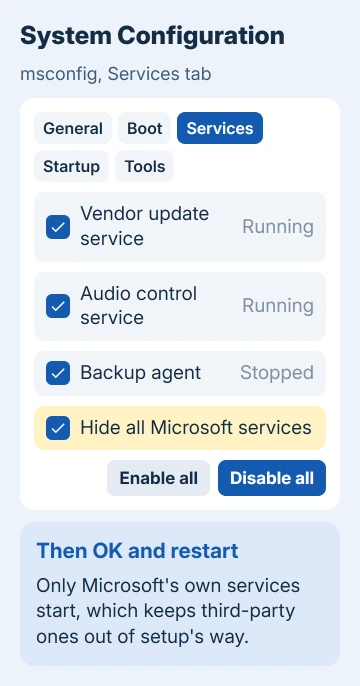
- Press Win+R, type msconfig and press Enter. On the General tab, choose Selective startup and leave only Load system services checked.
- On the Services tab, check Hide all Microsoft services, then select Disable all and OK. Restart when asked. Microsoft's clean boot steps also turn off startup apps in Task Manager, which you can add if you like.
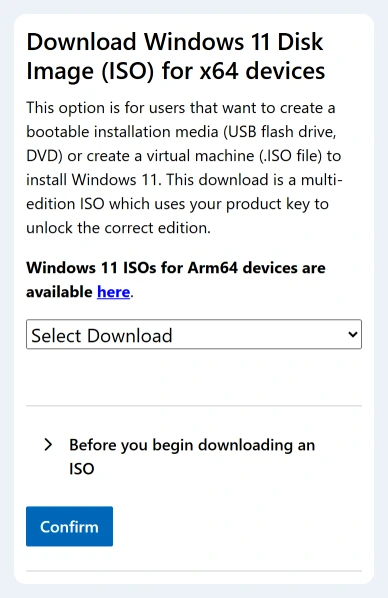
- Get the Windows 11 ISO from Microsoft's software download site, double-click it and run setup.exe. On the screen about what to keep, pick personal files and apps. The repair install guide walks through each screen.
- When setup finishes, open msconfig again, choose Normal startup and select OK, which turns your services back on.
After all that, their Windows Update history showed the update as installed.
What didn't help
Owners who reported back got nowhere with the Windows Update troubleshooter, restarting the update services, renaming the update folders, a manual install from the catalog, or a repair install without the clean boot.
I'd skip those and stick to the four steps here, because they work on the store, which is where 0x80073701 comes from.
If 0x80073701 keeps coming back
Open the Get Help app to reach Microsoft support, and have the update's KB number and the 0x80073701 code ready when you ask. On a work PC, ask your IT team first, because their update tools may handle the repair differently.
The Short Version
0x80073701 means a damaged component store. Run DISM and SFC, try the update with .NET Framework 3.5 turned off, then use Reinstall now in Settings. If you're still stuck, run a repair install from the ISO after a clean boot.
Checked November 20, 2026.
 If you have any business, I can build it online






