

Windows 11 can ignore the wheel over its volume icon when hover scrolling is off. Turn on Scroll inactive windows when hovering over them in Settings > Bluetooth & devices > Mouse, then try the speaker icon again.
A working volume slider with a broken hover shortcut is different from losing sound altogether. Check those two controls separately before reinstalling audio drivers or resetting Windows.
In this guide
1. Turn on scrolling for inactive windows
Press Windows+I, select Bluetooth & devices, then open Mouse. Turn Scroll inactive windows when hovering over them to On. With this on, you can scroll the window under your pointer without clicking it first.
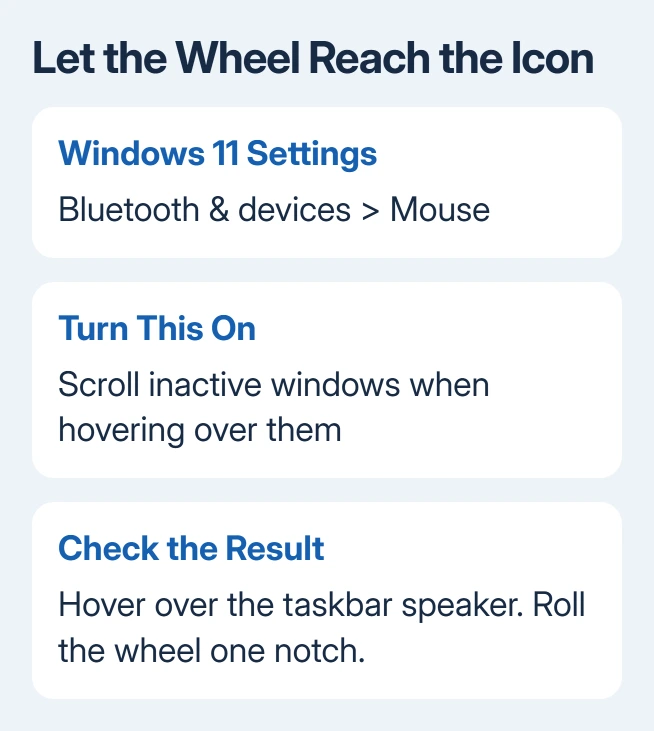
Microsoft's mouse settings guide explains this behavior. The original volume-icon discussion also suggests this switch, rather than changing an audio service.
Move the pointer over the speaker symbol beside the network indicators on the taskbar. Keep it on that symbol, rather than the nearby network or battery symbol, and roll the wheel a notch. Check whether the volume level changes.
If it works, leave the setting enabled. Remember that it also affects other inactive windows: a document under the pointer can now scroll without becoming the selected window. That wider effect is part of the setting, not another fault.
If that option already shows On, compare the two volume controls next. Changing scroll speed or the number of lines per notch serves a different purpose; those options don't turn inactive-window scrolling on.
2. Compare the taskbar icon with the open slider
Press Windows+A to open Quick Settings. Find the volume slider and drag it a small distance. Then place the pointer over the slider and try the wheel. Keep the starting volume low enough for comfortable listening.
When the slider responds but hovering over the taskbar icon doesn't, Windows can still change the master volume. The problem is with the hover shortcut or how Windows handles the pointer, rather than all the volume controls.
The original asker described exactly that split on Windows 11 23H2: the wheel worked over the open volume bar but not over the tray icon. System-file scans, restarts, and an audio-service restart hadn't fixed the shortcut.
If neither control changes the level, open Settings > System > Sound to see which device is selected. A headset, monitor, and laptop speakers are separate destinations. Compare the controls for the device you're hearing.
If you need the fuller controls, the Windows 11 volume mixer guide shows where to open them. Per-app volume and the main output level are different controls, so test the main slider first.
3. Check whether the wheel works outside the taskbar
Open a long document or a web page you already use. Click inside it and scroll. Then move the pointer to another open window without clicking and try again. That tells you whether scrolling needs a click or works by hovering too.
If clicking a window makes scrolling work but hovering doesn't, return to the inactive-window setting. If the wheel doesn't scroll an active window either, the wheel fault isn't limited to volume. Check the mouse next.
Borrow a second mouse for comparison when possible. For a USB mouse, use a port on the PC itself, then repeat the volume checks. A second mouse working in both places gives you a useful reason to check the first mouse or its software.
A touchpad's two-finger gesture isn't the same input as a mouse wheel. Compare with an actual wheel when that's the shortcut that stopped working. Note whether the touchpad scrolls, but check the mouse separately.
For broader pointer problems, use the mouse and touchpad troubleshooting guide. This page's setting addresses hovering; it can't repair a wheel that has stopped sending input to any application.
4. Compare mouse utilities and taskbar changes
In your mouse software, inspect the desktop profile for special wheel actions. Check for scrolling or volume assignments, including per-program choices. Temporarily return the wheel to normal scrolling through the utility's settings.
Compare the taskbar and slider again after that change. If the shortcut works again, that wheel assignment was affecting it. Keep the working assignment rather than installing another utility over it and making the cause harder to identify.
Do the same comparison with a taskbar replacement if you use one. Follow its normal exit or disable option, then restart Windows when the utility requires it. Test the built-in taskbar before changing additional Windows settings.
These checks show whether the shortcut works with the wheel set to normal scrolling. If the utility makes no difference, restore your preferred settings and continue. Keep the result for support rather than assuming the utility caused it.
I'd keep the open volume slider as the temporary control while checking this. It's built into Windows, and if it responds, you can keep adjusting the sound without interrupting your other work.
5. Update Windows, then report the exact comparison
Open Settings > Windows Update > Check for updates. Finish the offered updates, including their requested restart. After signing in, test the same volume icon and Quick Settings slider again, with the inactive-window switch enabled.
The shortcut is a Windows 11 feature that arrived during its development, so an old Windows screenshot or instructions for Windows 10 can describe different behavior. Check your current release with Windows+R, winver, then Enter.
If only hovering remains broken, press Windows+F to open Feedback Hub. List your Windows build, mouse model, inactive-window setting, and whether the open slider responds. Support can use this to repeat your volume-icon check.
Open Get Help and ask about wheel input over the Windows 11 taskbar volume icon. State whether a second mouse changes the result. Saying only that volume doesn't work can send help toward the wrong audio device.
One owner confirmed that a clean Windows installation fixed wider scrolling trouble after a motherboard change. That doesn't tell us whether the hover setting worked. A clean install is a large repair for one broken shortcut.
The Short Version
Enable inactive-window scrolling and compare the speaker icon with the open volume slider. A working slider narrows the problem to the shortcut. Check wheel input and mouse profiles, then report the Windows build and behavior.
Checked November 17, 2026.
 If you have any business, I can build it online






