

Windows Update error 0x800705b4 means an update took too long or was interrupted. Restart the PC, reconnect to a working internet connection, and retry the update before changing Windows services or deleting update files.
This code alone doesn't mean your drive is broken. Check whether the download stops, installation fails, or a restart never finishes. Keep the failed update's KB number so you can check the same update after each fix.
In this guide
1. Restart and retry the failed update
Save open documents, then select Start > Power > Restart. Use Restart rather than closing the lid. Connect a laptop to its charger so a low battery doesn't interrupt another attempt.
On Windows 11, open Settings > Windows Update. On Windows 10, open Settings > Update & Security > Windows Update. Select Retry if it's offered, or Check for updates to start another check.
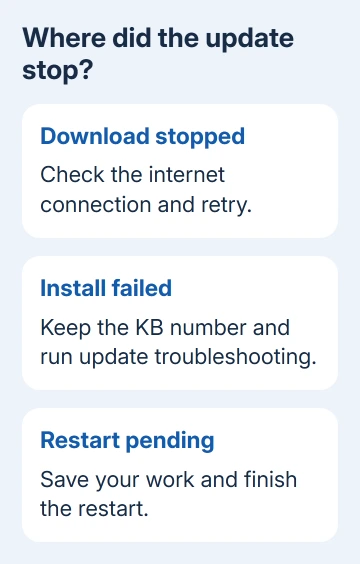
Watch where the update stops. A finished download followed by an installation failure points to a problem after downloading. Note the percentage and whether the same KB fails again.
If Windows asks for a restart, let it finish, then return to the update page. A completed update should no longer appear as a pending failure. Look for a successful entry in Update history.
The Windows update error-code guide helps when the next attempt returns a different code. Follow that new message rather than assuming every failure is still a timeout.
A new 0x801901f7 response points toward service availability, so check its network route before pursuing timeout repairs.
2. Check the connection that carries the download
Open a normal webpage in your browser. If that fails too, fix the connection first. Windows can't finish downloading an update over a connection that's dropping, even when the Wi-Fi icon still appears connected.
In Windows 11, check Settings > Network & internet. Windows 10 uses Settings > Network & Internet. Reconnect to your Wi-Fi network, or check the Ethernet cable if that's how this PC reaches the router.
Public Wi-Fi sometimes needs a browser sign-in before it provides internet access. Complete that network's sign-in, then retry Windows Update. The Wi-Fi connection and the internet connection aren't always ready at the same moment.
Disconnect your personal VPN briefly, then try one update on your normal connection. If a work network requires the VPN, ask IT to check update access rather than changing its required connection settings.
If another reliable connection lets the update download, give your network administrator that result. If downloading completes but installation still fails, continue with Windows repair checks instead of repeatedly resetting the router.
3. Run the Windows Update troubleshooter
Microsoft recommends update troubleshooting steps that include automated repair and guidance for 0x800705b4. Try that built-in tool before copying a script that resets Windows services.
On Windows 11, open Settings > System > Troubleshoot > Other troubleshooters. Find Windows Update and select Run. Follow the Get Help prompts when Windows sends you there.
On Windows 10, open Settings > Update & Security > Troubleshoot > Additional troubleshooters. Select Windows Update > Run the troubleshooter. The current support page also directs supported troubleshooting through Get Help.
Read the result before closing the window. Record any repair it reports and any problem it couldn't fix. Restart if requested, then make one new update attempt to compare the result after that repair.
I'd keep that result with the KB number. The troubleshooter can finish without fixing the update, so check the update page and Update history to see whether it installed this time.
Windows 10's free regular support ended on October 14, 2025. If you're still using it, check whether you qualify for Extended Security Updates. A timeout fix won't resolve a problem with which updates your PC is eligible to receive.
4. Check whether security software is interrupting it
Third-party antivirus or firewall software can interfere with an update. Open the security program itself, install its available updates, and look for anything it blocked at the time your Windows Update attempt failed.
If the security app appears to be blocking updates on your personal PC, follow its maker's steps to pause protection briefly. Try the update, then turn protection back on. Avoid other browsing and downloads while it's paused.
The controls differ by product, so a generic switch in Windows Security may not control your installed antivirus. On a work-managed PC, ask IT to check this for you instead of removing company security software.
If the update works only with protection paused, ask the security vendor how to allow Windows Update through. If the timeout stays the same, keep protection on and move to the next fix.
5. Repair Windows files when the earlier checks fail
Open Start, type cmd, and choose Run as administrator for Command Prompt. Approve the request. Run this command first to repair the Windows files used for updates and other system changes:
DISM.exe /Online /Cleanup-image /RestorehealthLet it finish. If it reports an error, save the message before trying any more repairs. Once it finishes successfully, run this check for damaged Windows system files:
sfc /scannowWait for verification to reach 100 percent. The result tells you whether it found damaged protected files and whether it repaired them. Restart after the repair, then check the original update again.
These commands repair Windows files, but damaged files aren't the cause of every timeout. Don't delete protected folders or change partition sizes just because another update-error guide used those steps for a different code.
If the failure changes to a missing-file error, use the 0x80070002 repair checks. Matching the new code prevents an unrelated repair from becoming your next problem.
Give support the failed update and the repair result
Press Windows+R, type winver, and note both Version and OS Build from that window. Add the KB number, failure stage, troubleshooter result, and any DISM or SFC error to your support request.
Describe error 0x800705b4 in Get Help, or send your notes to workplace IT. Ask for checks of that KB, your Windows build, and the installation logs before you consider reinstalling Windows to repair it.
The Short Version
Restart, confirm the internet connection, and retry the same update. Run the update troubleshooter, check security-software interference, then check protected Windows files if necessary. Keep the KB number and failure stage for support.
Checked November 13, 2026.
 If you have any business, I can build it online






