

Word 2010 can crash on selected documents because of a loaded add-in, even when another PC opens them. Turn off COM add-ins, restart Word, and check that they stayed off before opening the problem file again.
A damaged file is the other main case. If the crash follows one document across computers, work on a copy with Open and Repair. That distinction saves you from repeatedly reinstalling Office when the problem lives somewhere else.
In this guide
1. Disable the add-ins and check that the change sticks
Close Word, then reopen it without selecting the troublesome document. Choose File > Options > Add-Ins. At the bottom, set Manage to COM Add-ins, then click Go.
Note which boxes are checked before clearing them. Click OK, close Word completely, and start it again. Before you reopen the file, return to that list. The boxes should still be clear.
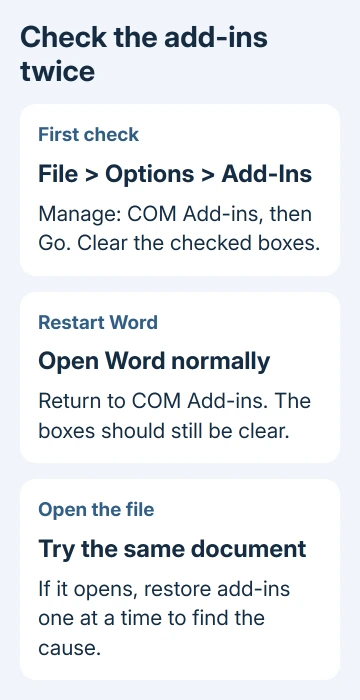
If a box turns itself back on, the first change didn't last. That matters here: owners in the original crash discussion reported that disabling add-ins worked only after checking this behavior.
One owner fixed it with a single administrator launch to disable COM add-ins; another reported success later. Try that when the cleared boxes won't stay clear, then return to a normal Word launch.
Several later replies named Send To Bluetooth as the add-in they turned off. If you see it in your list, check it too. The thread also contains owners whose documents still failed after the usual startup changes.
On Windows 7, right-click Word's Start-menu shortcut and choose Run as administrator. Approve the prompt for the installed Word program. Clear the COM Add-ins boxes, then exit and launch Word without administrator rights.
On a work PC, IT may need to enter an administrator's username and password. A security or document-management add-in may be required for work. Test its checkbox without uninstalling software your organization needs.
Reopen the problem file. If it now works, enable one add-in at a time, restarting between changes. When re-enabling one brings the crash back, ask its supplier to update or repair that add-in.
2. Compare the same file in Word Safe Mode
Press Windows+R, type winword /safe, and press Enter. Open the saved document from inside that Word window. Safe Mode starts Word without several of your usual customizations, which helps you check their effect on opening the file.
If the document opens here, check what normally loads with Word before you start rebuilding the document's text. The Word startup crash guide covers the wider case where Word fails before a particular file matters.
If Safe Mode also crashes, don't conclude that every add-in was the cause. Safe Mode had failed for the person who started the discussion. That thread contains more than one failure, and its successful add-in fix won't fit every computer.
Next, open a blank document and another existing file. A crash limited to certain files calls for the document checks in the next section. If even a blank file crashes, check the Word installation and what loads when it starts.
Try the file on another trusted PC when possible, keeping confidential work within approved systems. If that computer opens it, check your Word setup before stripping the document's formatting.
3. Check the default printer on the affected PC
A later owner fixed document-opening crashes by selecting a default printer. Try this when the files open on another PC and turning off add-ins hasn't helped.
In Windows 7, open Start > Devices and Printers. Right-click the printer you normally use and choose Set as default printer. Its icon should show a green check mark. Restart Word and try the document again.
The report doesn't explain the underlying fault, so don't replace every printer driver on that evidence alone. If a default is already selected and the file still crashes, continue with recovery on a document copy.
4. Repair a duplicate of the troublesome document
Make a separate copy in File Explorer before changing the document. In Word 2010, choose File > Open, browse to the copy and select it once. Open the menu beside the Open button and choose Open and Repair.
Don't double-click the file in this dialog. That opens it normally and skips the repair command. Wait for Word to finish, then inspect the pages, tables and headings before saving the result under another name.
Microsoft's file repair instructions describe this recovery route. The current page shows a Browse step in newer Office versions; Word 2010 reaches the file picker directly through File > Open.
Check more than the first page after a successful opening. A recovered document can need layout corrections. Look at the area that previously triggered the crash, then reopen your recovered file after exiting Word to verify the repair.
If repair fails, the document not opening guide explains the broader recovery choices, including looking for an intact earlier version. Keep the untouched file alongside each recovery attempt.
5. Rebuild damaged content without carrying its formatting
When another computer can open the document, use that working copy to narrow the trouble. In the original report, copying one sentence into a new file also copied its old style and the crash followed it.
Retyping a short troublesome passage in a new document avoids bringing its formatting along. For a longer text-only section, paste using Keep Text Only, then apply the needed formatting in the new file.
This trades layout for usable text. Tables and pictures need separate attention. I'd rebuild just the faulty section first if the remaining pages still open, keeping the original design available for comparison.
Another damaged-document recovery method copies everything except the final paragraph mark into a new document. Turn on Home > Show/Hide so you can see that last mark, then leave it out of the selection.
Leaving out the final paragraph mark can avoid carrying damaged document formatting. Section breaks can carry problems too. If the copy crashes, transfer smaller sections rather than bringing the entire structure along again.
6. Hand over the specific failure when it still crashes
Reinstalling repeatedly adds little here; it didn't fix the original file-specific report. Send IT the document copy and exact error. Describe how opening it normally compared with opening it in Safe Mode.
Tell IT whether the document opened on another PC and whether COM Add-ins stayed off after a restart. Those details help them choose between repairing an add-in, recovering the document and fixing the Office installation.
Word 2010 is out of support. Have IT compare the copy using supported desktop Word before trying registry changes. For a critical file, request document recovery while keeping its last intact backup untouched.
The Short Version
Disable COM add-ins and verify the boxes stay clear after restarting Word. If that doesn't help, compare Safe Mode and another PC, then repair a document copy or rebuild the damaged content without its old formatting.
Checked November 17, 2026.
 If you have any business, I can build it online






