

A Word 2016 cursor that sits ahead of the character being typed can be part of an old display bug, especially when other lines turn into garbled text. Install Office updates first.
Changing the document's formatting won't repair a cursor drawn in the wrong place.
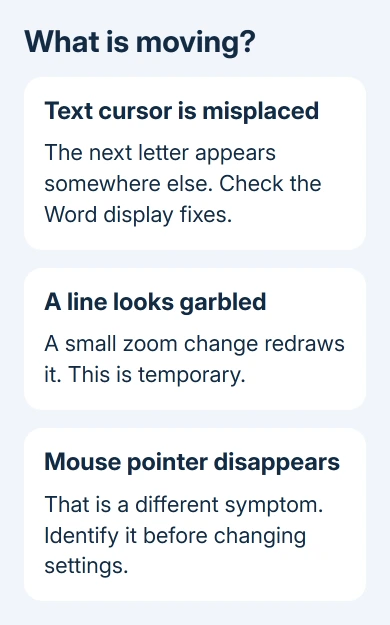
A small change in document zoom can make a garbled line readable again. Owners reported that this redrew the text, but a fixed zoom percentage didn't keep the problem away for the original asker.
In this guide
1. Install the update for the old cursor bug
Save open documents and choose File > Account > Update Options > Update Now. Select Enable Updates first if offered. Let Office complete its update, reopen Word, and return to the document that showed the fault.
The April 6, 2016 reply in the original cursor and line-display discussion announced a fix in the latest Office build, without giving its number.
That announcement applies to the historical issue. Keep receiving updates through the method approved for your current installation. The announcement doesn't call for replacing it with a 2016 build.
If Update Options is missing, check the Office update methods or ask workplace IT how that installation is updated.
If your workplace manages updates, an administrator may need to make the change.
Open File > Account > About Word and record the product version and 32-bit or 64-bit label. Your Word window may look the same as the one discussed in 2015, even with a different version installed.
Office 2016 support ended on October 14, 2025. For a computer still running it, arrange a supported replacement. Don't plan around a new Word 2016 fix being released for a present-day recurrence.
After updating, check a duplicate document by repeating the troublesome edit. Move through a sentence with the keyboard, insert a character, and check whether the visible insertion point matches where that character appears.
2. Redraw garbled text with a small zoom change
Nudge Word's bottom-right zoom slider to change the document magnification slightly. If a line was showing broken characters, inspect it again after the page redraws.
The original asker reported that changing zoom, even slightly, corrected the displayed line. Clicking into the affected line also refreshed it. This can make the text readable while you save work or finish a short edit.
Changing document zoom changes the view, not the font size stored in the document. Leave the font and paragraph settings alone when the same text becomes readable simply by redrawing the page.
Some owners found 110% helpful, but the asker later reported that four days at that setting still produced the fault. Use a zoom change as a temporary redraw rather than treating 110% as a permanent repair.
If page layout also shifts, the related Word 2016 indent-display checks distinguish disappearing indents from actual paragraph formatting.
The cursor problem affects where typing appears, even when the indents look right.
Once the line is readable, save normally. If the displayed cursor still disagrees with typing, avoid making a long series of blind corrections. Check a short passage first so you don't insert or delete the wrong text.
3. Try Use smart cursoring when the cursor still drifts
In Word 2016 for Windows, open File > Options > Advanced. Under Editing options, clear Use smart cursoring, select OK, close Word and reopen it. Note whether it was checked; you'll want your original choice if this doesn't help.
An owner reported that this restored normal cursor behavior in May 2016. Earlier owners had mixed results, and the original asker said it hadn't helped their installation.
I'd try it after updating, knowing it helped some owners but failed for others.
Test in the same document and zoom level where the insertion point used to drift. Move through existing text, then type a short word. Check whether the cursor now stays beside the characters as you type.
If it doesn't improve the behavior, restore your earlier preference and move to the next section. Once you've seen whether it helps, leave the option at your preferred setting instead of toggling it repeatedly.
This path belongs to Windows Word. The original discussion also mentions Outlook, but owners couldn't use the same smart-cursoring option there. Don't search Outlook's settings for a Word-only control.
4. Is it the text cursor or the mouse pointer?
Move your mouse across the ribbon, then click inside the document. The mouse pointer follows your hand; the text insertion cursor marks where the next character belongs. Check which one is wrong before changing Windows pointer settings.
The original fault placed the visible insertion cursor ahead of the real typing position. That differs from a mouse pointer that becomes white, disappears over the page, or won't move at all.
For the old Mac edition's disappearing pointer, use the Word for Mac 2011 cursor workaround. Its AutoHide rulers preference doesn't exist at the Windows menu path used here.
Compare the affected file with a new blank document, too. Tell IT when several documents show the fault, since that points beyond one damaged file.
I'd make this distinction before changing display drivers or Windows scaling. It's easy to spend an afternoon adjusting the pointer when the actual failure is Word drawing the insertion point incorrectly.
5. Stop repeating settings that already failed
Disabling hardware graphics acceleration was an early suggestion in the thread. The asker tested it and reported that both cursor drift and garbled lines continued. Other owners reported the same failure.
The asker also reported no lasting success from the high-DPI compatibility change. Don't apply registry recipes or compatibility changes copied from unrelated blurry-font problems as though they were the confirmed repair for this one.
Rolling back to Office 2013 stopped the problem for the asker at the time. Even though that worked then, Office 2013 isn't a suitable replacement today. Choose a currently supported product instead.
If a supported Word installation still fails, give workplace IT a small document without private content, the exact build, zoom level and editing steps.
Ask them to compare the visible cursor with the actual insertion position and open a Microsoft 365 support case.
Mention whether the small zoom change restores the line, whether disabling smart cursoring helped, and whether Outlook has the same behavior. Those details describe the failure much more clearly than saying the cursor jumps.
The Short Version
The historical Word 2016 display bug received an Office update. A small zoom change can redraw garbled text; disabling Use smart cursoring helped some owners. Keep mouse-pointer faults separate and replace unsupported Office versions.
Checked November 16, 2026.






