

Disappearing or doubled paragraph indents in early Word 2016 could be a screen-redrawing bug rather than damaged formatting. Toggle Home > Show/Hide to refresh the page, then install Office updates.
The original discussion reports a fix released in January 2016.
Check Print preview before reformatting the document. If the paragraphs look correct there but shift while editing, the display fault fits. If the printed layout is also wrong, inspect the actual paragraph settings instead.
In this guide
1. Refresh the page with Show/Hide
Open the affected document and go to Home. In the Paragraph group, click Show/Hide, the button displaying the paragraph-mark symbol. It switches the display of formatting marks and also redraws the text.
Watch the same indented paragraph as the display changes. For the old bug, its missing indent should reappear without changing the paragraph's Left, Right or special-indent values.
Type or edit near that paragraph to see whether the display breaks again.
A whole line vanishing at a new page needs the Widow/Orphan control workaround before changing its indentation.
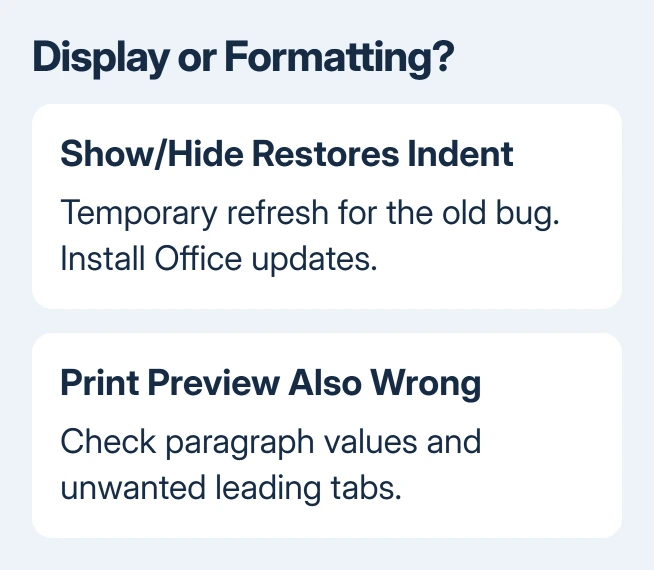
The original Word 2016 indent report describes this as a temporary workaround. An owner relayed the product team's explanation that the screen could be wrong while the document should print with its indents intact.
That matters before you start repairing paragraphs. Adding a fresh indent to text that already has the correct stored formatting can make the eventual printout wrong, even though it seems to fix one editing view.
If toggling Show/Hide restores the layout, keep working from the original formatting and install the update next. If nothing changes, compare Print preview before deciding that your document has the same historical bug.
2. Install the update rather than keep refreshing
In Windows Word, open File > Account > Update Options > Update Now. Select Enable Updates first when offered. Save work in other Office applications and let the update complete before reopening the document.
The January 27, 2016 reply announces an update for indents, tabs, stray character fragments, text selection and list display. It names a fixed-issue notice dated January 26.
The report describes those symptoms happening together. An indent that disappears alongside leftover pieces of characters fits this bug better than a first-line indent that was never set.
A visible insertion point ahead of actual typing needs the separate Word cursor-position checks, including the mixed smart-cursoring results.
The Office update procedure explains installation differences. Without Update Options, check the product's update method or ask IT whether workplace policy controls it.
After restarting Word, repeat the edit that shifted the paragraph: add text, delete a word, then scroll away and back. Check that the indent stays put during those edits, rather than checking only how it looks when it first opens.
The announcement doesn't give the build number for the fix, so don't roll a current installation back to an arbitrary 2016 release.
Install the update available for the licensed product or ask IT to repeat the failing edits with a supported Word installation.
Office 2016 is unsupported. For a computer still dependent on it, plan a supported replacement so you won't need the old display workaround to keep working.
3. Compare the editing view with Print preview
Choose File > Print and inspect the same paragraph in preview. Compare where its first line begins, where wrapped lines begin, and whether neighboring paragraphs still line up. Then return to the editing page without printing.
If preview is right while editing is wrong, leave the paragraph's settings as they are. Report it as a display problem with the exact action that makes the text shift.
That gives support a much clearer starting point than saying Word randomly changed the document.
If preview is wrong too, the stored layout needs checking. Click inside an affected paragraph and open the Home > Paragraph dialog launcher. Inspect Left, Right, and Special on Indents and Spacing.
For a paragraph that stays narrow in preview, check for an invisible wrapping object before resetting its formatting.
Compare those values with a correct paragraph that should match. To move the whole paragraph inward, use the Left and Right indent controls. A first-line indent moves only the first line; a hanging indent moves the lines that follow it.
Keep a separate copy before changing several paragraphs. Correct only the setting that differs from the intended format, then check both the editing page and Print preview again.
Clearing all formatting also removes useful styles and doesn't address a page that's drawn incorrectly.
4. Look for typed tabs when the format is really wrong
Leave Show/Hide on while examining a paragraph whose preview is wrong. It reveals paragraph marks and tab characters, which can explain a line that starts farther inward than its paragraph settings suggest.
An opening tab plus a first-line indent can move text twice. Remove an unwanted leading tab only after checking what the document needs.
A tab used for aligned page numbers or a form has a different purpose from a manually indented opening line.
Also check where each paragraph ends. Repeated paragraph marks can reveal that each short line is a separate paragraph with independent settings. Naturally wrapped lines belong to one paragraph and follow its shared settings.
For a bibliography whose lines after the first need to start farther inward, use the hanging-indent procedure. Don't imitate that layout by typing spaces or tabs at the start of every wrapped line.
I'd compare one faulty paragraph with one correct paragraph before changing the whole file. That lets you fix the paragraph that needs it without replacing the document's styles to deal with a screen problem.
5. Stop repeating the fixes that failed in the report
The original asker tried clearing formatting and pasting plain text into a new document, yet the problem returned. Turning off the listed OneNote add-in didn't change it either. Those results fit the later explanation of a display bug.
That doesn't mean add-ins can never cause a modern Word problem. It means this specific historical fault had an update and a redraw workaround, so another round of whole-document reformatting isn't the useful first step.
If it still happens after updates in a supported Word version, keep a short document without private data that shows the problem. Note whether Show/Hide restores the indent, whether preview is right, and which edit makes it fail again.
Ask support to check the display and stored formatting
Record the product and version from File > Account > About Word. Choose Help > Contact Support when available.
For a managed subscription, send IT the sample and the editing steps that trigger the problem, and request a Microsoft 365 support case.
Say whether the problem changes the actual print layout or only the editing display.
If the problem has returned in a supported version, those details help support compare it with the old fixed issue without assuming the cause is the same.
The Short Version
Toggle Show/Hide for the old Word 2016 redraw fault, then install Office updates. Compare Print preview before touching paragraph settings. Correct real indents or unwanted tabs only when the stored layout is wrong too.
Checked November 16, 2026.






