

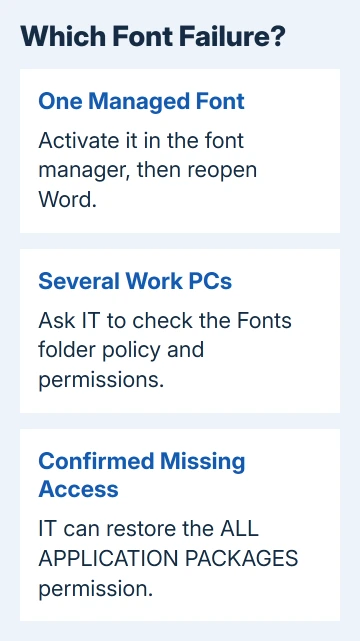
Word's message about insufficient memory or disk space can mean it can't read the requested font. When several work PCs develop it together, have IT check Fonts folder permissions; an Office 2016 case came from an old company policy.
For one document on one computer, check whether its font is installed and active first. Owners in the original discussion saw this message with both font permission problems and a deactivated font. Adding RAM isn't the first repair to try.
In this guide
1. Check whether the error follows one font or every file
Save your work, then create a blank Word document. Type a short line and select the font that triggers the error. Compare it with another familiar installed font, using the same text.
If one document fails while a blank document can use that font, save the troublesome file under a new name for further checks. If every new document rejects it too, check the installed font and Windows access next.
Look at the message's full ending. Word cannot display the requested font points to the font operation; a file-opening warning about permissions or storage can require a different repair even when its opening words look similar.
Also check whether the problem began on several managed computers after the same Windows update. That pattern matters to IT because a company setting can affect computers with ample memory and free storage.
The Word font installation guide covers adding a missing typeface. Installing another copy isn't the first choice when Windows already lists it and several apps suddenly can't use it.
2. Activate the font if you use a font manager
Open the font manager you use for design work and check the typeface needed by the document. Activate the required font and style, then close and reopen Word before trying the same text again.
One owner in the original font-error discussion fixed their case by activating a font in their font manager. Their problem didn't require a company policy change.
On Windows 11, check installed fonts in Settings > Personalization > Fonts. Windows 10 also has Settings > Personalization > Fonts. Look for the family the document needs, including the relevant style.
An installed family and a temporarily activated design font aren't always managed in the same place. If a font manager controls it, check whether the font is active in that app rather than trying to install the font again.
If the font isn't available, install a licensed copy from your normal source or ask the document's creator which substitute they approve. A substitute can move text onto different lines or pages, so check the result before sending it on.
If the font is active and new documents still produce the message, continue with the computer-wide comparison. A font that works normally after activation doesn't need the permission command in the next section.
3. Have IT check the Fonts policy on managed PCs
For a school or company PC, send IT the exact error, affected font names and what happened in a new blank document. Tell them whether other computers developed it at the same time.
In the 2017 Office 2013 and 2016 case, Windows 10 version 1703 exposed a problem with an existing Group Policy Object (GPO). A GPO is a set of settings an organization applies to its computers.
The old policy was assigning permissions to the Windows Fonts folder. Removing that setting stopped the problem on new deployments; IT still had to repair font access on computers that already had the problem.
Ask the administrator to inspect policies that set file-system permissions for %windir%\Fonts. There isn't one universal policy name to search for, because each organization can name and arrange its policies differently.
Ask IT to compare the settings and folder access with a working computer that uses the organization's approved setup. If IT changes access on the PC without fixing the policy, the unwanted setting can return.
The confirmed missing permission involved ALL APPLICATION PACKAGES. This is a Windows security group, not an Office add-in to download. Several replies reported that restoring its access repaired the affected fonts.
If the PC isn't managed by an organization, don't look for a domain controller or delete unrelated policies. Continue with local Office repair if the font is installed and the failure remains.
4. Restore the confirmed permission only with admin review
This step is for an administrator who has confirmed the same missing Fonts access. Record the existing folder permissions and correct the policy first. Don't apply broad ownership changes to the Windows folder.
The owner-confirmed command from the thread was run in an elevated Command Prompt, meaning Run as administrator:
icacls %windir%\Fonts /grant "ALL APPLICATION PACKAGES":(OI)(CI)RX /TMicrosoft's icacls reference explains the permission syntax. RX grants read and execute access; OI and CI mark inheritance for files and folders, while /T applies the command to the folder's contents, including subfolders.
Use Command Prompt for that exact command. PowerShell handles percent-style environment variables and parentheses differently, so pasting it unchanged into another shell can fail before it changes the intended permission.
Read the command's results. If access is denied or files weren't processed, ask the administrator to check those entries before calling the repair complete. Then check whether Word can use the affected font.
Close and reopen Word, create a blank document and select the font again. Then reopen a previously affected document and inspect its text. If the problem returns after policy refresh, IT needs to revisit the policy assignment.
5. Repair Office when the account and fonts look correct
When fonts are installed and active but this computer still fails, use the Office repair procedure. Save and close your Office work first. Repairing an Office installation can involve all its apps.
On Windows 11, open Settings > Apps > Installed apps, find Microsoft Office or Microsoft 365, open its three-dot menu and choose Modify. On Windows 10, use Settings > Apps > Apps & features, select Office and choose Modify.
For Click-to-Run installations, which use Office's streaming installer, try Quick Repair first, then Online Repair if needed.
An MSI installation, which uses a Windows Installer package, instead offers Repair. Use the options your installation offers; MSI won't show the Click-to-Run choices.
Afterward, start Word again and select that troublesome font. The Word startup checks are relevant if Word now fails before a document opens, rather than only when changing typefaces.
If the message remains, give IT or Microsoft support a small affected document, the font name, Office version and Windows version. Include whether another computer opens it and whether the blank-document check fails too.
Ask for a font access or document-formatting check using those results. For the managed-PC pattern, include the Fonts permission and policy results so support doesn't start again with unrelated memory upgrades.
The Short Version
Check the font in a blank document and activate it if needed. For affected work PCs, IT should inspect the Fonts policy and ALL APPLICATION PACKAGES access. Try Office repair after confirming that Windows can supply the active font.
Checked November 17, 2026.






