

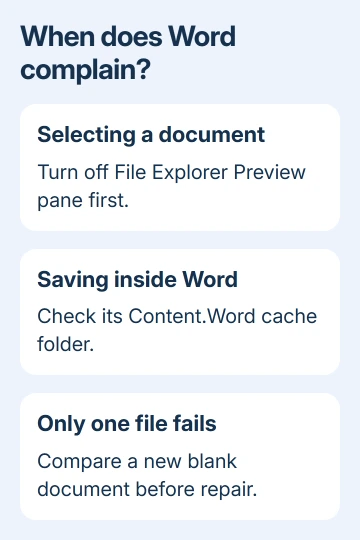
Word's could not create the work file error can involve its cache or File Explorer previews. Turn off Preview pane when selecting a document triggers it. For errors inside Word, check the Content.Word cache folder next.
The message mentions the temp environment variable, but that doesn't mean deleting everything in your Temp folder is the answer. The action that brings up the message tells you which repair to try first.
In this guide
1. Turn off Preview pane when selecting a file causes it
Close the error, open File Explorer and turn off Preview pane. In Windows 11, use View > Show > Preview pane. In Windows 10, open the View tab and clear Preview pane. Alt + P also toggles the pane.
For the different Microsoft Word previewer error, identify whether Word, Explorer or classic Outlook is showing the failed preview.
Select the same Word document again. Next, launch Word through Start and choose File > Open to open the saved document. This lets you check opening the file in Word without Explorer trying to preview it first.
Microsoft recommends turning off Preview pane in its work-file error instructions. If the message stops, leave it off while you check the Office preview component.
Turning off the pane hasn't repaired or deleted your document. Explorer simply stopped asking its preview handler, the component that draws a document preview, to show the file in that pane.
If the error also occurs with Preview pane off while saving inside Word, continue to the cache folder. Changing the pane won't resolve every cause covered by the same message.
2. Check the Content.Word folder at the correct location
Save any work you can and close Word. In File Explorer, enter this path in the address bar to reach your account's cache folder:
%LOCALAPPDATA%\Microsoft\Windows\INetCachePress Enter. The folder is inside your Windows user profile, not the folder containing your documents. Look for Content.Word. If it is missing, right-click an empty space, choose New > Folder, and name it exactly Content.Word.
On Windows 11, hidden files are shown through View > Show > Hidden items. Windows 10 has Hidden items on the View tab. Entering the path in the address bar takes you straight to the hidden location without opening each folder along the way.
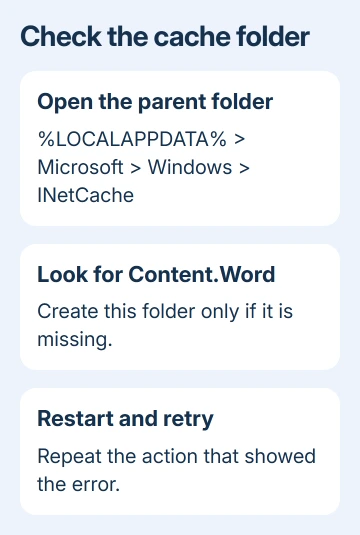
If Content.Word already exists, leave its contents alone for this check. Don't create a second folder with a different spelling, delete INetCache, or replace its permissions just to make a new folder appear.
After creating the missing folder, restart Windows and retry the action that showed the message. Try a new blank document as well as the original file. Check that the document saves without showing the message.
If Explorer reports Access denied, or the parent location itself can't open, note the exact path and error. Creating a missing Content.Word folder is different from fixing access to INetCache itself.
3. Separate a single damaged file from a Windows problem
Start with an empty Word document and save it to a local folder you normally use. Close it, reopen it and save a small change. Keep this check separate from the original document so it doesn't overwrite your work.
If the blank file works and only one document fails, follow the Word document repair steps. A problem confined to one file calls for checking that document before changing the cache again.
If Word can't reach its File menu, use the Word startup checks before trying to repair a document from Explorer. The work-file message and a failed app launch can need separate attention.
Write down whether the error happens on selection, opening, saving or closing. Also note whether it happens with every document. Support can narrow down the cause using that short description.
An older report includes the error while attaching a CV through a job website. Attaching an existing file doesn't require editing it in Word, so check whether Explorer's preview is what triggers Word during file selection.
4. Don't copy an old cache path into a current profile
The original work-file discussion includes advice to change the registry's Cache value to a Temporary Internet Files path. Those instructions came from the Windows 7 and Word 2010 era.
Later participants said their registry path was correct and the error continued. A correct path doesn't rule out the other causes. The accepted-answer label also doesn't confirm that every affected owner recovered.
On a current Windows installation, start with the supported INetCache\Content.Word check instead of pasting that older path into Registry Editor. If your profile has moved or IT manages the cache location, have its settings checked.
The Windows registry stores settings used by apps and the operating system. Changing the wrong entry can affect more than Word. I'd leave the cache value unchanged unless a technician has compared it with this account's intended folder.
If other programs can't save ordinary files in your folders, mention that when getting help. That means the problem affects more than Word's preview component, so support needs to check your account's access to those folders too.
5. Get the preview component or Windows files repaired
If the error stops with Preview pane off but you need previews back, have IT or Microsoft Support check Office's preview registration in Windows. Mention any recent change between 32-bit and 64-bit Office and give the installed version.
The work-file article includes removing registry entries for preview handlers. Ask support to check the handler causing the error first. Removing Word, Excel and PowerPoint entries together isn't needed just to keep Preview pane off.
For an error that persists inside Word, the same article recommends checking Windows for malware, damaged system files and disk errors. Run the installed security app's scan, and give support any detection or repair result.
Back up important documents before technician-led disk repairs. Report access-denied errors and the new-document save result. Those details help them decide whether your account or disk needs repair before reinstalling Word.
The Short Version
Disable Explorer's Preview pane for selection-triggered errors. For failures inside Word, check INetCache for a missing Content.Word folder and restart after creating it. Avoid importing old registry paths into a current Windows profile.
Checked November 16, 2026.
 If you have any business, I can build it online






