

Inserting a gallery cover page can change Word's numbering setup, leaving Page X of Y out of step with the report. Set the intended starting number first, then check the total separately.
Hiding the cover's number doesn't decide whether that page belongs in the total.
For a cover counted as page 1, the next page should show 2. For a report numbered from 1 after the cover, the total may need to count just the report. Those are different layouts, so choose yours before editing the footer.
In this guide
1. Restore the count you want after inserting the cover
Copy your report before changing its footer. Double-click the cover's header or footer. Open Page Number > Format Page Numbers from the header and footer controls. Check whether inserting the cover changed the starting setting.
One owner in the original Word discussion confirmed that switching to Continue from previous section made the cover count as the first page again. That was a manual correction, not an automatic template fix.
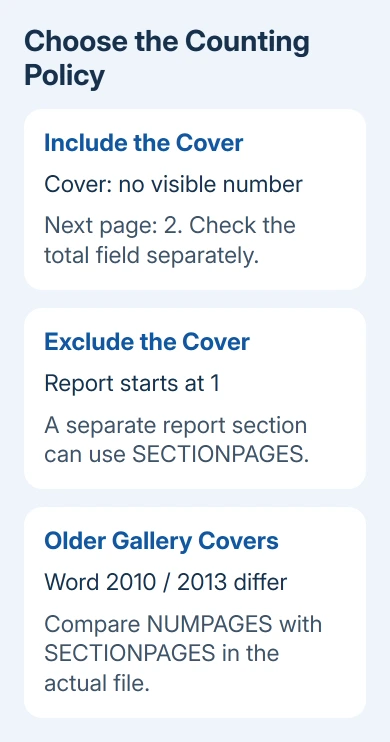
For a single-section document, choose the numbering setup that gives the cover page 1 and the following page 2. Start at: 1 supplies that sequence. Keep Different First Page enabled if the cover should carry no visible number.
Check the next two pages, not just the cover. If they show 2 and 3 while the cover has no printed number, the sequence fits a cover counted as page 1. Now inspect the final total in the same footer.
If the document has multiple sections, start with Continue from previous section where the sequence should carry on. A Start at value set in a later section takes over and can restart the visible numbering.
For the ordinary setup where the second physical page should show 1, Word's first-page numbering controls explain the offset.
Check that setting again after adding a gallery cover, because inserting the design can change it.
2. Check what the X and Y fields actually count
The current-page number and the total are separate fields. PAGE supplies the current number. NUMPAGES supplies a document page total. SECTIONPAGES supplies the number of pages in the current section.
Click the footer's total in Word for Windows and press Shift+F9 to switch the selected field between its result and code. Alt+F9 switches field-code display throughout the document.
Press the same shortcut again to show the page numbers instead of their codes.
On a Mac, Control-click the field and look for Toggle Field Codes. Function-key shortcuts can depend on the keyboard's Fn setting, so the field's context menu is a useful route when a shortcut changes brightness instead.
A typed numeral won't change as pages are added. If Y is plain text, replace it with the field for the total you need instead of typing another number. In Windows desktop Word, Insert > Quick Parts > Field opens the field chooser.
Choose the total field in Mac Word
In Word for Mac, use Insert > Field. Choose NumPages for the document total or SectionPages for a section total. Keep the existing PAGE field unless its own sequence is also wrong.
Use the field's context menu to update it, then compare the total with the pages in your document.
Microsoft's section-page definition confirms that SECTIONPAGES counts pages in that section.
3. Give the report a separate total when the cover is excluded
If the report should begin at 1 and its total should exclude the cover, put the cover in a separate section. Click just before the report begins and choose Layout > Breaks > Next Page in desktop Word.
Show Home > Show/Hide to inspect the boundary. Avoid keeping an extra manual page break that creates an unwanted blank page alongside the new section break. Check that the first report paragraph still starts on the intended page.
Open the report's footer and turn off Link to Previous before changing content that should differ from the cover. Header and footer links are separate.
Unlink the footer you're actually editing, rather than assuming a header change affects both.
Set the report section to Start at: 1. If its opening page also needs a number, clear Different First Page for that report section. A first-page exception can hide the number even when its starting value is correct.
Use PAGE for X and SECTIONPAGES for Y when the entire report is one section. That arrangement gives the report its own count without including the cover section. Check the first and last report pages after inserting the fields.
This approach won't give the whole report's total if it has several sections, such as a landscape appendix. SECTIONPAGES then counts only the current section. Don't replace every NUMPAGES field with it across a multi-section report.
4. Handle the older cover-gallery behavior carefully
The original thread concerned Word 2010 and 2013 cover-page behavior. A later reply reported a specific difference: NUMPAGES excluded the gallery cover in Word 2010/2013, while SECTIONPAGES and DocProperty Pages counted it.
For that older single-section layout, SECTIONPAGES offers a total including the cover. Check its result in your file before changing a current template.
Read the updated field result in your file. A starting-number correction can repair X while leaving Y unchanged. If Y remains wrong, check its field and the section it counts rather than changing Start at over and over.
I'd keep a correctly numbered copy as the starting template for a recurring report. That reduces the chance of inserting a cover at the end and having to repair numbering just before sending the file.
For a custom template used by colleagues, test a new document made from that template after adding its cover.
The asker's successful manual change didn't make Word automatically preserve the setting whenever someone inserted another gallery cover.
The asker also tested moving the custom cover building block into Custom Gallery 1. That preserved the wanted numbering, but inserted it at the cursor and left existing headers and footers alone.
If you maintain the template, decide whether keeping the numbering is enough to accept those changes.
If the design itself needs replacing, use the cover-page gallery controls, then repeat the numbering check.
A plain title page separated by a page break is another design choice when the gallery behavior is unwanted.
5. Check the finished count with the template author
Have the template author review a copy with the cover, section breaks and footer fields intact. Include the Word version and state the intended result, such as a hidden cover 1 followed by page 2 of 6.
Check File > Print before exporting or printing. Inspect the cover, the first report page and the last page. Make sure the printed pages follow the numbering you chose and show the same results as the footer fields.
The Short Version
Repair the starting sequence after inserting the gallery cover, then inspect PAGE and its total field separately. SECTIONPAGES counts its own section, so the cover's location matters. Verify the printed result.
Checked November 17, 2026.
 If you have any business, I can build it online






